Rep AI Chat Not Showing on Shopify? Causes and Fixes
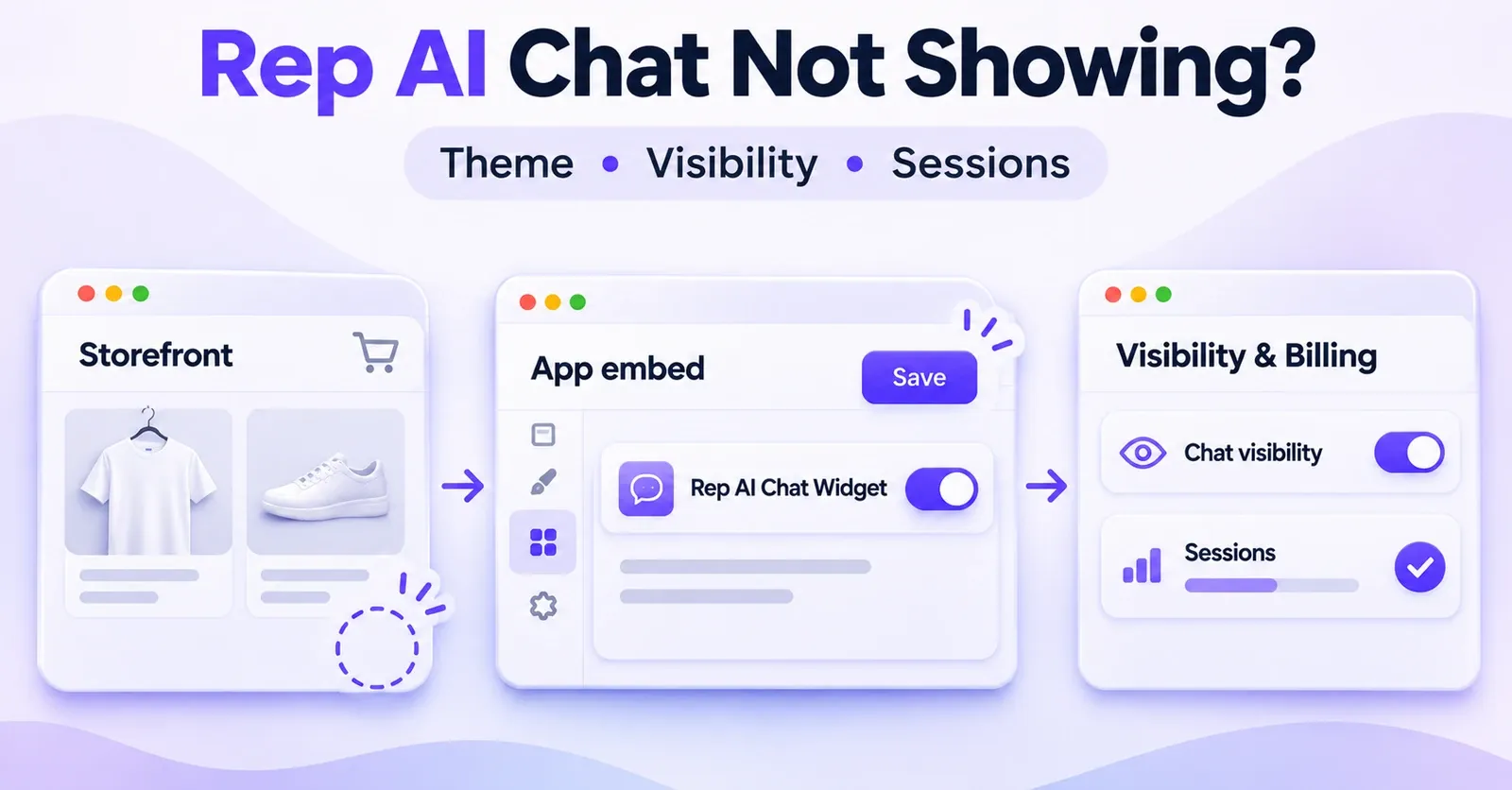
If your Rep AI chat is not showing on Shopify, start with the theme your customers actually visit. In Shopify Admin → Online Store → Themes, open the published theme, find App embeds, confirm that Rep AI Chat Widget is enabled, and click Save. Then check Rep Console to make sure AI Concierge Active and Visible is switched on. If the chat is still missing, examine the launcher style, permitted domains and countries, and whether your store has exceeded its session allowance without opting into overage charges.
Those checks address several distinct, documented reasons the assistant can be absent. They are safer than uninstalling the application, editing theme code at random, or assuming that a temporary loading problem means Rep AI is down.
There is one other distinction to make immediately: a chat bubble that never appears is a different problem from a chat window that opens but cannot send messages. The latter can involve a Shopify cookie-consent setting, while a missing bubble can involve visibility, theme activation, geography, or billing. Work from the symptom you can reproduce rather than changing every setting at once.
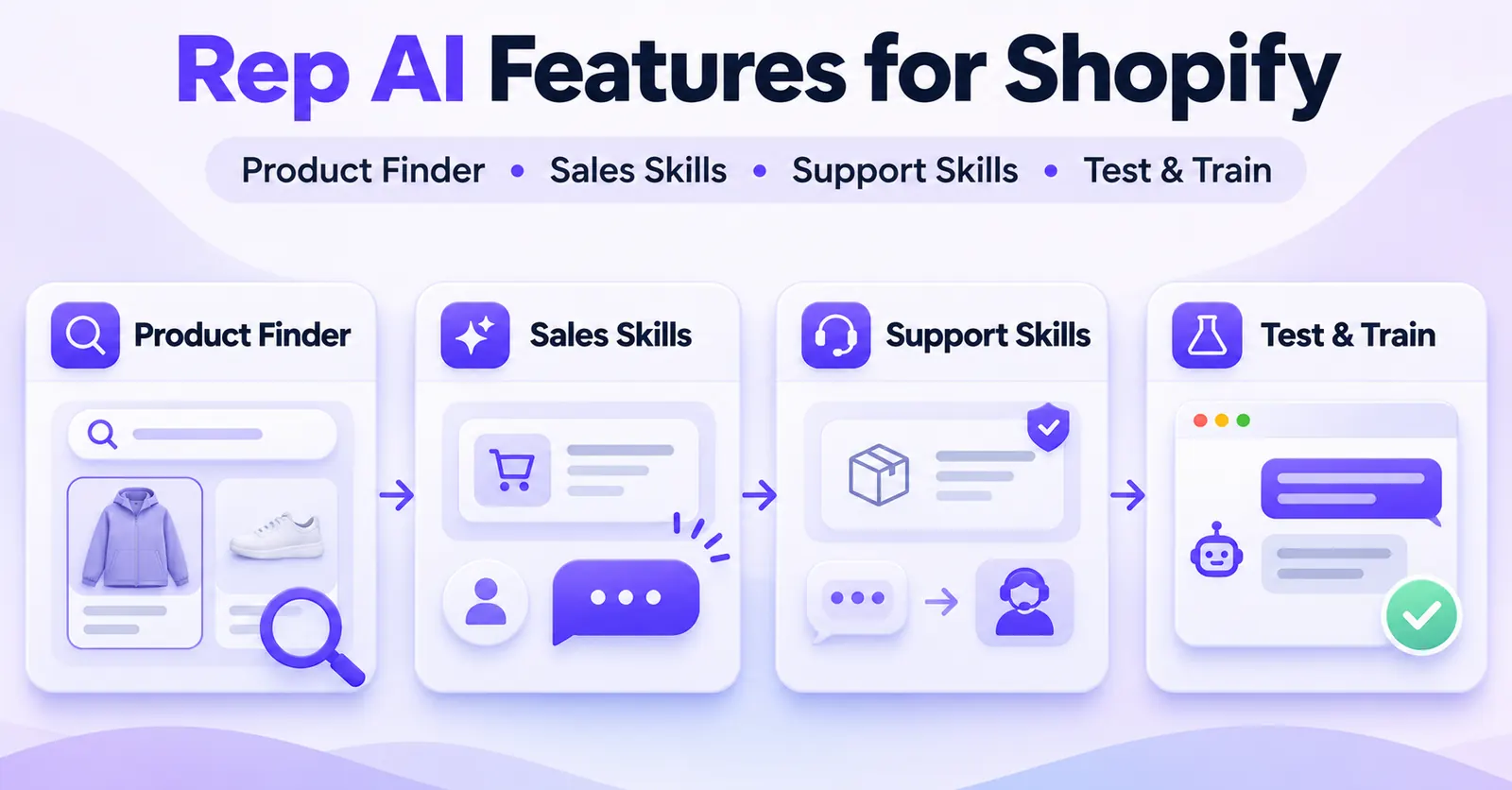
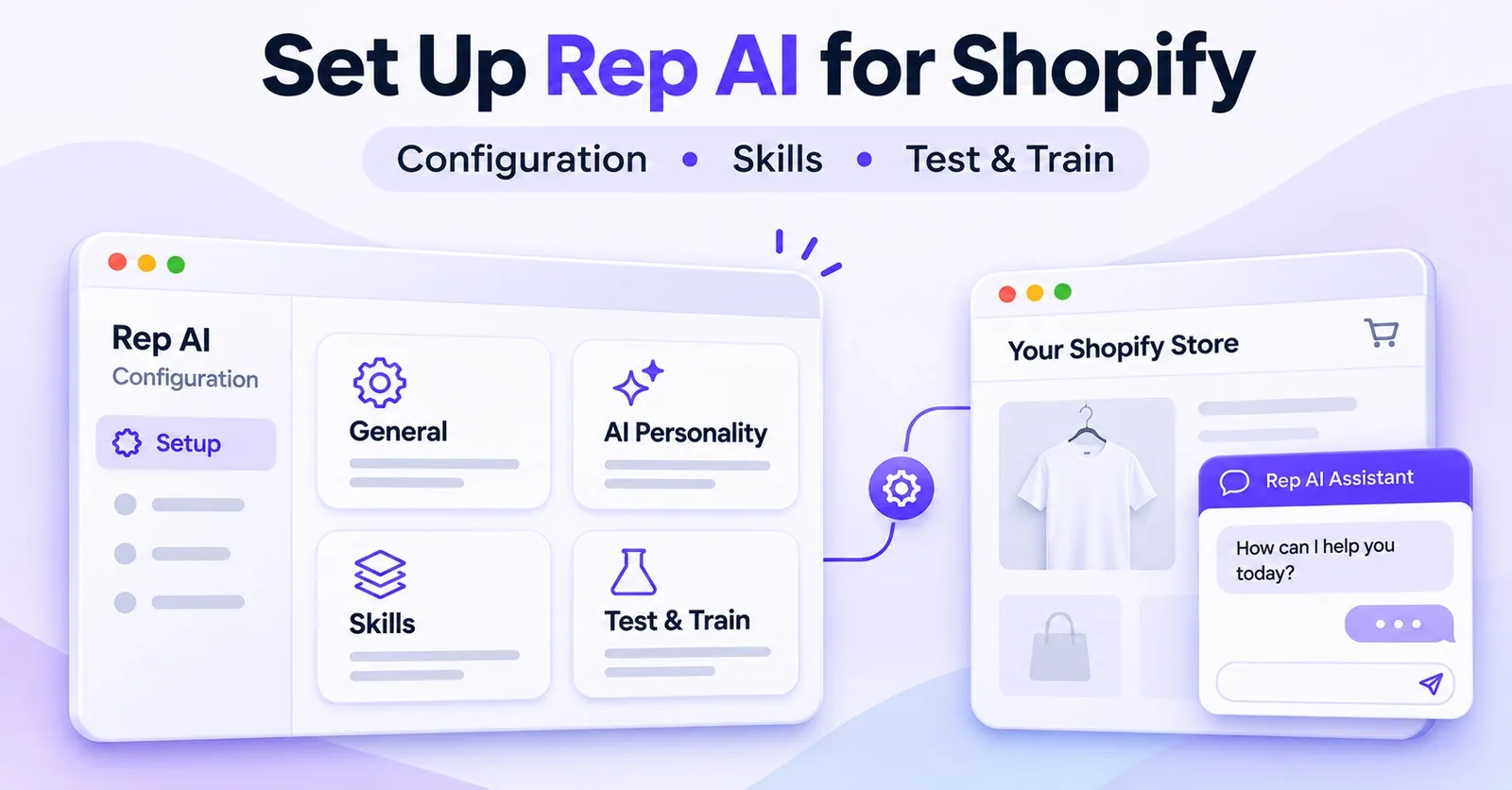
This guide is for merchants troubleshooting the customer-facing Rep AI / AI Concierge chat widget on a Shopify storefront. It focuses on getting the visible chat back and verifying the result. It does not replace a full installation tutorial, a general AI setup guide, or a troubleshooting manual for every Shopify integration.
Quick fixes: check these before changing code
Use this short sequence if the storefront chat has disappeared or never appeared after setup. Revisit the same public storefront URL after each change so you can identify which check mattered.
- Check onboarding and launch. On a new store, enabling the app embed does not necessarily mean the AI Concierge has been launched publicly. Complete Rep's onboarding and verify the launch status.
- Check the published Shopify theme. Open Online Store → Themes → Edit theme → App embeds for the active published theme. Turn on Rep AI Chat Widget, then select Save.
- Check Rep's visibility switch. In Rep Console, open Settings → Chat Widget and locate the Settings area within the widget design controls. Confirm AI Concierge Active and Visible is enabled, then save or use Save and Preview as the interface requires.
- Check the chat launcher. A Hidden button style can make the floating bubble disappear even when other Rep interactions remain configured. Inspect desktop and mobile button settings separately.
- Check access restrictions. Under Settings → General, review Allowed Domains and Excluded Countries. Test the exact hostname and visitor region affected.
- Check site-session billing. In Billing, review the current session allowance, consumption, notices, and whether overage charges are permitted. Rep documents a temporary widget disablement when a session limit is exceeded without overage consent.
- Compare storefront environments. Test a private browsing window, another browser, mobile and desktop, the affected URL, and one known-working page. Allow a short time for the page and its apps to load.
- Identify a different symptom. A cookie-consent notice that prevents sending a message, or an absent product-page question block, requires a different check from a missing floating widget.
- Escalate with evidence. If the issue persists, contact Rep Support with the store URL, published theme name where relevant, screenshots, browser details, and steps to reproduce.
You do not need to complete every check if an earlier one identifies the cause. Conversely, seeing an On switch in one screen does not prove that all the other controls are set correctly.
First identify exactly what is missing
The phrase Rep AI not showing can describe several different situations. The correct repair depends on which one you have.
| Symptom on the storefront | Most useful first check | What it does not prove |
|---|---|---|
| No bubble appears anywhere | Published theme App Embed, launch, master visibility | That the application has been uninstalled |
| Bubble disappeared after a theme change | App Embed on the new published theme | That the old theme's setting carried over |
| Chat appears in Console but not on the site | Public storefront, launch, embed, visibility | That Console preview confirms live deployment |
| Bubble missing on mobile only | Mobile launcher and position settings; overlays | That the backend is down |
| Missing on only certain pages | GTM or other conditional deployment rules | That Rep should appear on every URL |
| Missing in one country or hostname | Excluded Countries and Allowed Domains | That a universal outage occurred |
| Button opens chat, but sending is blocked | Shopify cookie-consent integration | That the widget failed to load |
| Product-page question buttons are missing | Separate Inline PDP Widget and product template | That the floating chat is broken |
| Chat vanished after a traffic spike | Session limit and overage opt-in | That the only option is a paid plan upgrade |
Before editing settings, write down a simple description of the failure: where, when, for whom, and what is actually visible. A report such as “the bubble is missing on the published product page in mobile Safari, but appears on desktop Chrome” is much more actionable than “the chatbot is broken.”
A reliable baseline is the publicly accessible store, not only a Shopify theme preview or a conversation simulator inside Rep Console. Those tools help with specific checks, but they cannot independently prove that a shopper sees the same interface.
Fix 1: Check whether Rep AI has actually been launched
For a first-time setup, the most common conceptual mistake is to treat installation, app embed activation, and launch as one event. Rep documents them as separate stages.
During onboarding, merchants may encounter an Activate Tag step. It can open Shopify's theme editor with Rep's app embed switched on. The merchant must still click Save in Shopify, return to the Rep onboarding flow, and complete subsequent setup. The assistant is not necessarily visible to visitors at this point. Launch occurs later in the process.
If you have just installed Rep and cannot find the chat:
- Return to Rep Console and look for any incomplete onboarding or launch steps.
- Confirm that the Shopify embed step was saved rather than merely toggled on.
- Check whether the initial catalog connection or synchronization is still being processed.
- Complete the launch step provided by Rep when the account is ready.
- Open the actual storefront as a visitor and confirm that the chat interface appears.
What this fixes: an installation that is technically connected but not yet publicly launched. What it does not fix: a previously functioning widget that has gone missing because of a domain restriction, a hidden launcher, a billing limit, or a later theme change.
If the onboarding flow seems stuck on the embed step, return to the theme editor and check whether Save was pressed. Rep's onboarding documentation explains that the Console checks for the saved activation. Do not interpret a stalled onboarding screen as proof that the code is absent until you have checked Shopify's saved theme state.
Why an active embed can coexist with no visible chat
The embed makes Rep's storefront component available to the theme. Rep's own visibility and launch decisions are still relevant. A new merchant may therefore see Rep AI Chat Widget: On inside Shopify and yet see no conversation bubble on the storefront. The correct next check is the launch workflow, not necessarily another installation attempt.
This distinction becomes especially useful when a colleague reports, “I enabled the widget, but nothing happened.” Ask whether the account has completed the final launch, whether the published theme was changed, and whether the saved setting can be confirmed after reopening the editor.
Fix 2: Enable the App Embed on the published Shopify theme
If Rep AI worked before and disappeared after a theme redesign or theme publication, check the app embed on the newly published theme first. Shopify app embeds are activated per theme. A switch enabled on a previous theme does not automatically establish that it is enabled on the currently live one.
Step-by-step: verify the storefront embed
- Sign in to your Shopify administrator account.
- Open Online Store → Themes.
- Identify the theme marked as published or current. Do not assume the most recently edited draft is live.
- Open its theme editor using Edit theme or the corresponding customize action shown in your Shopify interface.
- Select App embeds from the editor sidebar.
- Find Rep AI Chat Widget and switch it On, if it is off.
- Click Save in the upper-right corner.
- Reload the publicly accessible storefront and check whether the chat appears.
The Save step matters. Simply moving a toggle to On without saving does not publish the change. If the editor was closed before saving, reopen it, confirm the state, and save deliberately.
Rep's November 2026 instructions emphasize that the correct theme is the one shoppers currently use. If the App Embed cannot be found, Rep recommends contacting support with the store URL and theme name. If you lack permission to edit themes, ask an appropriately authorized Shopify user to complete that check.
 Quentin Olaya
What if the theme editor shows Rep as enabled?
Do not stop at the toggle. Check the saved state, then move to Rep Console's AI Concierge Active and Visible control. The two systems address different parts of storefront availability. A properly saved Shopify embed does not guarantee that the assistant has been launched, that its launcher is visible, or that the visitor's domain or country is permitted.
Avoid modifying theme liquid files as a first response to a normal Shopify App Embed issue. The supported theme-editor path is simpler, easier to reverse, and less likely to create overlapping installations.
Fix 3: Reactivate the chat in Rep Console
Rep provides a separate master visibility control. It is possible to have the app embed switched on in Shopify while the assistant is deliberately hidden from storefront visitors in Rep's own settings.
Open Rep Console → Settings → Chat Widget. In the widget design area, find the Settings section or tab and the setting called AI Concierge Active and Visible. Turn that on if you want the chat live, then use the available save action. Depending on the interface version, the labels around the design settings may differ slightly; the name of the master control is the important landmark.
After saving, use the Console preview to inspect the design if needed, but verify separately on the public storefront. For a newly launched store, confirm both the finished onboarding state and this visibility control before assuming there is a loading failure.
Hidden versus disabled: two different meanings
A deactivated master visibility switch is not the same as canceling a Rep subscription. Rep's documentation explicitly separates hiding or reactivating the widget from account cancellation. It is also different from changing the appearance of the button customers click.
If someone on your team temporarily hid the assistant during a promotion, support changeover, or redesign, the master switch may have been intentionally turned off. Check the change history or ask teammates before altering a production setting. The safe action is to restore only the visibility configuration that your store actually intends to use.
Fix 4: Make sure the chat launcher itself is not hidden
Sometimes the apparent outage is only a missing chat bubble. Rep's widget-design controls include a Hidden button style. This option can be useful for merchants who want shoppers to reach Rep through an embedded element or proactive interaction rather than a persistent floating launcher. But it can also confuse a team expecting the normal corner bubble.
To investigate, open Settings → Chat Widget in Rep Console and inspect the Button tab or equivalent widget appearance controls. Look for Button Style, Hidden, button size, button color, and any separate mobile style setting.
Switch to a visible button style if the floating launcher is supposed to appear. Save the change, then check the storefront on desktop and mobile. If the button becomes visible, the issue was a presentation choice, not necessarily a failure of the conversation engine.
Check positioning, overlap, and mobile design
A visible launcher can also seem absent because it is positioned away from the visible area, too close to an edge, too small, or visually obscured by another element. Rep supports positioning options for desktop and separate positions or styles for mobile. It also documents how the chat can sit behind page elements when layering settings are used.
Inspect the relevant Position controls. Look for custom X/Y offsets, the chosen screen edge, Different Position on Mobile, and any option about hiding the chat window under elements. Then compare the public site at several viewport widths.
Common merchant-side tests include checking whether a sticky mobile purchase bar, cookie banner, loyalty tab, floating support button, or menu overlay occupies the same corner. These are diagnostic hypotheses, not proof that a particular theme is incompatible with Rep.
Do not add a large z-index patch to your Shopify CSS simply because the widget is absent. First confirm whether the Rep element loaded, whether the intended launcher style is visible, and which element actually overlaps it. A rushed theme patch may disturb other storefront interfaces without addressing the original cause.
The button is visible, but clicking does nothing
That is no longer strictly a missing launcher symptom. Note whether a chat window starts to open, whether the browser reports an error, and whether the problem occurs on all pages. Rep's visibility controls can confirm the intended state, but they cannot identify every interaction problem without observing the actual page. Gather the browser and URL details for support rather than assuming the symptom has the same cause as an invisible bubble.
Fix 5: Review Allowed Domains and Excluded Countries
Rep's general settings can intentionally restrict where and for whom the chat loads. These checks matter particularly when an assistant appears on one hostname but not another, or when customers in one market report a missing chat that local staff cannot reproduce.
Allowed Domains: match the exact storefront hostname
In Rep Console → Settings → General, find Allowed Domains. Rep documents that leaving the field empty permits traffic from any domain, while a configured list restricts which sites can display the assistant.
If you use a restricted list, compare it with the exact hostname seen in the customer's address bar. Check the root domain, the www variant, and any separate shop or blog subdomain that needs to run the chat. Rep's guidance notes that subdomains may need their own entries.
For example, a merchant might test successfully on shop.example.com but fail on www.example.com after a domain move. The right response is to compare the configured domain list with the current storefront, not to assume that permission automatically follows every related subdomain.
Avoid editing the store URL field as a makeshift fix. Rep describes that field as synchronized from the e-commerce platform and warns against modifying it casually. Address the allowed-domain setting or escalate an unexpected domain mismatch instead.
Excluded Countries: a missing widget can be intentional
The same General area contains Excluded Countries. Rep documents a clear outcome: when a visitor is in a country on that list, the widget does not load for that visitor. This restriction can affect legitimate shoppers as well as unwanted traffic.
Check the affected customer's country, then inspect the exclusion list. If that market is meant to be served, reconsider the exclusion with the account owner. Do not remove geographic restrictions indiscriminately; they may reflect a deliberate business or risk decision.
Rep's country detection uses the visitor's IP address, so a VPN may complicate the test. Reproducing the issue in one location but not another is a useful clue, not a conclusive diagnosis until the relevant settings and visitor context have been compared.
Domains, markets, and regions are separate questions
A store can serve multiple Shopify markets while still using particular Rep domain or country settings. An apparently geographic failure can involve the hostname chosen for a market, an explicit exclusion, or a technical deployment choice. Document which combination fails: country, hostname, page, and device. That gives a much stronger starting point than “Rep doesn't work internationally.”
Fix 6: Check whether a session limit temporarily disabled the widget
One of the least obvious documented causes of a missing Rep AI chat has nothing to do with your theme. Rep may temporarily disable the widget if your store exceeds its included site-session allowance and you have not opted into overage charges. This is a specific billing condition described by Rep, not a claim that every account or every traffic spike automatically switches off the assistant.
That distinction matters. A merchant might notice the chat disappear during a busy campaign, revert theme edits, and spend hours debugging front-end code while the actual condition is visible on the billing screen.
How to check the session allowance
- Sign in to Rep Console.
- Open the account or store menu and select Billing. Rep's help material describes an overflow menu near the store name in the lower-left area.
- Look at the bar or summary for site sessions consumed and the session limit for the current billing cycle.
- Review any warnings sent at the published alert thresholds, including 80%, 90%, and 100% of the allowance.
- Determine whether the account has approved overage charges in the applicable Shopify billing workflow.
- If you suspect a quota-related suspension, confirm the account's billing status and available options before deciding what to change.
The relevant usage unit here is site sessions. It should not be casually relabeled as chat messages, AI answers, conversations, or resolved support tickets. A visitor can create a session without opening a chat, depending on how traffic is counted in the relevant Rep product. This article does not attempt to recreate the full subscription model or quote current prices, because its purpose is to troubleshoot storefront visibility.
What happens if overages are not approved?
Rep's billing documentation states that the widget can be temporarily disabled until the start of the next billing cycleafter the session limit is exceeded without overage opt-in. That provides a direct reason to review Billing when there has been no recent theme change but the chat has vanished.
Do not promise an immediate restoration time after a merchant approves overages, changes plans, or contacts support: the public material reviewed for this guide does not establish one universal recovery interval. If continuity is urgent, contact Rep to confirm the account's status and the appropriate restoration path.
Should you approve overage charges?
That is a commercial decision, not a free technical reset. Review usage, the contract, available allowances, and expected traffic with the person authorized to approve charges. Depending on the account, a plan change, additional usage approval, or another arrangement may be appropriate. This guide does not advise authorizing unexpected costs merely to make a switch turn green.
A useful diagnostic sequence is: verify the storefront symptom, confirm that launch and visibility are enabled, inspect Billing, and only then discuss a billing change. If the session allowance is not exhausted, continue through the technical checks rather than treating Billing as a universal explanation.
Fix 7: Check the transition from legacy script tags to App Embed
Shopify is retiring an older approach to loading application scripts on storefront pages. This has a specific timeline that Rep AI merchants should understand, particularly if the assistant was installed a long time ago.
Rep announced on November 9, 2026 that stores still relying on its older script-tag installation should enable the Shopify App Embed before March 1, 2027. Shopify's platform timetable says that existing storefront script tags continue running until that March 2027 date, when Shopify stops injecting them into storefront pages.
As of November 13, 2026, that deadline is still in the future. It would be incorrect to tell merchants that every legacy Rep script had already stopped working. The actionable point is to check the current deployment method now and complete any required migration before the cutoff.
What an existing merchant should verify
- Open the published Shopify theme and look for Rep AI Chat Widget under App embeds.
- If it is already on and saved, Rep's migration notice says no further activation is needed on that theme.
- If your store is still relying on an older script-tag setup, follow Rep's documented App Embed activation flow and save the theme change.
- Check the public storefront after activation. Confirm that the chat works before changing any remaining custom loading configuration.
- If the implementation is managed through custom code or an agency, coordinate the migration rather than deleting snippets blindly.
Shopify also warns about a temporary overlap risk: where a legacy script and its replacement both run, the same application code may be loaded twice, potentially duplicating interface elements or analytics events. That is a reason to plan and verify the migration carefully, not a reason to remove a working old integration before the replacement has been confirmed.
 Quentin Olaya
Why old documentation may look different
Some Rep integration material from earlier periods describes automatic script injection. The more recent Shopify App Embed guidance reflects the platform's changing deployment requirements. If two guides appear to disagree, consider their dates, the installation method, and the type of storefront involved.
Most standard Shopify stores should start with the live theme's App Embed check. A headless storefront or a carefully configured Google Tag Manager deployment may use a different technical path. Avoid combining all of these methods in an attempt to “make Rep load twice just in case.” Redundant scripts can complicate the symptoms you are trying to solve.
Fix 8: Determine whether the chat is intentionally missing on certain pages
Sometimes a store owner says the widget is missing but later discovers it is absent only on the cart, a landing page, the homepage, or a particular product template. That pattern points toward page targeting or a difference in frontend implementation, not necessarily a site-wide failure.
Rep documents a way to control visibility on particular URLs using Google Tag Manager and conditional page-view triggers. A store configured that way may intentionally load the Rep script only on selected routes. If the conditions are overly narrow, stale, or inconsistent with recent URL changes, the assistant may not appear where the merchant expects it.
For this troubleshooting article, the goal is only to identify that condition:
- Compare a URL where Rep appears with one where it does not.
- Ask whether your store uses GTM, custom HTML tags, or page-level conditions to load the widget.
- If it does, have the person managing GTM inspect the tag's firing rules using its preview/debug environment.
- Look for competing or duplicate Rep loaders rather than adding a second tag as a quick fix.
- Re-test the same URLs after a controlled change.
A store that deliberately loads Rep only on product and collection pages should not be expected to display it on every policy or account page. Conversely, if your business needs the assistant available on a page that the tag excludes, the targeting rules may need adjustment.
This guide intentionally does not walk through creating GTM exclusion expressions or a full page-targeting policy. Those are separate configuration decisions; solving a visibility symptom should not unintentionally reverse them across the entire site.
Shopify headless is a different deployment case
A headless Shopify store uses a custom storefront frontend instead of relying exclusively on a conventional Shopify theme for the customer-facing interface. Rep documents a JavaScript method for these sites and also discusses GTM-based deployment.
If your site is headless, instructions such as Online Store → Themes → App embeds may not describe the component that actually renders the storefront shoppers see. Check the custom frontend's script integration, deployment configuration, and any loading conditions with your development team.
Do not conclude that Rep is incompatible with headless Shopify. Nor should you promise that a standard theme-editor toggle will repair a custom React, Next.js, or other frontend without examining its actual setup. Record which deployment model is in use before trying to fix it.
Fix 9: Isolate browser, device, and interface conflicts
A storefront chatbot depends on more than one moving part. The merchant's theme, browser extensions, consent environment, page layout, and other scripts can change what the visitor sees. Rep's own visibility troubleshooting advice includes a private browsing test, waiting briefly for the widget to load, and checking the installed embed.
These are tests, not automatic diagnoses. A widget that fails in one browser is not proof that an ad blocker is responsible. Similarly, a successful private-window test does not identify which cookie, extension, cache entry, or prior session state created the difference.
A practical comparison test
Use one exact storefront URL and run the following comparisons:
| Test | What to observe | How to interpret it |
|---|---|---|
| Normal window vs private window | Does a launcher appear in one but not the other? | Investigate browser state, extensions, consent, and cache as possibilities |
| Desktop vs mobile | Is the button absent only at one screen width? | Inspect separate mobile style, position, and overlapping UI |
| Homepage vs product page | Does page template or URL change the result? | Examine targeting, embedded components, and template-specific elements |
| Staff browser vs outside visitor | Does an actual public visit behave differently? | Do not substitute Console or theme-editor preview for the live storefront |
| One hostname vs another | Does www or a shop subdomain behave differently? | Review Allowed Domains and deployed scripts |
| One country vs another | Is visibility region-specific? | Check Excluded Countries and the visitor's network context |
Wait briefly after a page loads. Rep's historical visibility guide says the widget is designed to load after other page elements, a behavior intended to reduce interference with storefront loading. This means that declaring it missing the instant the page begins to render can produce a false alarm. However, the documentation does not establish a fixed load-time promise that applies to every shop.
If the widget fails repeatedly in the same environment, record the browser version, page URL, approximate time, device type, whether a private window changes the result, and any visible error. If a developer inspects console errors, do not assume every unrelated JavaScript error on the page was caused by Rep.
Mobile-only problems deserve a separate look
A mobile storefront may have a bottom navigation bar, sticky purchase control, floating marketing tab, privacy banner, or other fixed component competing for the same screen area. Rep also provides mobile-specific widget positioning and button-style options.
Inspect the actual viewport with a real phone if possible. Check whether the launcher is hidden, outside the visible area, behind a control, or present but not tappable. Then compare Rep's Button and Position settings for mobile and desktop. Test at more than one mobile width before generalizing from a single device.
The solution may involve adjusting an intended layout configuration, not changing the underlying AI assistant. Any CSS alteration should follow an observed overlap rather than a guess.
Fix 10: If the chat opens but you cannot send a message, check consent
A conversation window that opens but prevents sending is an important nearby symptom, yet it should not be confused with a widget that never renders.
Rep introduced a setting in November 2026 that lets its standard Shopify chat widget follow the store's existing Shopify cookie-banner choices. The option is called Use my store's cookie banner, found in the chat-widget settings under Chat experience. Rep documents the setting as off by default and specifies that it does not apply to headless Shopify or non-Shopify installations.
When a merchant enables this integration, the conversation depends on how the store records the visitor's choices. Under the documented behavior:
- A shopper who has accepted both analytics and marketing consent in Shopify can proceed with the chat.
- A shopper who rejects, ignores the banner, or accepts analytics only may see a notice explaining that the chat requires cookies.
- That shopper cannot send a message until the required consent has been recorded.
- If the visitor makes the required choice while the notice is open, the conversation can become available without a reload.
This does not mean that every consent issue hides the launcher. The Rep documentation describes a notice inside the chat and an inability to send, not a universal disappearance of the floating bubble.
How to investigate a consent-blocked conversation
- First confirm that the visitor can see and open the chat.
- In Rep Console, check whether Use my store's cookie banner is enabled.
- Confirm that the banner or consent app records the relevant analytics and marketing choices in Shopify.
- Reproduce the experience in a fresh browser session without assuming an earlier choice remains unchanged.
- If consent is granted but the notice persists, check the banner's Shopify connection and the actual stored consent state.
Do not bypass a shopper's privacy preferences to make a troubleshooting test “pass.” The correct repair is to align the chosen storefront consent behavior with the merchant's legitimate setup and applicable requirements.
If no chat bubble appears at all, return to the earlier embed, visibility, domain, country, and billing checks. The cookie-consent feature is not a shortcut explanation for every absent widget.
 Quentin Olaya
Fix 11: Do not confuse the floating chat with the Inline PDP Widget
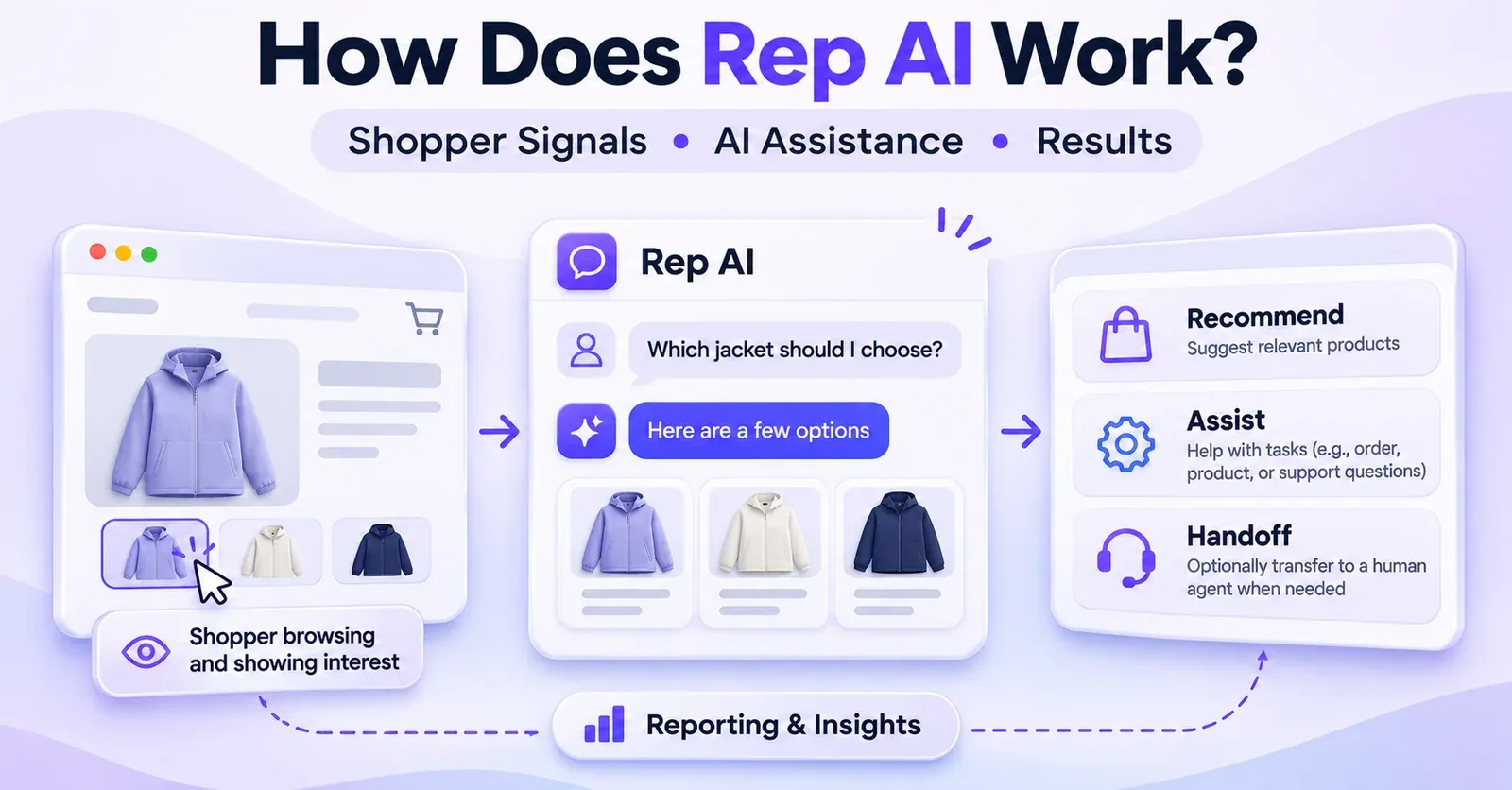
Rep offers a separate Inline Product Detail Page (PDP) Widget that places clickable questions alongside product information. On a product page, this can look like “Ask about this product” or a set of suggested questions. Clicking one of these questions opens the full Rep chat with the selected topic.
The Inline PDP Widget is not the floating chat button. Rep's documentation describes it as a complementary component. A missing product-page block therefore has its own installation and placement conditions, even when the floating chat works perfectly.
If your floating bubble is visible but those question buttons have vanished, inspect the Inline PDP configuration instead of reworking the whole chat embed. On Shopify, Rep describes a theme-editor placement using an app block named Rep AI product questions, with behavior tied to product-page templates. A custom container integration has different considerations.
A status such as Not showing in the Inline PDP area may reflect missing placement in the published theme, a product template mismatch, an unavailable custom container, or a verification issue. Rep also notes that a password-protected storefront can complicate its automated checks. None of those details establishes that the floating chat has been uninstalled.
A useful support report starts by naming the missing component exactly: floating chat launcher, chat window, or inline product-page questions. That prevents the team from applying the wrong set of fixes.
A repeatable troubleshooting workflow for your team
When multiple staff members manage your Shopify store, a written diagnostic routine prevents contradictory changes. Use the following workflow to investigate without losing track of what was tested.
Stage A: Capture the starting state
Record the affected public URL, current published theme, whether Rep has launched, the time of the incident, and the exact symptom. Note if anyone recently changed themes, billing preferences, geographic restrictions, GTM rules, or widget design. A screenshot should capture the missing or blocked interface without exposing customer information.
Stage B: Check the least invasive settings
Confirm that the correct theme has the Rep App Embed enabled and saved. Check AI Concierge Active and Visible. Inspect the Button setting for Hidden and any mobile-specific variation. Then compare Allowed Domains and Excluded Countries against the affected visitor.
These checks are relatively direct and reversible. Make one change at a time, save where required, and retest the same page. Avoid turning unrelated settings on or off just because they are nearby in the Console.
Stage C: Check account and deployment conditions
Review session usage and overage permissions. Determine whether the store uses the normal App Embed, an older script-tag path, conditional GTM, or a headless integration. For unusual deployments, involve the owner or developer who understands the loading mechanism before altering scripts.
Stage D: Validate on the public storefront
Test desktop and mobile, normal and private windows, and the important shopper pages. If geographic behavior is suspected, repeat with an authorized test setup and compare domains and regions. Distinguish a visible chat that cannot send messages from a chat that is completely absent.
Stage E: Escalate when the evidence points beyond self-service
Contact Rep Support if the embed is unavailable, the published-theme controls look correct but Rep still does not appear, billing indicates a suspension without a clear restoration path, or custom integration behavior cannot be explained. The aim is not to prove a specific cause prematurely; it is to provide a reproducible report that support can investigate.
What to send Rep Support when the widget still will not show
A useful support request should contain enough context for another person to reproduce the problem. Provide the storefront URL and, if theme activation is relevant, the published Shopify theme name. Rep explicitly requests these details for certain App Embed troubleshooting cases.
Add the affected pages, the time and time zone of the last failure, desktop or mobile device, browser, whether the issue occurs in a private window, and any recent changes. Explain which checks have already been performed. If you have screenshots, remove personal details, authentication data, order identifiers, and private customer conversations before sharing.
For account-specific billing questions, refer support to the plan and session status visible in the authenticated account. You do not need to disclose Shopify passwords, API secrets, or access tokens in a routine chat-widget visibility report.
You can use a short report format such as:
Issue: Rep AI floating chat is not visible on the published Shopify storefront. Affected URL: [public page]. First noticed: [date/time]. Device/browser: [details]. Checked: published theme App Embed enabled and saved; Rep Console visibility on; launcher not hidden; domain/country restrictions reviewed; current session allowance reviewed. Additional evidence: [screenshots and steps to reproduce].
Replace the placeholders with observations you have actually verified. If you did not check Billing or exclusions, say so; a precise unknown is better than claiming a test was completed when it was not.
How to verify that the fix really worked
A setting saved successfully is only one part of validation. The actual success criterion is a shopper-facing Rep chat working as intended on the pages and devices where you expect it.
For a reasonable post-fix check:
- Open the public, published storefront in a fresh browsing session.
- Allow the page and its normal applications to finish loading.
- Confirm that the intended launcher or entry point appears.
- Open the window and verify that its interface is usable.
- Where your merchant test procedures permit it, submit a harmless non-transactional question.
- Repeat on a representative product page and on mobile.
- If you serve multiple hostnames or geographic markets, test the affected cases again.
- Check that a migration or script change did not create a duplicate widget.
Do not place test orders, issue refunds, or modify customer data merely to validate that a chat bubble loads. Storefront visibility can be tested with low-impact interactions.
A successful verification should also preserve the merchant's intended configuration. If Rep is supposed to be hidden on specific pages, or absent in excluded countries, those cases should remain deliberately excluded. “Working” does not always mean “visible to everyone everywhere.”
Final checklist: restore the right chat in the right place
A missing Rep AI chat usually calls for targeted verification, not broad changes. Confirm that Rep is launched, its embed is enabled and saved on the published Shopify theme, and its visibility and button settings match your intent. Then review domain/country access, billing sessions, conditional loading, and differences across devices or consent states.
If the chat remains absent after those tests, stop guessing and escalate with a reproducible description. The objective is not merely to make a preview look correct: it is to restore the customer-facing experience while preserving your store's approved settings, privacy preferences, and billing decisions.
Frequently asked questions
Why is Rep AI installed but not visible on my Shopify store?
Installation alone does not guarantee storefront visibility. The published theme needs the Rep App Embed enabled and saved, and a first-time account may still need to complete onboarding and launch. Also check AI Concierge Active and Visible, the launcher style, domain and country restrictions, and session-limit billing status. Diagnose the actual state rather than assuming reinstalling is required.
Where do I enable the Rep AI chat in Shopify?
Go to Online Store → Themes, edit your published theme, open App embeds, find Rep AI Chat Widget, switch it on, and click Save. Then visit the live store. If the App Embed is missing, give Rep Support your store URL and theme name. If you cannot edit themes, involve a Shopify user with the appropriate permissions.
Why did Rep AI disappear after I changed Shopify themes?
App Embed activation is configured per theme. A Rep widget enabled on a previously published theme may not be enabled on the new live one. Check App embeds on the current published theme, save the setting, and retest. Also confirm that visibility has not been disabled in Rep Console.
Why does Rep Console say the widget is active when I see no chat bubble?
The Console and Shopify theme editor control different parts of the experience. In Rep, AI Concierge Active and Visible may be on while the published Shopify embed is off. Conversely, the embed may be on while the floating launcher is set to Hidden, onboarding is not finished, or domain restrictions prevent loading. A Console preview is not proof of the public result.
Can Rep AI disappear when I run out of sessions?
Yes, under a specific documented condition. Rep says that if a merchant exceeds the current plan's site-session allowance without opting into overage charges, the widget can be temporarily disabled until the next billing cycle. Check Billing and the account's permission for additional charges. Do not confuse this with a message limit or assume that every excess session causes a suspension.
Does the Hidden button style turn off Rep AI entirely?
Not necessarily. Rep provides a Hidden launcher option for merchants who prefer other chat entry points, such as embedded elements or proactive interactions. It can remove the visible floating button without establishing that the assistant's whole service has been canceled or removed. Inspect both launcher styling and the separate master visibility control.
Why can customers see Rep AI in one country but not another?
Rep's Excluded Countries setting can prevent the widget from loading for visitors detected in selected regions. Check the affected countries in Settings → General. IP-based detection and VPN use can complicate reproduction. Allowed-domain rules can also matter if different markets use different hostnames.
Why does the chat appear on desktop but not on mobile?
Rep supports mobile-specific button appearance and position settings. A mobile launcher may be hidden, shifted, obscured by a sticky UI element, or affected by an environment-specific issue. Compare Rep's Button and Position options with the real storefront on a mobile device. Do not assume that the AI service itself is down.
Why can shoppers open the chat but not send a message?
If your store enabled Rep's Use my store's cookie banner option, the chat can require both analytics and marketing consent recorded in Shopify. A shopper who has not provided the required choices can see a notice and be unable to send. Check the consent integration rather than treating that symptom as a missing floating bubble. The feature is documented for standard Shopify storefronts, not headless installations.
Is Rep AI's Inline PDP Widget the same as the floating chat?
No. The Inline PDP Widget displays question prompts on product pages and can open the full chat when a shopper selects one. Its placement, app block, product template, and optional custom container have their own requirements. A missing inline questions block does not by itself demonstrate a problem with the floating chat widget.
Do older Rep AI installations need to change before March 2027?
Stores still using Rep's legacy storefront script-tag installation need to enable the Shopify App Embed before March 1, 2027, according to Rep's November 2026 announcement. Existing script tags are not described as universally broken in November 2026. Confirm the replacement is active on the published theme and avoid overlapping loaders during the transition.
Should I uninstall and reinstall Rep AI if nothing shows?
Not as a first troubleshooting step. The documented causes include launch status, saved App Embed activation, visibility, launcher appearance, access restrictions, and billing conditions. Reinstallation does not diagnose those causes and may interrupt a configured store. Work through the low-impact checks and contact Rep Support when the public storefront still fails.
What should I do if Rep AI still does not show after every check?
Capture the public URL, theme name, device/browser, approximate time, whether the issue reproduces in private browsing, and which settings you verified. Contact Rep Support with that information and any sanitized screenshots. If the store uses a custom headless frontend or GTM deployment, involve the person responsible for that implementation as well.