How to Set Up Rep AI for a Shopify Store: Complete Configuration Guide
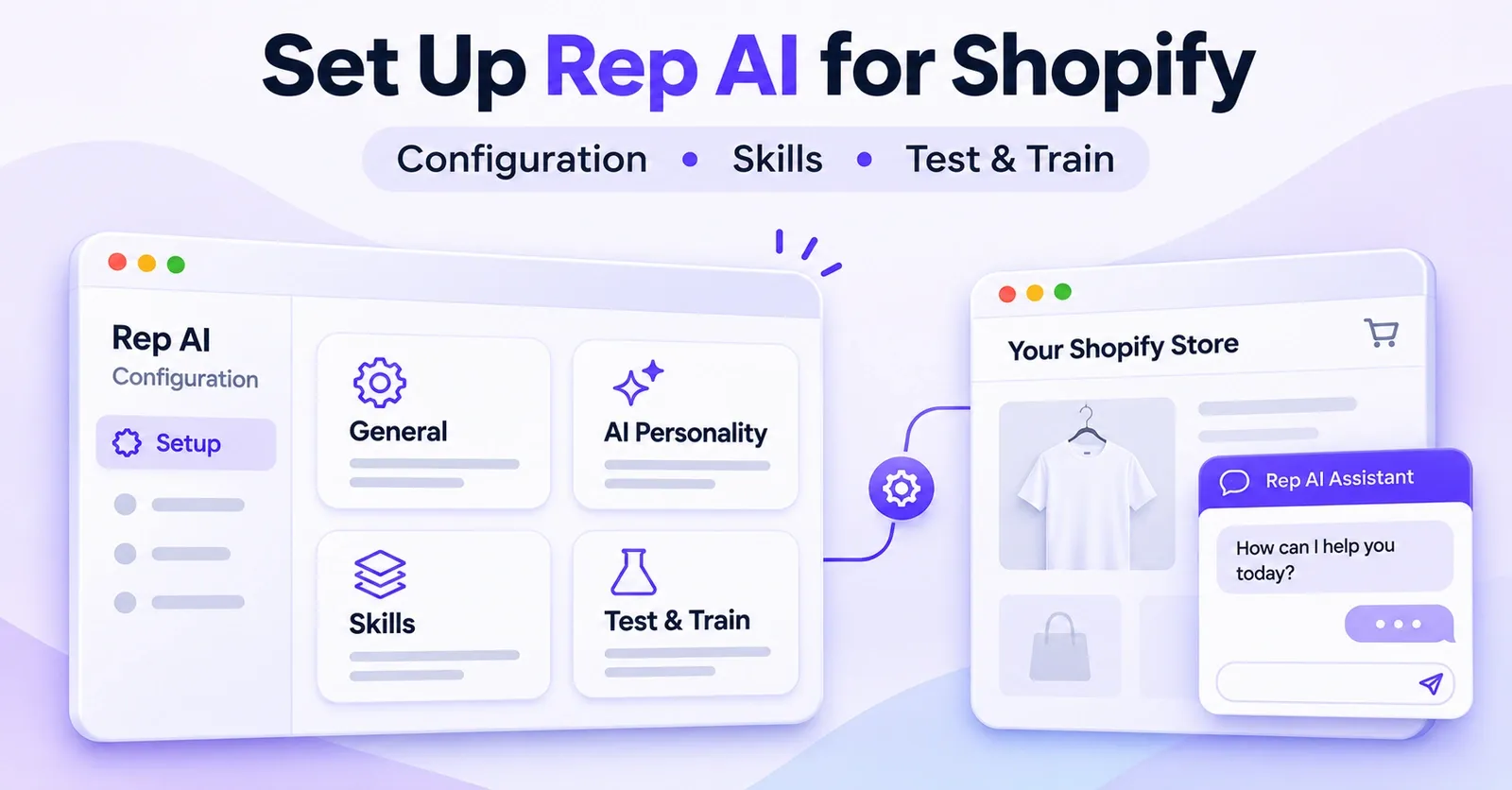
Installing Rep AI on Shopify is only the beginning. To set it up properly, open your Rep AI Console, review Settings → General, define your assistant's personality and knowledge, configure the Sales or Support Skills included with your plan, check your integrations and chat widget, and test realistic customer questions before relying on the assistant in your storefront.
The goal is not simply to make a chatbot appear. It is to make sure the assistant represents your brand, draws from accurate information, follows the capabilities you have enabled, sends complex requests to the right team, and behaves as expected for real shoppers.
This guide covers the post-installation configuration of Rep AI for a Shopify store. It assumes that you have already installed the application, authorized its Shopify connection, and addressed the Shopify App Embed required for the storefront widget. If you have not completed those steps, finish the installation first; the settings discussed here do not replace them.
Rep AI Shopify setup: the essential checklist
A practical setup sequence looks like this:
| Order | Area to review | What you need to accomplish |
|---|---|---|
| 1 | Shopify connection | Confirm that the correct store is connected and the existing widget integration is in place. |
| 2 | General settings | Check store identity, industry, language, support email, permitted domains, and geographic exclusions. |
| 3 | AI personality | Define a clear voice, customer context, response length, and general instructions. |
| 4 | Knowledge Base | Check your catalog-derived answers and add missing policies or frequently asked information. |
| 5 | Integrations | Connect only the helpdesk and marketing systems you actually intend to use. |
| 6 | Sales and Support Skills | Review the skills available on your plan, their activation state, and their operational rules. |
| 7 | Chat widget | Confirm the basic appearance, visibility, customer entry points, and save state. |
| 8 | Consent and handoff | Check the Shopify cookie-banner option if appropriate, and verify the route to human support. |
| 9 | Team access | Assign Rep Console roles appropriate to each teammate. |
| 10 | Test & Train | Simulate realistic questions, examine sources, make corrections, and validate the live storefront. |
This is a recommended merchant workflow assembled from Rep's published setup documentation, not a single ten-step wizard that every account will display. Navigation labels and available controls can differ by account, role, enabled integration, and software version.
1. Confirm the Shopify connection without reinstalling the app
Before editing the assistant, sign in to the Rep AI Console and confirm that you are working with the intended Shopify store. Under Settings → Integrations, review the Shopify catalog connection and its status. A disconnected store needs its connection repaired; a connected store generally does not need a fresh application installation merely because you want to change a greeting or support policy.
Next, distinguish three separate conditions:
- Shopify connection: Rep has been authorized to access the store through its supported integration.
- Storefront integration: the relevant Shopify theme has Rep's App Embed enabled and saved.
- Assistant readiness: the widget is enabled in Rep, configured for shoppers, and checked in the storefront.
A connection status of Connected is useful but not proof that your assistant is configured, visible, or capable of every action you expect. An App Embed may be active while the Rep-side visibility setting is off. The reverse is also possible: Rep may be ready in its own console while the theme does not display the chat.
There is also a time-sensitive distinction for older installations. In November 2026, Rep instructed merchants still using its former Shopify script-tag setup to enable the Shopify App Embed by March 1, 2027. This migration instruction concerns legacy script-tag installations; it does not mean every Shopify store must reinstall Rep or switch to a new account.
For this article, consider the connection check a prerequisite. The detailed Shopify App Store installation, app permissions, theme-editor steps, and first widget launch belong to a separate installation tutorial.
Start with information you control
Before changing settings, collect a few pieces of business information: the public store name, a suitable brand icon, the primary audience and languages, the correct support address, your return and shipping policies, and a list of internal staff who should access Rep. Identify whether your plan includes Sales Skills, Support Skills, or both.
This preparation is an editorial recommendation, not a mandatory checklist imposed by the software. It helps prevent the most common configuration mistake: changing an AI setting before deciding what the business wants the assistant to do.
2. Configure Settings → General
Rep's Settings → General page establishes the information the assistant needs to identify the business and determine certain customer-facing behaviors. Its official documentation describes store identity, language preferences, a support email, allowed domains, and excluded countries.
Rep describes changes on the General page as saving automatically. Do not assume that every other screen works that way: the chat widget has its own save-and-preview operation, and Shopify's theme editor has a separate Save button.
Store URL: inspect rather than edit
The Store URL is synchronized from the connected commerce platform. Check that it corresponds to the intended shop and that you are not looking at a staging or unrelated account. Rep warns against manually changing this value because doing so can disrupt functionality.
If the address appears wrong, investigate the account and Shopify connection rather than typing a new domain into the field as a quick fix. A domain change can affect several areas of an e-commerce integration, so it is safer to verify the supported path before altering the configuration.
Store Name and Industry: choose the right business context
Rep also synchronizes Store Name from Shopify. The official instructions allow minor corrections, such as capitalization, when necessary. Use the customer-facing brand name you actually want in conversations; avoid substituting an internal legal entity unless that is how the store is presented to shoppers.
The Industry dropdown helps establish the kind of products you sell. Its documented categories include Apparel, Beauty & Skincare, Electronics, Home & Garden, Health & Wellness, and Other. Choose the industry that best represents your catalog, rather than trying to list every product family in the business.
According to Rep's September 2026 guide, changing Industry saves automatically and is taken into account for subsequent conversations. You do not need to reinstall the application, republish the widget, or retrain the assistant solely because this dropdown changes. The Other option is supported for businesses that do not fit neatly into a named category.
Industry is a context-setting field, not a promise that recommendations will become correct or conversion rates will rise. Product accuracy still depends on the underlying catalog and knowledge available to the assistant.
Store icon: check what customers will see
Upload or confirm a recognizable brand icon. Rep's guide recommends a 250 × 250-pixel PNG or JPG image, while also noting that its system may fetch an icon automatically. That size is a recommendation, not a claim that every other size will be rejected.
Preview the result rather than trusting the upload confirmation. A complicated horizontal logo may become unreadable in a compact chat header. A centered icon with enough contrast is easier for customers to recognize, especially on mobile.
Language mode: make an intentional choice
Rep documents three distinct language settings:
| Language setting | Documented behavior | Sensible starting use case |
|---|---|---|
| Store's Language | Uses the store's designated language for customer interactions; documented as the default. | A primarily monolingual shop. |
| Customer's Browser Language | Uses the language indicated by the shopper's browser. | An international store whose visitors generally browse in their preferred language. |
| Customer's Preferred Language | Adapts to the language the customer actually uses in conversation. | A storefront serving customers across several languages. |
These options are not interchangeable. A shopper can use an English-language browser but type in French, for example. Test the mode you select against the real languages and product terminology that matter to your business.
Also inspect the visible widget text. A setting that changes the assistant's response language does not establish that every system button, error message, custom menu item, or third-party support surface has been perfectly translated. If you sell internationally, test at least one end-to-end conversation in each priority language rather than relying on the dropdown alone.
Support Email: verify the destination before promising a handoff
The Support Email field provides a destination for customer requests that need human assistance. Rep may fill it from existing setup information, but you should verify that the address is monitored and suitable for customer communication.
A connected helpdesk can change the routing: Rep documents cases in which the integration receives the tickets rather than the plain support email. Therefore, do not assume that entering an email address means every escalation will arrive in that inbox. Test the actual route in your account.
A helpful configuration includes a realistic expectation for customers. If your team does not provide 24-hour live support, do not write a greeting that promises a human will respond immediately at any time.
 Quentin Olaya
Allowed Domains: avoid accidentally hiding your assistant
Allowed Domains restricts where a Rep widget is permitted to run. Rep's General Settings instructions say that leaving the field empty allows traffic from any domain and is the recommended configuration for many merchants. Adding a strict list can be appropriate for a controlled deployment, but it also creates a risk of excluding the real storefront or a testing domain.
If you use a domain list, check the actual domains and subdomains on which you expect the chat to appear. When a storefront does not show the widget, do not assume the app is broken until domain restrictions have been reviewed.
This is a domain-access control, not a substitute for broader security review or a guarantee that every part of your customer data is protected by a single setting.
Excluded Countries: understand the impact on legitimate shoppers
Rep's Excluded Countries setting can prevent the widget from loading for visitors detected in selected territories. The documentation describes country detection based on visitor IP address. That means a legitimate shopper, including one using a VPN, might be affected by the configuration.
Use the setting only when you have a clear reason to restrict access and have checked how it affects relevant markets. It should not be described as a perfect anti-spam filter or a turnkey answer to territorial legal requirements.
3. Set up the AI personality and response style
Next, navigate to AI Personality, described in Rep's setup material under AI Training → AI Personality. More recent console documentation may organize access differently, so use the screen title as the reliable reference if your sidebar does not look identical to an older guide.
This section answers an important operational question: How should the assistant represent your store when it has the relevant information? It does not grant permission to perform additional actions or override the rules attached to a Sales or Support Skill.
Describe the brand's tone of voice
Rep recommends a focused set of up to four traits for the brand voice. For example, a homeware store might choose:
Warm, concise, practical, reassuring.
That is a hypothetical configuration example, not a recommended tone for every merchant. A technical electronics retailer may prefer precise, direct explanations; a premium apparel brand may choose a calmer, more editorial voice.
Avoid filling the tone field with conflicting instructions such as “extremely brief, highly detailed, playful, formal, never ask questions, always ask questions.” A small number of compatible directions is easier to interpret and test.
Explain the brand and its customers
Use Describe your brand to explain what distinguishes the store: the product range, positioning, service approach, and relevant brand context. Use Describe your customers to identify what shoppers usually need help understanding: compatibility, fit, ingredients, sizing, delivery timing, product care, or buying decisions.
Think of these fields as context rather than a place to invent product claims. If your store does not guarantee next-day delivery, do not instruct the assistant to say it does. If a product has a technical constraint, that constraint needs to exist in a trustworthy product or support source, not only in a marketing-oriented persona description.
A useful internal test is to ask whether a new staff member could safely use the same description when helping customers. If the answer is no because the text is exaggerated or ambiguous, refine it before putting it into the assistant.
Choose how detailed answers should be
Rep documents a response-detail choice between As short as possible and Detailed. Its June 2026 onboarding guide identifies the shorter option as the default.
A short reply may be suitable for store hours, simple shipping questions, or a straightforward recommendation. More detailed replies can be useful when shoppers need to compare specifications or understand a policy. The choice is a preference for response style, not a guarantee that every answer will match a fixed word count.
Whatever you choose, review examples in Test & Train. A concise answer is not useful if it omits a crucial condition; a detailed answer is not useful if it buries the requested fact under generic sales language.
Use Further AI Instructions carefully
Further AI Instructions provides a place for general behavior guidance. For instance, you might ask the assistant to say when a product-specific answer is uncertain, avoid making promises about unavailable stock, or direct an unresolved service request to your support team.
Rep states that this field is synchronized with AI Instructions in Test & Train. Treat them as two views of connected instructions, not as independent policies that can contradict each other without consequence.
Use specific, testable directions. Compare these examples:
- Too vague: “Always provide the best customer experience.”
- More useful: “When the return policy does not address a customer's situation, explain the uncertainty and direct them to our support team rather than promising an exception.”
- Too risky: “Approve every return immediately, regardless of the account's action permissions.”
Instructions influence the assistant's wording and decisions within its available capabilities. They do not switch on an inactive skill, create a missing integration, authorize a refund, or bypass a required customer verification step.
4. Check the Knowledge Base before trusting answers
Even a well-written persona cannot compensate for incorrect source information. Rep describes automatically synchronized Shopify product and website content alongside a Knowledge Base that can supply additional material.
The documented Knowledge Base areas are:
| Area | Typical purpose |
|---|---|
| File Sources | Documents containing business information not conveniently available on public pages. |
| URL Sources | Selected website pages that the assistant should use as knowledge. |
| Custom FAQs | Specific question-and-answer pairs for recurring customer inquiries. |
| Promotions | Campaign and promotional information the assistant may need in conversations. |
For initial configuration, the priority is coverage and accuracy, not maximizing the number of uploaded files. Start by asking what the assistant must know to avoid misleading a shopper.
For a clothing merchant, that might mean size charts, returns, exchange rules, and product materials. For electronics, compatibility and warranty conditions may matter more. For a beauty store, customers may ask about usage directions and ingredient information. These are illustrative business scenarios; they are not claims that Rep can independently certify every product attribute.
Run a simple knowledge audit
Pick five to ten questions that your support team already answers frequently. Ask them in Test & Train. For each response, check three things:
- Correctness: does it match the current policy or catalog record?
- Source: can you identify a suitable source supporting the response?
- Boundary: does the answer stop when the available information is incomplete?
Where the answer is missing or wrong, update the underlying store page, knowledge source, or FAQ as appropriate. Rep's testing tools can expose the sources used and support corrections.
Rep documents website-content synchronization, but that should not be interpreted as a guarantee that every page, dynamically generated passage, or policy change is indexed instantly and flawlessly. Its URL Sources guidance flags limitations around some dynamic content. A store with important material embedded in unusual page components should verify that the assistant can actually use that material.
You also do not need to re-import the entire Shopify catalog manually as your default response to uncertainty. First inspect the existing Shopify connection and the specific information that is missing. Detailed catalog-sync setup and product exclusion rules warrant their own dedicated guides.
5. Review integrations without assuming every channel is active
Under Settings → Integrations, Rep lets eligible merchants connect systems beyond Shopify, including support platforms and marketing tools. This is where your assistant can become part of an operational workflow rather than just a storefront conversation interface.
Choose integrations in terms of business requirements:
- Helpdesk: Where should unresolved service requests go? Which team will own them?
- Marketing system: Which campaigns or customer communications genuinely require a connection?
- Social or messaging channel: Is the platform merely linked, or is AI Answering enabled for the specific channel?
- Shopify data: Is the store connected, and are the relevant operational settings consistent with your analytics approach?
For the Shopify integration, Rep's technical documentation describes options related to tracking website interaction events and tagging orders as assisted by Rep. Such controls deserve deliberate review. An “assisted” order label is an attribution mechanism; by itself it does not demonstrate that the assistant caused incremental revenue.
Older integration guidance also refers to automatic script-tag injection. That description must be read alongside Rep's later direction for legacy installations to move to the Shopify App Embed. Do not treat an older option as the definitive deployment recommendation for a new storefront.
Connected is not the same as answering
This distinction is especially important for email, Instagram, Facebook, and WhatsApp. Rep's November 2026 Test & Train instructions explain that a connected helpdesk or Meta account can make a test tab available even while live AI Answering is off for that channel.
Consequently, there are at least three questions to answer: Is the channel connected? Is live AI Answering enabled for it? Have you tested what the assistant would actually say? Passing one check does not establish the other two.
For a first Shopify setup, resist connecting every available platform simply because a button exists. Add the integrations you can maintain, verify their separate activation, and expand only when your team is ready to monitor their customer impact.
6. Configure the Sales Skills available on your plan
Rep groups proactive shopping capabilities under Sales Skills. Its documentation describes them as features that can respond to signals of shopper hesitation, assist with discovery, and make timely recommendations. However, availability depends on your subscription: the August 2026 Sales Skills guide associates these capabilities with Sales Assistant and Concierge plans, not a standalone Support Agent plan.
Start by examining the Sales Skills actually displayed in your account. Decide which customer experiences are appropriate before changing their behavior. A proactive product suggestion may be useful when someone is comparing items, while a persistent interruption could be unwelcome for a visitor reading a long product page.
Review eagerness rather than accepting a setting blindly
Rep describes an eagerness level for proactive flows. Higher levels mean the assistant may approach more shoppers sooner; lower levels produce a more restrained experience. The documentation references AI Optimized and Custommodes for reviewing or adjusting this behavior.
Some identified plans and trial groups receive higher initial eagerness settings, but this does not imply that every merchant begins with the same value. Inspect your account and use the level appropriate to the purchase journey, brand, and customer expectations.
A useful quality test is to browse your own store as a shopper would. Look at whether the approach occurs at a sensible moment, whether the message relates to the actual page, and whether it covers the interface on mobile. Do not judge success solely by the fact that a popup appeared. Consider whether it helps the visitor without distracting from product selection.
Check abandoned-cart settings separately
Rep's onboarding guidance makes a notable distinction: while it describes Sales Skills as generally enabled by default, Rescue Abandoned Carts has a separate initial activation flow. Merely connecting Shopify should not be described as enabling abandoned-cart recovery automatically.
Before activating any related feature, confirm the workflow, the communication channel involved, and the customer experience you want. The exact cart-recovery triggers and campaign design are separate subjects from initial Rep AI configuration. Here, the objective is simply to identify whether the capability is available, whether it is on, and who is responsible for checking its messages.
7. Configure Support Skills and their action permissions
If your account includes Support Agent or Concierge capabilities, review Support Skills. Rep documents support-oriented workflows involving order status, address changes, cancellations, returns, and requests for human help. Their availability and behavior depend on the relevant rules, integrations, and individual skill configuration.
This is where a Shopify merchant must separate answering a question from taking an action. An AI may be able to explain the published return policy without being authorized to issue a return or create a portal link. Similarly, knowing where an order is in a conversation does not establish permission to cancel it.
Build a permission-aware support setup
For each Support Skill you intend to use, record:
| Configuration question | Why it matters |
|---|---|
| Is the skill available on this plan? | Prevents instructions that refer to unavailable capabilities. |
| Is it enabled? | A documented feature is not necessarily active in your store. |
| Which business policy governs it? | The action must follow your actual return, cancellation, or service rules. |
| Which integration is required? | A skill may depend on connected systems or operational data. |
| What customer verification is needed? | Order-related information should not be exposed or changed casually. |
| When must the case go to a human? | Some requests fall outside the supported automation or your own policy. |
As one concrete example, Rep's returns-and-exchanges documentation distinguishes a Standard Policy from certain eligible Custom Policy capabilities. It also describes an explicit Generate return portal link permission. If that permission is disabled, a text instruction cannot simply create the missing authority to generate a link.
For a merchant, the practical lesson is to review actual toggles and operational rules, not merely the prose used to train the assistant. The same principle applies to shipping-address changes or order cancellation: test permitted, blocked, and uncertain cases independently.
 Quentin Olaya

Prepare a human escalation route
Decide how a shopper gets help when the automated response is not sufficient. Rep describes several possible human-support paths, including email, helpdesk routing, and agent-assistance options, depending on the configuration.
Run a test request such as “I need a human to help with a damaged item.” Confirm where the request arrives and what information the receiving team sees. If the destination is a helpdesk, verify that the correct queue or people monitor it. If it is an email address, confirm someone can receive and respond to the message.
An escalation path is not operational merely because the assistant displays a “contact support” option. The support system and the humans behind it need to be ready.
8. Set the chat widget's basic presentation
Once the assistant's knowledge and skills are in reasonable shape, review the customer-facing widget. Rep's November 2026 design guide organizes the widget configuration into seven areas: Basics, Chat Experience, Position, Button, Embedded Widgets, Menu, and Settings. It also documents the Classic and Rep 2.0 widget styles.
For initial setup, focus on the settings a shopper notices immediately:
- Identity: select an appropriate widget style, color scheme, title, and subtitle.
- Readability: make sure messages and buttons remain legible on light and dark areas of your store.
- Position: check that the floating chat does not cover product options, cart controls, or mobile navigation.
- Entry points: review the opening button and any menu shortcuts or conversation starters.
- Human support: make the contact route easy to understand where applicable.
- Visibility: verify Rep-side activation as well as the relevant Shopify theme configuration.
For the Rep 2.0 style, the documentation specifies a 25-character maximum for the Widget Title. Keep it short enough to remain recognizable on smaller screens. A title such as “Ask Our Store Team” is an illustrative option, not an official Rep default.
Do not confuse widget appearance with Shopify pricing
One documented control, Hide Product Prices, hides price information within the chat's product recommendation carousel. It does not remove prices from your Shopify product pages or checkout. A store using the feature should understand the narrow display change it makes.
Likewise, a menu shortcut may have a visible label and a message or action attached to it. Test both sides. A shortcut that says “Track my order” should direct customers to a suitable experience, not merely look polished in a preview.
When you change widget design settings, use Save and Preview as indicated in Rep's documentation. Do not assume that editing General settings, saving the Shopify theme, and saving widget appearance all use the same mechanism.
This section is intentionally a minimum functional review. Detailed widget styling, page-specific hiding, embedded product-page components, and advanced customization belong in dedicated tutorials.
9. Decide how Shopify cookie consent should affect the chat
A particularly important configuration option was documented by Rep on November 10, 2026: Use my store's cookie banner. When enabled for a supported standard Shopify storefront, this setting has the Rep chat follow the analytics and marketing choices recorded by the store's cookie banner.
Rep says the option is off by default. To use it, its published instructions direct merchants to Chat Widget → Settings → Chat experience, then to enable Use my store's cookie banner and save.
Do not activate it without first checking what your banner actually records. Rep requires the consent choices to be available in Shopify. If a third-party consent-management application is involved, verify that it passes the relevant choices through to Shopify rather than assuming every vendor integration behaves identically.
What visitors should experience
According to Rep's documentation, the expected behavior is:
| Visitor's recorded choice | Expected result with the feature enabled |
|---|---|
| Analytics and marketing consent | Visitor can open a chat conversation. |
| Analytics consent only | Chat presents a consent notice; messaging remains unavailable. |
| Declined consent | Chat presents a notice and does not allow a message. |
| No decision yet | The visitor cannot start a conversation through the restricted interface. |
| Visitor later accepts both categories | The conversation can become available without a page reload. |
This behavior creates a potential testing trap. A merchant may think the assistant is malfunctioning because the widget appears but does not accept a message. The explanation may be the customer's recorded consent state rather than a broken Shopify integration.
Rep also distinguishes this Shopify-banner option from the widget's own Disclaimer message. A disclaimer does not replace the supported banner integration, and enabling one should not be described as automatically configuring the other.
Test the actual consent states
Use a fresh browser session and check a refusal, analytics-only consent, full consent, and a change of choice during the visit. Make sure the banner choices are actually recorded in Shopify. Rep says this integration is designed for its standard Shopify chat widget, not headless Shopify or non-Shopify installations.
The presence of this feature is not legal advice or a blanket guarantee of GDPR, ePrivacy, or other regulatory compliance. Legal obligations depend on your real processing activities, regional rules, consent implementation, and other technologies on the site. Your privacy team or qualified adviser should assess those matters separately.
10. Give teammates appropriate Rep Console access
Rep AI has documented role-based access to its console. An older getting-started guide mentioned two broad roles, but its July 26, 2026 team-access guide describes five. For current role planning, use the more specific, later role documentation rather than assuming every invited user should be an administrator.
| Rep role | Intended responsibilities in the published guide |
|---|---|
| Admin | Full access, including team administration and billing. |
| Marketer | Sales-oriented work, analytics, AI Training, and relevant settings without support tooling and Inbox access. |
| Support Manager | Support operations, conversations, Inbox, training, and applicable settings without sales administration. |
| Agency | Broad operational access without team and billing administration. |
| Support Agent | Customer conversations and Inbox rather than account-wide configuration. |
The documented invitation route is the profile icon → Team area, visible to administrators. An Admin can enter a teammate's details, select a role, and send an invitation. Review the selected role before inviting: a user should not receive full billing and account permissions merely because that choice is convenient.
Keep at least one responsible administrator, and review access when staff or agencies change. Importantly, Rep Console roles are separate from Shopify staff permissions. Granting an employee a Rep role does not itself assign them a Shopify admin role or create additional Shopify permissions.
This is a configuration concern, not a statement about seat pricing. Any commercial implications of additional support seats should be checked against the merchant's actual plan, separately from this setup guide.
11. Test the assistant before treating setup as complete
Rep's updated Test & Train interface is the final quality gate for this configuration process. It supports simulated conversations, source inspection, and corrections without contacting actual shoppers. A good configuration is one that performs acceptably on realistic cases, not one that merely contains filled-in text fields.
Choose the appropriate test tab
Rep documents three kinds of simulator:
- Chat: available for testing the storefront conversation experience.
- Email: available when an eligible helpdesk is connected, including certain supported helpdesk or Rep Inbox integrations.
- Meta: available when an Instagram, Facebook, or WhatsApp integration is connected.
The email and Meta simulators can show how Rep's AI would answer even when AI Answering is off for the live channel. This is intentional. Testing an answer does not switch on email automation or grant the assistant permission to reply to customers on social channels.
For chat testing, Rep describes options to send multiple messages, view Sources, use Correct the AI, and Reset test. Use these tools to inspect both the content of answers and the information on which those answers rely.
 Quentin Olaya
Run a scenario-based test plan
Rather than asking only “Hello,” test questions that reflect important store decisions:
| Example shopper question | What to verify |
|---|---|
| “Does this item come in size M?” | Accurate reference to the actual catalog and variant information. |
| “What is your return window?” | Current policy, including any relevant conditions. |
| “Where is my order?” | Appropriate order workflow and customer verification where required. |
| “Can I cancel an order that has shipped?” | No promise to perform an action outside policy or permission. |
| “Can you recommend an alternative?” | Relevant product suggestions rather than fabricated inventory. |
| “Please answer in Spanish.” | Language behavior consistent with your chosen setting. |
| “I need to speak to a person.” | The expected escalation route works. |
| “What if your policy does not cover my case?” | Appropriate uncertainty or referral instead of invention. |
These examples are merchant testing scenarios, not a claim that all the underlying order actions are available on every Rep plan. Adapt them to your own catalog, enabled skills, and support processes.
For each test, record the question, the expected safe answer, the observed response, the source used, and the next action. If a response fails, fix the source or configuration and test it again with a different phrasing. It is possible to improve a single test response without correcting the broader information gap, so retesting matters.
Verify the actual storefront separately
After simulator checks, visit the real Shopify storefront on desktop and mobile. Check the widget's appearance, entry points, response timing as experienced by a visitor, consent behavior where enabled, and escalation route. Test a fresh session rather than relying only on a previously accepted cookie banner or cached chat state.
A successful Test & Train simulation cannot, by itself, confirm that the correct storefront theme is displaying the widget. Nor can it confirm that live email or Meta AI Answering has been activated. These are separate release checks.
12. Three practical Shopify setup examples
The best settings depend on the kind of work the assistant should perform. These examples illustrate configuration decisions; they are not official Rep presets.
Example A: A small apparel store focused on product questions
The merchant chooses an apparel industry category, a concise and friendly brand voice, and the most relevant language mode. The Knowledge Base includes sizing and returns information. If the plan includes Sales Skills, the merchant reviews proactive recommendations and avoids a level of eagerness that interrupts product browsing too aggressively.
Before launch, the team tests size questions, variant availability, and a shopper who wants to speak to support. The test plan favors product accuracy and visible escalation rather than trying to automate every post-purchase situation on day one.
Example B: A support-heavy electronics retailer
The team prioritizes accurate warranty terms, compatibility explanations, and order-related policies. Its Admin verifies which Support Skills are enabled and what actions each may carry out. The human handoff goes to an actively monitored helpdesk or support process.
Testing includes an unsupported compatibility claim, a late order-change request, and a question involving customer-specific information. The assistant should not invent a technical specification or act outside the account's authorized workflow simply because a customer insists.
Example C: An international storefront with a consent banner
The merchant evaluates browser-based versus customer-preferred language, validates translated response behavior, and confirms the store's consent-management setup. If it enables Use my store's cookie banner, it tests both analytics and marketing choices as recorded in Shopify.
A shopper who has not provided the necessary consent should not be treated as proof of a broken widget. The merchant checks the consent state, then verifies a normal conversation after the relevant permissions are granted. If the storefront is headless, it does not assume the standard Shopify-banner option applies.
13. Avoid these configuration mistakes
Many initial setup problems arise from mixing up separate controls or assuming that every capability is automatic.
Mistake: treating General settings as the only setup page. General establishes identity and access-related choices; it does not replace persona, knowledge, skills, support routing, or testing.
Mistake: believing every edit saves in the same way. Rep describes automatic saving on General, while widget settings use a save operation and Shopify theme changes require their own Save. Check each screen's behavior.
Mistake: using a polished persona to compensate for missing facts. Tone and business descriptions help frame answers, but they do not make an outdated return policy correct. Maintain the underlying sources.
Mistake: assuming all skills exist in your plan. The official Sales and Support Skill descriptions identify different plan families. Configure the functions actually enabled for your account.
Mistake: equating a written instruction with permission. A disabled return-related action or unconnected platform cannot be enabled merely by demanding it in a text field.
Mistake: confusing testing and production activation. A Meta or email simulator may answer while the live channel is still off. Verify the separate setting before saying customers will receive automated responses there.
Mistake: ignoring consent state. A shopper who cannot type into chat may be seeing an intentional consent restriction. Verify the banner integration before resetting the application.
Mistake: giving every teammate Admin access. Use Rep's role structure to keep sensitive team and billing controls with the appropriate people.
Mistake: considering setup permanent. Product pages change, return policies change, integrations evolve, and staff members leave. Review the configuration after meaningful business changes and regularly inspect real conversations.
14. A final pre-launch review and first-month routine
Before treating the configuration as production-ready, confirm each of the following:
- The Shopify connection belongs to the intended store and the widget integration has been checked.
- Store name, Industry, icon, and Store URL have been reviewed without altering synchronized values unnecessarily.
- A suitable language mode and functioning support destination are configured.
- Allowed Domains and Excluded Countries do not unintentionally block legitimate visitors.
- The AI personality and instruction fields reflect current, supportable brand policies.
- Important shipping, returns, product, and customer-service answers were tested against real sources.
- Only the required integrations have been connected, and live channel activation is separately understood.
- Sales and Support Skills have been reviewed for availability, permissions, and business rules.
- The chat widget is readable, correctly positioned, and saved.
- Cookie-consent behavior has been tested if the Shopify banner integration is enabled.
- A real human-support escalation route exists and works.
- Team access matches each teammate's responsibilities.
- Test & Train scenarios pass, and the actual storefront has been inspected on desktop and mobile.
During the first month, revisit failed or uncertain conversations, revise outdated FAQ entries, and confirm that changes to policies and products have reached the knowledge the assistant uses. If you add a new helpdesk, marketing platform, or sales flow, repeat the related tests rather than relying on the initial launch checklist.
The right measure of configuration quality is not the number of toggles enabled. It is whether the assistant reliably helps shoppers within the actual information, permissions, and support resources the merchant has provided.
Final takeaway
A reliable Rep AI setup for Shopify combines correct store settings, a realistic AI persona, trustworthy knowledge, plan-appropriate skills, working integrations, controlled widget behavior, human escalation, and repeatable tests. Work through these layers deliberately. The result should be an assistant whose capabilities and limitations match the store's actual operations—not merely a chat bubble that looks ready.
Frequently asked questions about configuring Rep AI on Shopify
1. Is configuring Rep AI different from installing it on Shopify?
Yes. Installation concerns adding and connecting the application and enabling the storefront integration. Configuration covers the store profile, languages, personality, knowledge, integrations, Sales or Support Skills, widget settings, human handoff, team roles, and validation. A merchant who has already installed the application usually starts the work in the Rep AI Console rather than reinstalling it.
2. Where can I find the main Rep AI settings?
Rep's documentation places core store information under Settings → General and integrations under Settings → Integrations. AI personality and testing are described under AI Training; widget configuration has its own area. The layout may change with account role or product updates, so look for the relevant page names if a menu has moved.
3. Do Rep AI settings save automatically?
Not all of them. Rep documents automatic saving for General settings. Its widget documentation uses Save and Preview or another explicit Save action depending on the screen. Shopify theme-editor changes also require a separate Save. Confirm the status in the relevant interface.
4. How do I choose a language for Rep AI?
Review the three modes: Store's Language, Customer's Browser Language, and Customer's Preferred Language. Choose the mode that matches your storefront audience, then test real customer questions in your priority languages. Do not assume that every control and third-party message is automatically translated perfectly.
5. Can I change Rep AI's personality after setup?
Rep provides AI Personality fields for tone, brand description, customer context, response length, and further instructions. Its onboarding documentation treats these as settings merchants can revisit. After changing instructions, repeat relevant tests to check what the assistant actually says.
6. Will Rep AI automatically know all of my Shopify policies?
Rep documents synchronization of store and website content, alongside files, URLs, FAQs, and promotions that can supplement its Knowledge Base. However, this is not a guarantee that every policy update or dynamically generated page is immediately available. Test key policy questions and check their source before relying on the answers.
7. Are Sales Skills and Support Skills included in every account?
No. Rep's official descriptions distinguish Sales Assistant, Support Agent, and Concierge plan families. Sales Skills are documented for Sales Assistant and Concierge; Support Skills for Support Agent and Concierge. Review the actual modules and entitlements shown in your account before configuring a workflow.
8. Does connecting Shopify turn on Instagram, Facebook, WhatsApp, and email automation?
No. These are separate integrations with their own requirements and live AI Answering controls. Rep can allow simulation of a connected email or Meta channel even when live answering is disabled. Confirm both the connection and the production activation for the channel you intend to use.
9. How can I tell whether the assistant is giving correct answers?
Use Test & Train with realistic scenarios. Inspect any Sources information available, compare responses with current store policies or product records, use correction tools where appropriate, and retest with varied phrasings. A convincing answer is not sufficient if it is based on an outdated or unrelated source.
10. Why can't a visitor send a message even when the widget appears?
One possibility is an enabled Shopify cookie-banner setting that requires recorded consent for both analytics and marketing. A visitor who declines, ignores the banner, or accepts analytics only can see a notice instead of an active input. Other configuration causes are possible as well; check the consent state and widget settings before assuming the integration has failed.
11. Can I let my support team use Rep without giving them full access?
Yes. Rep's more recent team documentation includes Admin, Marketer, Support Manager, Agency, and Support Agent roles. Use the permissions appropriate to each person's duties. These are Rep Console roles and should not be confused with Shopify staff permissions.
12. Is Rep AI ready to launch as soon as Test & Train works?
Not necessarily. Test & Train is a private simulator, and some channel tests work even when live answering is disabled. Verify the real storefront widget, the appropriate visibility setting, consent behavior, and any live channel switches separately. Also confirm that human escalation reaches your support team.
13. Should I configure Rep's old script-tag option when setting up a new Shopify store?
Do not use an older script-tag guide as your default current installation advice. Rep published a November 2026 instruction for stores using its legacy script-tag integration to enable the Shopify App Embed before March 1, 2027. Review the current supported integration and the state of your theme, rather than assuming an older console option is the recommended method.
14. Do I need to redo the configuration every time my catalog changes?
Not necessarily. Rep documents synchronization of Shopify product and website content, but ongoing accuracy should be checked. Revisit the assistant when you make significant policy changes, alter integrations, introduce new product categories, or notice unanswered customer questions. The focus is validation and correction, not repeatedly reinstalling the app.