How to Exclude Products from Rep AI: Shopify Catalog Controls Explained
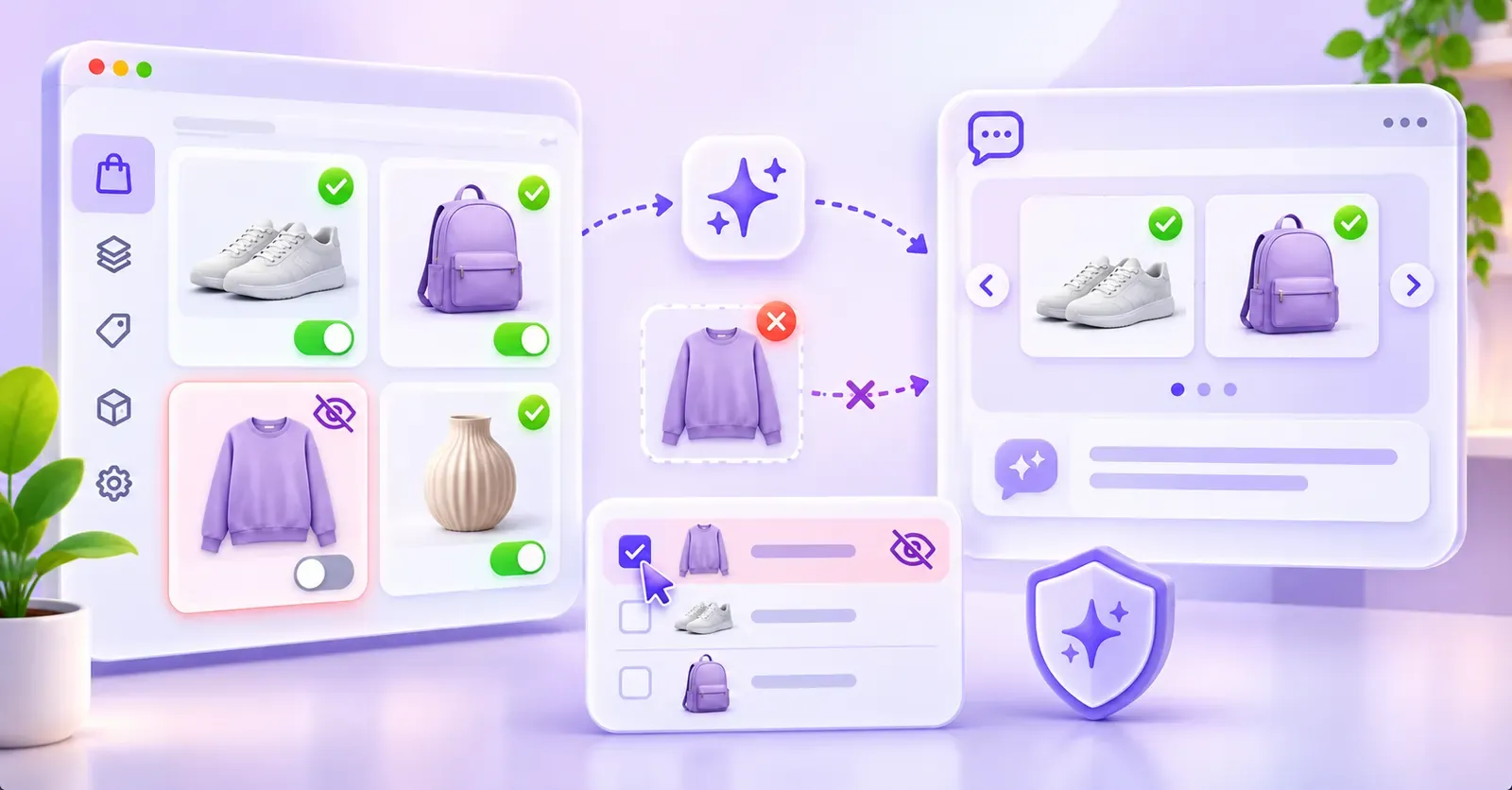
Quick answer: To stop Rep AI from recommending a particular Shopify product, open the Rep Console, go to AI Sales > Catalog > Products, find the item, and turn its Available switch off. To exclude several items together, select their checkboxes and choose the X / Mark as unavailable bulk action. You can leave the products in Shopify: disabling their availability for Rep AI recommendations is different from deleting or hiding their storefront listings.
That is the essential procedure, but choosing the right control matters. A merchant who wants to hide a product from AI recommendations has a different goal from one who wants to prevent in-chat purchases, suppress an entire collection as a browsing suggestion, or restrict a product to particular countries. Rep AI provides different settings for those outcomes, and using the wrong one may leave products visible when you expected them to disappear.
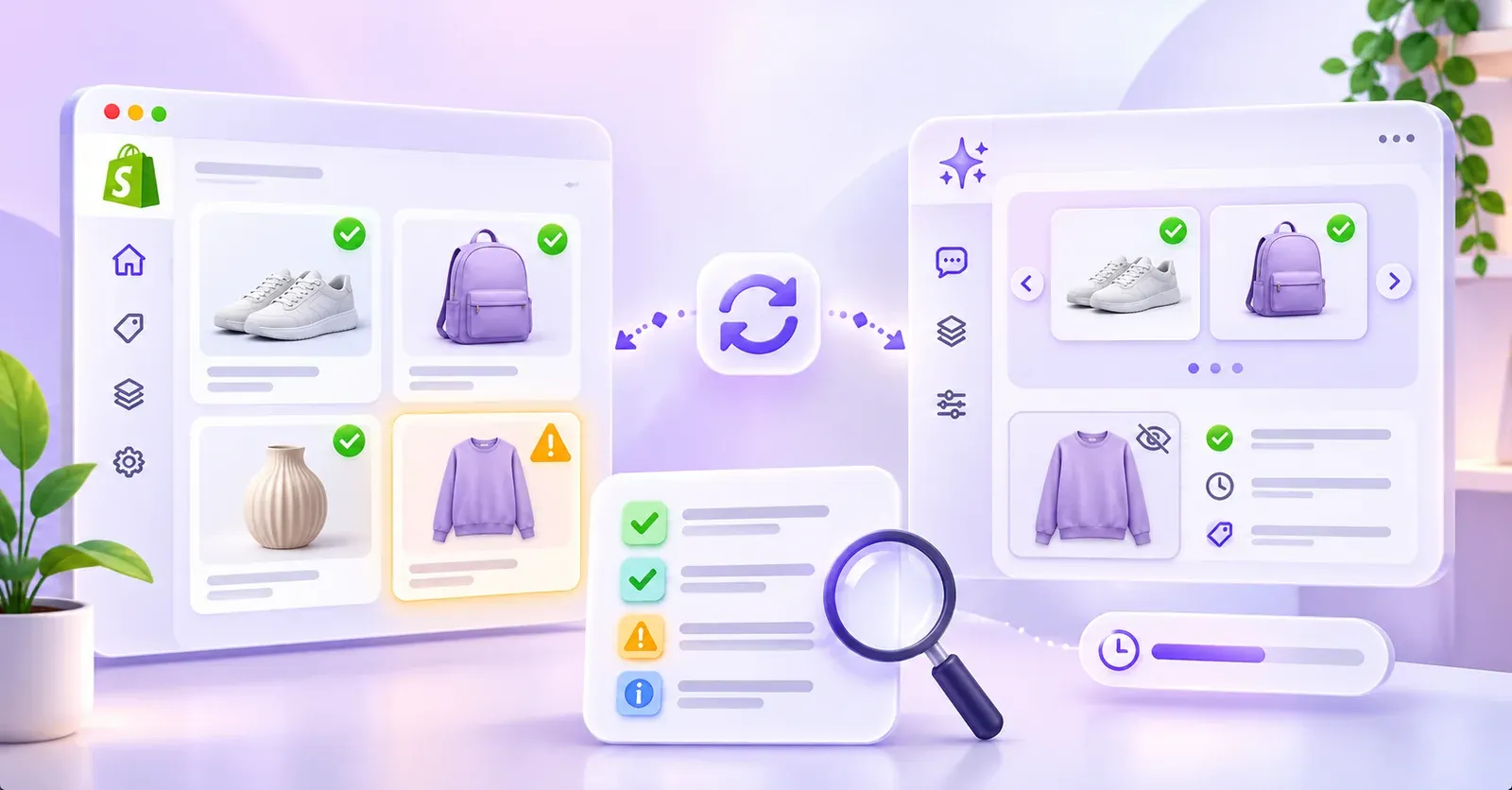
This guide explains each control, walks through individual and bulk exclusions, addresses Shopify Markets and product variants, and gives you a practical testing routine. It focuses on intentional product exclusion, not on fixing a product that failed to synchronize from Shopify.
What does it mean to exclude a product from Rep AI?
When shoppers ask Rep AI for help choosing products, the assistant can use your synchronized Shopify catalog to find and suggest relevant items. By default, visible storefront products are generally available for recommendations, subject to the other conditions that affect catalog and recommendation eligibility.
An intentional exclusion is a decision to keep a particular item out of those AI suggestions. Perhaps a product is awaiting launch, belongs to a sensitive campaign, needs a sales conversation before purchase, or should not be promoted during a seasonal pause. The important point is that you are changing how the assistant treats an item—not necessarily changing whether the item exists in your store.
Rep AI documents its main recommendation-eligibility setting as Available on the Products page. When this setting is disabled, its product-catalog interface describes the item as no longer shown or suggested in AI conversations. The setting operates at the product level in the general catalog controls documented by Rep AI.
That is not the same as removing every trace of the product from every conceivable source of information. An FAQ, uploaded document, external web page, or instruction may separately mention a product. The documentation supporting the catalog switch establishes its recommendation behavior; it does not prove that switching it off erases every reference across all possible knowledge sources. If this distinction matters for compliance or a sensitive product launch, review your other content sources and test actual responses as well.
Four merchant goals that sound similar but are not
Consider these requests:
- “Never suggest this discontinued jacket.” Use the product's Available setting.
- “You may suggest this engraved necklace, but customers must configure it on its product page.” Consider Add-to-cart off, not Available off.
- “Do not suggest the Members-Only collection as a collection.” Use the group's Browsable control, while remembering its individual products may still appear.
- “Keep recommending this item in France, but not in Germany.” Manage the relevant Shopify Markets catalog instead of turning off the product globally.
They are four different requirements. Write down which outcome you actually want before editing the catalog.
Choose the right Rep AI setting before changing anything
The Rep AI catalog contains settings with similar-looking toggles but different effects.
| Setting | Where to find it | What it changes | What it does not do |
|---|---|---|---|
| Available | Products | Whether Rep AI can show or suggest that product in conversations | Delete its Shopify listing or offer a documented global per-variant blacklist |
| Add-to-cart | Products | Whether shoppers can add the product to their storefront cart through Rep AI chat | Stop the AI discussing or recommending the product |
| Browsable | Product groups | Whether Rep AI can suggest the collection/tag group as a group | Automatically exclude every item in that group |
| Add-to-cart | Product groups | Block chat-based add-to-cart for products in that group | Disable the native Shopify purchase experience |
| Promoted | Products | Prioritize an included item within product carousels | Force inclusion, or exclude a product when promotion is removed |
| Per-market catalog eligibility | Shopify Markets | Determine whether a product or variant is offered in an individual market | Create a worldwide exclusion simply because one market excludes it |
Rule of thumb: if the question is literally “How do I exclude this item from Rep AI product recommendations?”, start with Available. Use other settings only when the intended outcome differs.
Before you exclude anything: a five-minute checklist
A few checks prevent avoidable errors, especially on stores with hundreds or thousands of products.
First, identify the exact product. Similar titles, updated images, multiple colors, and near-duplicate listings can make it easy to change the wrong row. Confirm the title against Shopify, and record a handle, SKU, or product identifier in your own change log when useful. These are good operational practices, not required Rep AI fields.
Second, confirm the reason for the exclusion. “Not ready for recommendations,” “requires manual quotation,” “should not be sold in one country,” and “does not support in-chat customization” are different reasons with different fixes.
Third, check the Shopify product's current publishing and inventory state. Rep AI already uses product visibility and other eligibility signals. A product absent from one suggestion may simply be unpublished, out of stock, or not relevant to that conversation. Do not assume the Available switch is the only reason an item is missing.
Fourth, record its existing Rep AI settings. Note whether Available, Add-to-cart, and Promoted are currently enabled, and whether a related product group affects cart behavior. This makes reversal and auditing considerably easier.
Finally, decide how you will test the result. For an exclusion, a single prompt asking for the product by name is useful but insufficient. Shoppers may discover the item through category searches, similar-product requests, or recommendations after adding other items to a cart. Test a representative mix.
 Quentin Olaya
How to exclude one Shopify product from Rep AI recommendations
The official catalog-management path is straightforward.
Step 1: Open the Rep AI Console
Sign in to the Rep AI dashboard for the Shopify store whose catalog you intend to change. Confirm you are working in the correct store or account before editing any product controls.
Step 2: Navigate to the Products page
In the console, open AI Sales > Catalog, then switch to the Products tab. Rep AI's help documentation explains that the Product groups view may be displayed by default, so make sure you have selected Products rather than Product groups.
The product table includes product thumbnails and names alongside controls such as Promoted, Available, and Add-to-cart. Use the catalog search and filters to narrow the list rather than scrolling through dozens of similarly named rows.
Step 3: Find and verify the product
Locate the exact product. Compare its title and image with the intended Shopify listing. If a collection contains many variations of a design, remember that the product-level Available switch is not a separate control for every size or color variant.
For a high-impact change, such as withholding a limited-edition release, have a second person double-check the target item before proceeding.
Step 4: Switch Available off
Find the product's Available column and move the switch to off. Rep AI describes an enabled state as green and the disabled state as gray. The disabled state means that the product should no longer be presented or suggested in AI conversations under the documented product-availability rules.
You do not have to delete the product from Shopify to use this control. You also do not need to switch Add-to-cart off as a substitute; Add-to-cart changes purchase actions, not recommendation eligibility.
Step 5: Verify the saved state
Check that the row visibly reflects Available: off. Then visit Test & Train and run prompts involving that item. The tests should cover both direct and indirect ways a shopper might ask for it.
For example, if you have excluded a lavender hoodie, test questions such as:
- “Do you sell the Lavender Everyday Hoodie?”
- “Show me purple hoodies.”
- “What else goes with these sneakers?”
- “Can you recommend a comfortable sweatshirt?”
These are recommended test prompts, not commands that Rep AI requires. You are checking whether the result matches your intended exclusion in the channels you actually use.
Step 6: Record the change
For stores with regular merchandising updates, record the product, date, editor, reason, and the expected reactivation date if the exclusion is temporary. Rep AI's toggle controls the product's AI availability; the internal tracking method is up to your team.
How to exclude several products at once with bulk actions
Turning off one product at a time is manageable for a handful of items, but not for a seasonal assortment or a large campaign. Rep AI documents bulk update tools directly on the Products page.
- Open AI Sales > Catalog > Products.
- Search or filter the catalog to identify the intended items.
- Tick the checkboxes next to the products you want to exclude.
- Find the bulk-action icons above the product list.
- Select the X icon, documented as Mark as unavailable.
- Review the affected products, then run representative Test & Train checks.
The icon matters. Rep AI also lists a checkmark action for Mark as available, plus separate icons for enabling or disabling add-to-cart and marking products as promoted. Selecting the wrong bulk action could leave an entire group of items eligible for recommendation or change a completely different behavior.
An example: pausing a seasonal assortment
Imagine a home-goods store with 48 summer accessories that should remain visible in Shopify for reference but should not be suggested during a winter campaign. The merchandiser filters the Rep AI Products table to find the target items, selects the relevant rows, then applies Mark as unavailable.
The merchandiser should verify a sample of the items rather than assuming that every intended row was selected. Any item missed by the selection still needs attention. When summer returns, the team can reverse the controls after confirming the products remain suitable for sale.
Important limitation: the documentation establishes multi-select and bulk actions, but does not establish a particular maximum batch size, an official CSV blacklist import, or a dedicated exclusion API endpoint. Do not design a process that depends on those capabilities without separate confirmation.
Can you exclude an entire collection with a single “hide all products” switch?
Not via the Browsable group switch. This is one of the most important distinctions in Rep AI catalog management. A collection can stop being suggested as a collection while the products it contains remain individually recommendable.
If your goal is to exclude every relevant product, select the products in Products and mark them unavailable. If you want future members of that collection to be excluded automatically, do not assume a permanent “global collection exclusion” rule exists: the documented group inheritance behavior specifically concerns Add-to-cart, not the Available switch. Recheck newly added items or obtain a verified workflow from Rep AI support for your use case.
How to make excluded products available again
Exclusions are often temporary. You may want to reactivate a product after a launch date, a quality review, or the end of a private offer.
For one product, return to AI Sales > Catalog > Products, find the item, and turn Available back on. For multiple items, select the rows and use the checkmark / Mark as available bulk action.
Re-enabling Available restores that part of the recommendation eligibility settings; it does not force the product to appear in every conversation. Your Shopify publishing state, stock situation, regional catalogs, and the assistant's contextual relevance decisions can still matter.
This is why a useful reactivation checklist includes three separate questions: Is the product eligible for Rep AI recommendations? Is it currently sellable or visible in the intended Shopify context? Does a realistic shopper conversation provide a relevant reason to recommend it?
Available versus Add-to-cart: a critical difference
Suppose you sell an engraved bracelet. The shopper must type a name into a field provided by a third-party customization app before buying. You want the assistant to recommend the bracelet and explain the engraving options, but you do not want it adding an incomplete configuration to the cart.
Turning Available off would remove the bracelet from recommendations, which is broader than necessary. Rep AI instead documents Add-to-cart as the control for whether the assistant can place an item in the shopper's cart through chat.
When Add-to-cart is off, the AI can still discuss and recommend the product. In the documented carousel experience, the shopper can be directed to the product page to complete the necessary choices, with a Learn more path instead of in-chat Add to cart.
That distinction is useful for made-to-order products, auction items, custom products, quote-only listings, and products that rely on additional configuration before checkout.
Add-to-cart does not change Shopify checkout
An Add-to-cart restriction in Rep AI is not a Shopify storefront purchase restriction. It does not remove the native Add to cart button from your online store or disable Shopify checkout. A shopper who reaches the product page may still be able to proceed with the normal storefront flow, according to your Shopify configuration.
Similarly, Rep AI's documented cart editing functionality is focused on Shopify web chat. Social and email conversations do not have the same live storefront cart to modify. Keep channel-specific expectations separate when testing.
What happens when a product group blocks Add-to-cart?
Rep AI also allows Add-to-cart to be turned off for an entire Product group—a group derived from Shopify collections or tags. This can help when a whole range of items requires a product-page choice before purchase.
Navigate to AI Sales > Catalog > Product groups and turn the group's Add-to-cart control off. Rep AI documents this as a restriction applying to items in the group, including products added to it later after catalog synchronization.
Crucially, the stricter setting wins. An individual product can be added to the cart through the AI only if its own Add-to-cart switch is enabled and none of its groups has Add-to-cart disabled. If a product belongs to three groups and one group blocks cart additions, the product is blocked in chat even if the other two groups allow them.
The Products table can show a disabled, locked Add-to-cart switch for such a product. Rep AI documents a hover explanation that identifies the group imposing the restriction. That is not necessarily a software failure: it may be the intended group policy.
What a group restriction does not do
Even with Add-to-cart disabled for a whole group, the assistant may still recommend the group's products, talk about their features, provide product details, and link shoppers to their storefront pages. This is a purchasing workflow control, not a way to exclude the products from recommendations.
The group setting also does not directly block purchases through the store's own product pages or checkout. Use Shopify-side controls if you need to restrict actual storefront purchasing, and verify those requirements independently.
Why Browsable off does not exclude every product in a collection
Rep AI uses Product groups to represent the organization of the Shopify catalog. Those groups can correspond to collections and tags, providing context for guided browsing.
On the Product groups page, Browsable determines whether Rep AI can suggest a group as a group. Turning it off can stop the assistant from recommending the “Spring Essentials” collection as a collection. But the sneakers, bags, and accessories within that collection can still be mentioned or recommended individually if they remain otherwise eligible.
That behavior is expressly different from Available on the Products page. It means a store owner should not use Browsable as a blanket exclusion method for a private or restricted assortment.
A practical private-collection example
A fashion retailer has a “VIP Preview” collection that should not be promoted to regular shoppers. Turning Browsable off may keep the collection itself out of browsing suggestions, but it is not sufficient evidence that each jacket and bag is hidden from product-level recommendations.
If the products themselves must not be suggested, the merchant should identify those items and use Available: off, then check the result in Test & Train. If the products should also be inaccessible or unavailable through the storefront, the merchant needs to handle that separately in Shopify.
There is another nuance: Rep AI documents automatic changes in the browsability of groups based on customer activity. Although manual adjustment is possible, the documentation reviewed here does not establish a permanent, irreversible manual override. For sensitive exclusions, use the product-level control and perform follow-up checks rather than assuming Browsable is a rigid blacklist.
Does removing Promoted hide a product?
No. Promoted controls the ordering of products in a recommendation carousel when those products are already included. Rep AI presents it as a way to prioritize certain items within the display, using a star indicator on the Products page.
Removing a product's promoted status does not create a documented exclusion. It may change its relative prominence when a carousel is shown, but it does not establish that the product cannot be selected.
This matters because a product that appears too frequently may seem “overpromoted.” If the goal is to stop featuring it first, reviewing Promoted may be sensible. If the goal is to exclude it entirely from AI recommendations, use Available instead.
 Quentin Olaya
How to exclude a product in only one Shopify Market
International stores often need more precise treatment than a worldwide on/off decision. A supplement, appliance, cosmetic, or licensed item may be available in one region but not another. A merchant may also intentionally offer different assortments in different countries.
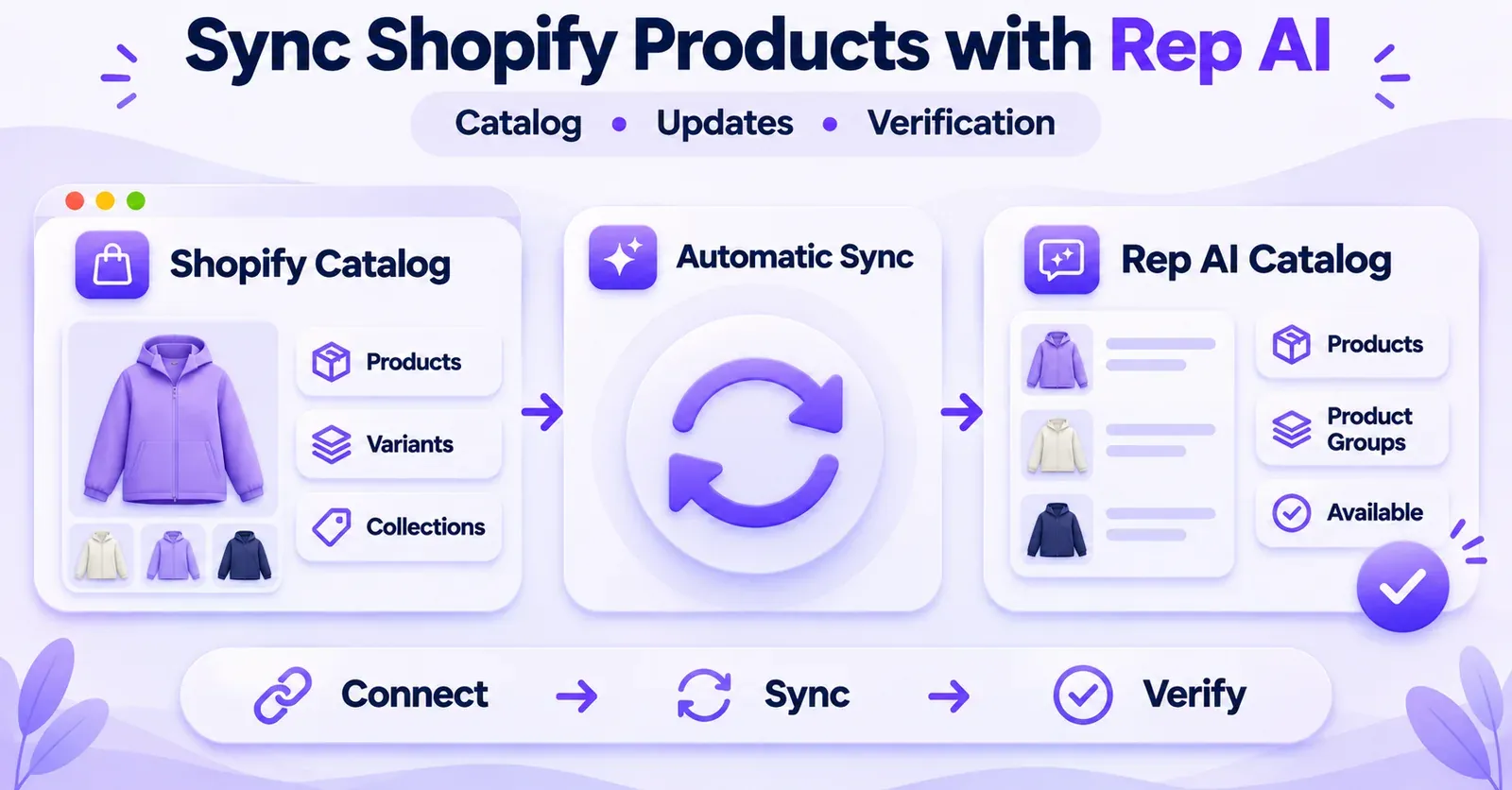
Rep AI documents support for Shopify Markets catalogs, including product and variant eligibility by market. A product excluded from a visitor's market catalog is not offered to that visitor through Rep AI, according to its current Markets documentation.
If your requirement is “exclude this product in Germany but keep it available in France,” an indiscriminate Available: off setting is too broad. Instead, establish the appropriate product or variant membership in the relevant Shopify Market catalog. Rep AI is described as respecting those regional catalog decisions.
How to inspect regional status in Rep AI
For a multi-market Shopify setup, the Rep Console can display Shopify Markets information after the relevant read permission is granted.
- Open Settings > Integrations in Rep AI.
- Find the Shopify Markets integration card.
- If necessary, approve read-markets access through Shopify.
- Open a product in Catalog > Products.
- Inspect its Shopify Markets tab to see market and variant statuses.
The Markets card and tab require more than one active Shopify market and the relevant inspection permission to appear in the console. Rep AI's documentation separately states that the underlying regional catalog handling is automatic for stores with Shopify Markets enabled; do not confuse permission for viewing market details with a newly invented plan requirement for regional behavior.
Understand the three easily confused market states
Not in this market's catalog is the meaningful exclusion state. It indicates that the product or variant is not available in that market's catalog, and Rep AI should not offer it to shoppers in that market.
No per-market price is different. It indicates that the item is sold in that market but a price has not been provided for it in the market-specific data. Rep AI's documentation says it may still recommend the product, while omitting the unverified price rather than inventing one.
Availability unverified is not proof of exclusion. It means the last check did not confirm the market membership. Investigate the underlying configuration and synchronization rather than treating that label as a hard business rule.
Changes in Shopify Markets flow into Rep AI with catalog synchronization. The help documentation also describes a manual synchronization option from the Catalog page. It does not establish a universal, instantaneous propagation guarantee for every account and channel.
Test the actual regional experience
After changing a market catalog, check both the Shopify configuration and the Rep AI product status. Then test what a shopper in the affected region would experience. Do not assume that changing the language of an English-language test prompt is equivalent to simulating a visitor's Shopify market.
If you cannot reliably test a particular visitor market, treat the verification as incomplete and investigate the appropriate storefront test method rather than stating that the restriction has been proven everywhere.
Can you exclude only one size or color variant?
For the general Available and Add-to-cart actions on the Products page, Rep AI's documentation states that these actions are supported at the product level rather than the variant level.
Suppose you sell a jacket in XS, S, M, and L, and you want Rep AI to recommend the jacket generally but never recommend XS in any country. The product-level Available control does not provide a documented independent global “exclude XS only” switch.
That does not mean that regional variant handling is impossible. Shopify Markets catalogs can express variant-level eligibility for a given market, and Rep AI's Markets documentation explains how that status is reflected in its regional view. The difference is scope: a regional catalog exclusion is not a substitute for a documented universal variant blacklist.
If precise variant-level exclusion is a critical operational need, validate the setup in Shopify and Rep AI, or ask Rep AI support for a confirmed procedure. Avoid claiming that an undocumented variant toggle or exclusion API exists.
Exclusion is different from stock, publishing, and recommendation relevance
A merchant may think a product has been explicitly excluded because it never appears in an AI carousel. But several separate systems influence whether a product is shown.
Publishing status matters: Rep AI documents that visible products are normally candidates for recommendation, while Shopify-hidden products are not promoted. A guide to recommendation instructions also describes published and in-stock eligibility for products explicitly named in those instructions.
Inventory status matters: the catalog and recommendation logic can take availability into account. A temporary out-of-stock situation should not be confused with a merchant-controlled permanent exclusion.
Conversation relevance matters: Rep AI describes context-sensitive recommendations. A product may be available and in stock but simply not fit the current request. Complementary recommendations also avoid suggesting items already in the shopper's cart.
Other catalog controls matter: group browsability and cart restrictions affect different parts of the experience without constituting product-level exclusion.
Diagnose the actual outcome, not only the missing product card
When a product does not appear, ask:
- Is it visible in the Rep AI Products table?
- Is its Available switch on or off?
- Is it actually published, stocked, and included in the relevant Shopify market?
- Is this a category search, an explicit request, or a complementary-product moment?
- Are group settings or chat purchase restrictions being mistaken for recommendation exclusions?
This diagnostic is useful in the opposite direction as well: if an excluded item appears unexpectedly, check that you changed the correct product and that the behavior you saw really came from a product recommendation rather than some other response source.
Special case: a curated SKU list for free-shipping suggestions
Rep AI documents a Free-Shipping Threshold Nudge Sales Skill that can suggest products when a shopper is close to qualifying for free shipping. Within that specific skill, a Curated SKU list option allows the merchant to select which products are eligible for that nudge's suggestions.
This is a narrow, feature-specific selection tool. It is not proof of a global whitelist for every Rep AI recommendation mechanism.
For example, a store might choose only low-cost accessories in a free-shipping nudge so it does not suggest expensive products that are inappropriate for the remaining cart gap. That curated selection governs that feature's behavior; a product outside the list might still be available for other conversations if it is otherwise eligible.
If your business requirement is “exclude this item from all AI product recommendations,” rely on the documented product-level Available control instead of assuming that a Sales Skill list applies universally.
How to test an exclusion using Test & Train
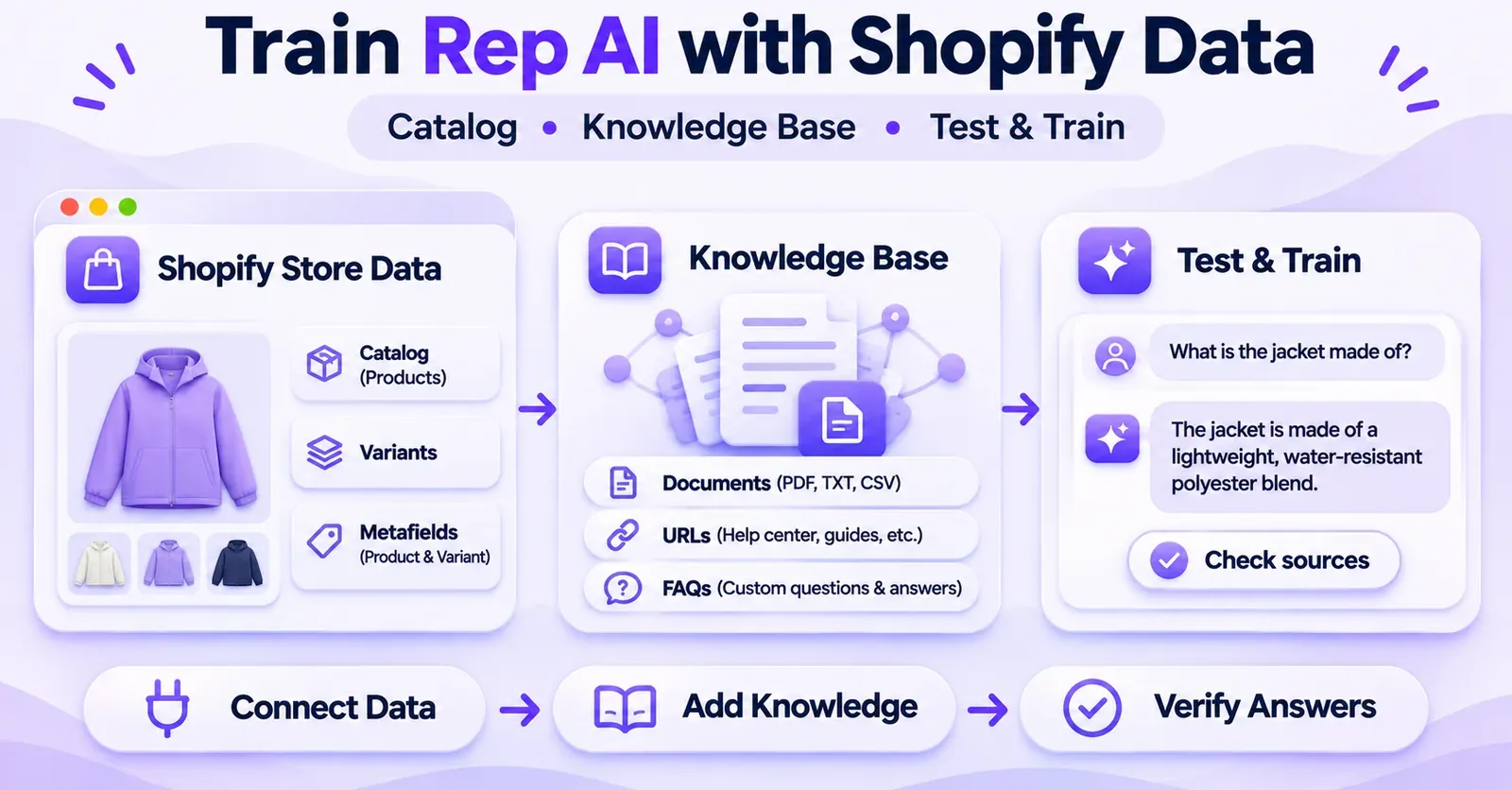
Changing a setting and checking the toggle state is necessary, but merchants should also verify the experience customers would see. Rep AI's Test & Train area provides private simulations of AI responses on supported channels.
The documented interface includes Chat, Email, and Meta testing contexts, with channel availability depending on connected helpdesk or Meta integrations. The simulation can produce an AI preview even when live AI answering is disabled for a supported channel. That makes it helpful for testing before enabling new channels, but it also means a successful test does not prove a live channel is already active.
A practical test sequence
Test A — Exact-name search. Ask for the excluded item's precise title. Check whether it is offered in a product card or carousel, and examine the response text for unintended references.
Test B — Category discovery. Ask for the category in which the item would ordinarily appear. A direct-name test may pass while a broader suggestion needs further investigation.
Test C — Similar alternatives. Ask for alternatives to a different product. Excluded items should not reappear merely because they are topically similar.
Test D — Related-item upsell. If you use a relevant upsell experience, test a context in which the excluded item might otherwise have been a complementary recommendation.
Test E — Other channels. Where enabled, repeat appropriate tests in the connected Meta or Email preview. Do not assume that a web-chat result verifies an unrelated channel's instructions or interaction design.
Test F — Reversal. For a non-sensitive test product, turn Available back on and verify that the control changes as expected. Remember that availability does not guarantee a particular carousel will appear: the result still depends on relevance and other eligibility conditions.
These are recommended editorial QA scenarios, not a claim that Rep AI mandates this exact six-test procedure.
How to assess ambiguous results
If the AI mentions an excluded item's name in a general answer, review what happened. A recommendation card, a response quoting an FAQ, and a customer question repeated back to the customer are not identical behaviors. The product availability documentation supports the recommendation restriction; it does not establish universal erasure from every knowledge source.
Document the exact question, channel, product state, screenshots, and outcome. If the behavior conflicts with the documented catalog setting, contact Rep AI support with those details rather than guessing about synchronization, caching, or an undocumented override.
 Quentin Olaya
Common problems when excluded products still seem to appear
Problem 1: The merchant disabled Add-to-cart instead of Available
Symptom: the product is still being suggested, but shoppers can no longer add it directly through the chat.
Explanation: this is the expected difference between purchase-action control and recommendation control.
What to do: if the item must not be suggested, verify that its Available switch is off in Products. Keep Add-to-cart settings aligned with your separate purchase workflow needs.
Problem 2: The merchant switched a collection to Browsable off
Symptom: the collection itself is no longer suggested as a browsing group, but individual products continue to appear.
Explanation: Browsable does not constitute a product-level blanket exclusion.
What to do: locate the relevant products in the Products page and disable Available for the intended items. Use bulk actions when appropriate.
Problem 3: A country-specific restriction looks inconsistent
Symptom: the product is not offered in one region but appears in another, or its price is absent in a market where it is still available.
Explanation: Shopify Markets catalogs and per-market pricing are separate concepts. Missing regional price data does not necessarily mean the product is excluded from the regional assortment.
What to do: inspect the Shopify Market catalog and the product's Rep AI Markets tab, distinguish Not in this market's catalog from No per-market price, and verify synchronization.
Problem 4: Add-to-cart is locked even though the product setting appears enabled
Symptom: the individual product's cart control cannot be switched on.
Explanation: one of its Product groups may be imposing a stricter Add-to-cart restriction.
What to do: inspect the group's setting and the hover explanation shown in the Products table. Do not treat a group-imposed policy as evidence that the product itself was excluded from recommendations.
Problem 5: An item was added to a restricted collection after the original changes
Symptom: a newly added product behaves differently from the products you previously updated.
Explanation: Rep AI documents inherited group behavior for Add-to-cart restrictions, but that does not establish automatic future Available exclusions for all products joining a collection.
What to do: verify the new item's Available state individually or as part of a new bulk selection. Establish an internal check for new arrivals if your assortment relies on persistent product exclusions.
Problem 6: A product is absent despite Available being on
Symptom: a product you intended to restore does not reappear in a particular carousel.
Explanation: the recommendation engine considers shopper intent and catalog eligibility. A product may also be unpublished, out of stock, or unavailable in the visitor's market.
What to do: review those conditions, then test several realistic prompts. Do not infer a synchronization failure from a single missing recommendation.
Problem 7: The AI still mentions the item in free text
Symptom: no product card is offered, but an FAQ-based or other text answer seems to refer to the excluded product.
Explanation: the catalog's recommendation setting should not be described as a guaranteed purge of every information source.
What to do: check the response's context and supporting knowledge, verify the item was not actually recommended, and escalate with evidence if the behavior violates your intended rule. For sensitive content, also review Shopify visibility and any separately connected knowledge sources.
Six practical product-exclusion scenarios
1. Delaying an upcoming collection launch
A store has created product pages in Shopify for a future campaign but does not want the shopping assistant to recommend them in advance. The team identifies the affected products in Rep AI, turns Available off, and records the intended relaunch date. At launch, they review storefront publication, regional availability, and stock before re-enabling recommendations.
This is an illustrative merchandising workflow, not a claim that preorders are automatically excluded by Rep AI.
2. Restricting a personalized gift to the product page
A shopper can ask the assistant about a custom pendant, but must enter engraving details through a storefront personalization field before paying. The better fit may be Add-to-cart: off while leaving Available: on. The assistant can discuss the item and refer shoppers to its product page without attempting the incomplete in-chat add-to-cart flow.
3. Hiding products in a private collection
A store owner switches the private collection's Browsable setting off, assuming this protects all its members. A subsequent check reveals that individual products may still be suggested. The owner then disables Available for the selected products and runs direct-name and category-level tests. The collection control and product controls serve different purposes.
4. Keeping an item out of one international market
A retailer distributes a product in France but not Germany. Rather than globally disabling it in Rep AI, the team updates the appropriate Shopify Market catalog, verifies the regional eligibility status, and checks what shoppers in each market encounter. This preserves the possibility of recommendations in allowed markets.
5. Pausing a seasonal assortment in bulk
A home-goods brand wants Rep AI to stop recommending a group of holiday-specific decorations. The merchandiser filters the Products table, selects the affected rows, and chooses Mark as unavailable. The team saves the item list for reactivation and checks newly added holiday products separately.
6. Handling a single unavailable size
A clothing brand wants to suppress one size without hiding the rest of the product. Rep AI's documented global controls apply at the product level, so the merchant should not assume there is a per-variant Available switch. They can investigate stock rules or market-specific catalog eligibility as appropriate, but should confirm the exact desired outcome instead of improvising an unsupported global variant exclusion.
Maintain an exclusion list without losing control of your catalog
A product exclusion is easy to set and easy to forget. That can create the opposite problem months later: legitimate items stay out of recommendations after the original business reason has disappeared.
For a growing store, maintain a lightweight exclusion register with the product, business reason, scope (worldwide Rep AI recommendation, in-chat cart action, collection browsing, or specific Shopify Market), date applied, owner, expected review date, and verification status.
A weekly or campaign-based review can be especially useful when merchandise changes rapidly. It can catch products that were reintroduced, collections that gained new items, or international catalog adjustments that have not yet been rechecked. The review interval is a business choice; Rep AI's documentation does not impose one.
Also separate temporary merchandising preferences from hard business restrictions. If a product must never be sold or presented to particular customers for a legal or contractual reason, do not depend solely on a chat recommendation setting. Review the storefront's own access, publication, and market restrictions with the responsible team.
Final checklist: exclude the right products for the right reason
Before you consider the job complete, check that you have:
- Identified the exact product or group of products, rather than a similarly named listing.
- Chosen Available for recommendation exclusion, Add-to-cart for chat purchase restrictions, Browsable for group suggestions, or Shopify Markets for regional eligibility.
- Confirmed the control's visible state after the change.
- Tested direct product requests, category discovery, and relevant recommendation scenarios.
- Distinguished product-level exclusions from group-level cart restrictions and regional variant rules.
- Reviewed additional sources if the business requirement concerns all textual mentions, not just catalog recommendations.
- Recorded temporary changes and established a process for reactivation or review.
Bottom line: to exclude a product from Rep AI's Shopify recommendations, turn Available off in AI Sales > Catalog > Products; for several items, select them and use Mark as unavailable. Don't substitute Add-to-cart, Browsable, or Promoted for that action. Use Shopify Markets when the exclusion should apply only to particular regions, and verify your setup with real test conversations before considering the configuration complete.
FAQ: excluding products from Rep AI
Can I exclude a product from Rep AI without deleting it from Shopify?
Yes. For recommendation exclusion, go to AI Sales > Catalog > Products and turn Available off for the product. This changes its documented eligibility to appear in AI conversations, not the existence of its Shopify listing.
How do I exclude multiple products at once?
Use the checkboxes on the Rep AI Products page, then select the X / Mark as unavailable bulk action. Verify the selected rows before applying the change and test representative products afterward.
Does turning off Add-to-cart also stop recommendations?
No. Add-to-cart off prevents the assistant from adding the item to the shopper's cart through the relevant chat workflow. The AI may still describe or recommend the item and direct shoppers to its product page.
Does disabling Browsable hide every item in a collection?
No. Disabling Browsable stops suggestions of the product group as a group. Its individual products can still be recommended unless they are separately ineligible, including through Available off.
Can I make an entire collection unavailable automatically when new products join it?
The documented Product groups inheritance rule applies to Add-to-cart. It does not establish a general dynamic blacklist for Available. Check newly added products or request confirmation from Rep AI if you need an automated exclusion workflow.
Does removing the Promoted star exclude the item?
No. Promoted affects display priority inside a product carousel when the product is included. It is not the exclusion control.
Can I exclude a product from recommendations only in Germany?
For a market-specific requirement, use the relevant Shopify Markets catalog membership. Rep AI documents respecting regional product and variant exclusions. Do not switch Available off globally if the item should remain eligible in other markets.
What does “No per-market price” mean?
It means the item is present in the market's catalog but lacks a confirmed price for that market. It is not equivalent to Not in this market's catalog, which represents an exclusion from the regional assortment.
Can I turn off only one size or color using Available?
Not through a documented independent general Available switch for each variant. The catalog controls are described at product level. Shopify Markets can specify regional variant availability, which is a different mechanism.
Why does a product still appear in a reply after I excluded it?
First confirm that the correct product has Available off and that the response was actually a product recommendation. If it is a free-text reference from another information source, the catalog setting is not documented as an exhaustive knowledge purge. Capture the response and context, then contact Rep AI support if needed.
Can I verify an exclusion before customers see it?
Yes. Use Rep AI's Test & Train previews to test realistic shopper requests. Check the channels you use, but remember that preview responses can be generated even for a channel where live AI answering is still disabled.
Do excluded products automatically reappear when stock returns?
Do not assume that. A deliberate Available: off setting should be treated as a merchant-controlled exclusion that needs review. Stock and publishing conditions are separate signals, and an Available-on product is not guaranteed to appear in every recommendation.
Is there an official CSV import or API for exclusion lists?
The reviewed documentation establishes manual product controls and bulk selection in the console. It does not establish a specific CSV exclusion importer or dedicated exclusion API. Verify any such automation separately before relying on it.
Does disabling a group’s Add-to-cart setting block Shopify checkout?
No. That group control changes what Rep AI can do through chat. It does not disable Shopify's own product-page Add to cart button or checkout.