Rep AI Products Not Syncing with Shopify: Causes and Fixes
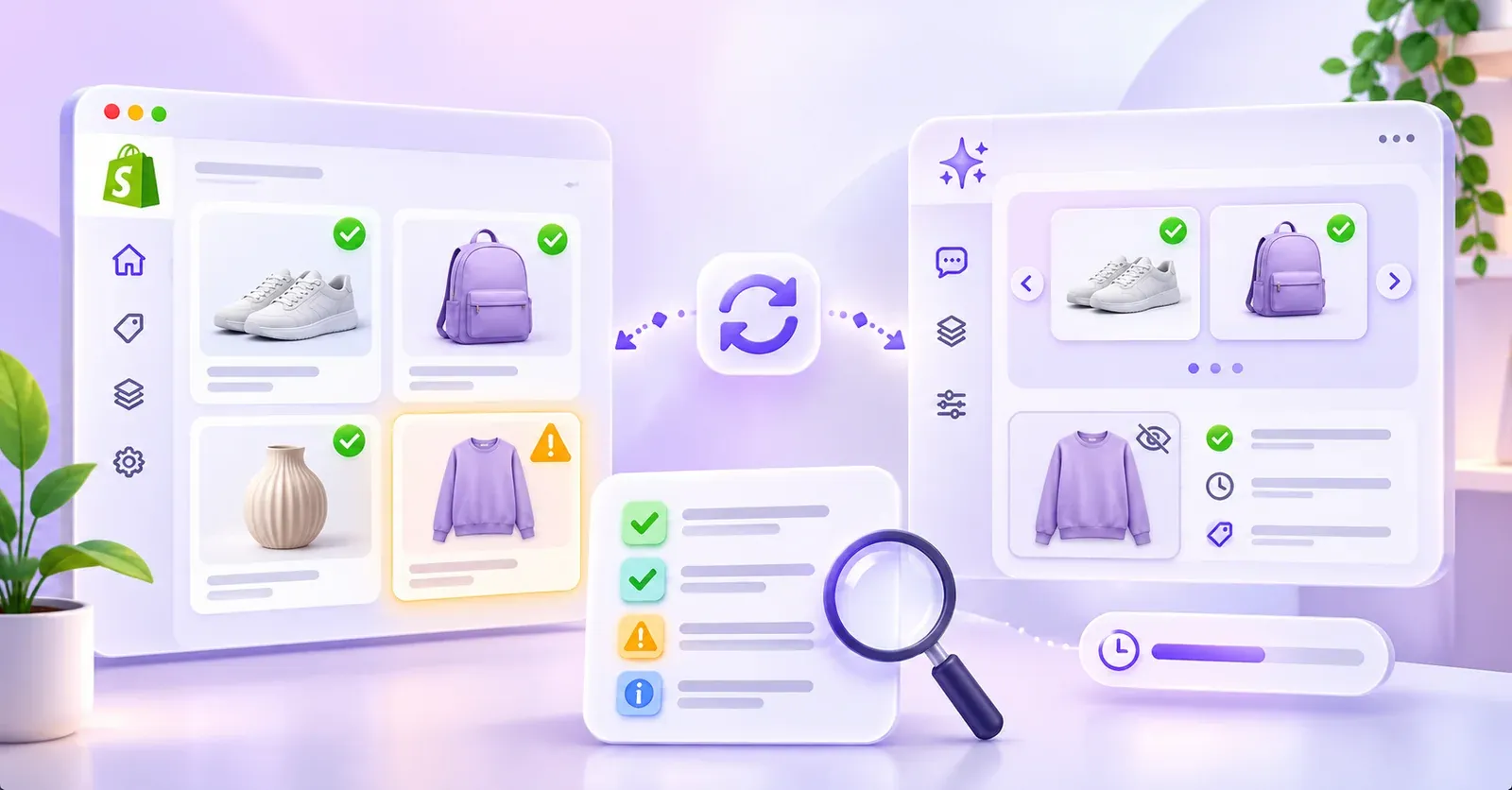
If your Shopify products are missing from Rep AI, start by checking whether the products are absent from Rep AI's catalog or simply not appearing in AI recommendations. These are different problems, and treating them as the same issue can waste time. A product may be synchronized correctly but unavailable for recommendations, excluded from a shopper's Shopify Market, or configured without an add-to-cart action.
For a genuinely missing or outdated product, confirm the Shopify connection, inspect the catalog's initial synchronization status, and use the available Sync Now control where appropriate. Rep AI's product documentation advises allowing up to 24 hours for a newly added product before escalating a persistent absence to support. That is a troubleshooting guideline—not a promise that every catalog change takes 24 hours or a guarantee that every update is instant.
This guide walks through those checks in a practical order. It also explains how to investigate products that appear in the catalog but are not suggested to customers, outdated inventory information, missing product groups, regional prices, and metafields that never make it into an AI answer.
Quick diagnosis: Which problem do you actually have?
Before changing any settings, find one affected product in Shopify and compare its state with the Rep AI catalog. Use the table to choose the appropriate investigation.
| What you observe | First place to check | What the symptom may mean |
|---|---|---|
| A newly created product is absent from Rep AI | Shopify integration, catalog, sync progress | The catalog may still be updating, or the product may require further investigation |
| Every product seems to be missing | Connection status and initial import | The Shopify connection or first catalog import may not be complete |
| The product exists in Rep AI but the assistant never suggests it | Available setting, Shopify visibility, market eligibility | Synchronization may have succeeded; recommendation eligibility is a separate question |
| The product is suggested but cannot be added to the cart | Add-to-cart settings at product and group level | Cart action may be restricted even when the product is present |
| A collection does not appear as a browsable group | Product groups and Browsable | Group discovery and individual product availability are not identical |
| The assistant calls an in-stock item out of stock | Shopify quantity and inventory settings | Inventory configuration needs checking before blaming catalog synchronization |
| A product disappears for visitors in one country | Shopify Markets and regional catalog inclusion | The exclusion may be intentional for that market |
| A material, size guide, or custom specification is missing | Product and variant metafield setup | The product may exist, while that particular field is not available to the AI |
The fastest troubleshooting path is to diagnose one product, one storefront context, and one symptom at a time. If you can reproduce the issue with a specific Shopify product, you can compare its details across the relevant systems rather than assuming the entire integration is broken.
1. Understand what Rep AI syncs—and what it does not imply
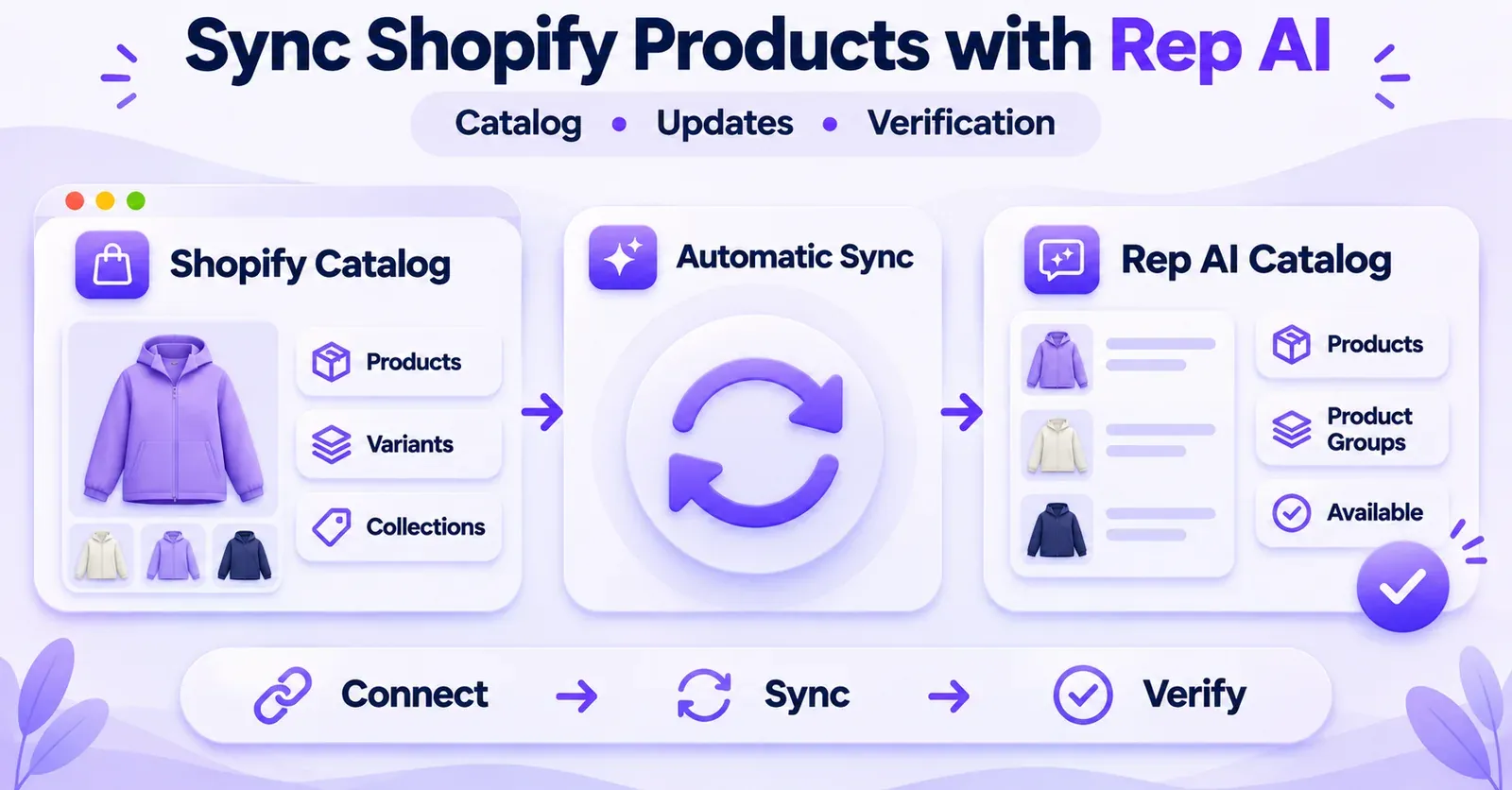
Rep AI's documented Shopify connection automatically recognizes and synchronizes products after the store is connected. In the normal setup, merchants do not have to manually import every Shopify product one by one. The Rep AI catalog is where you inspect the products that the system has received.
In the dashboard, open AI Sales > Catalog > Products. Some official documentation refers more generally to the Product tab, so the exact labels on your account may differ slightly. What matters is finding the catalog view and searching for the affected product.
There are several distinct stages behind what a merchant might call “syncing”:
- Shopify source data: the product exists and has the intended details in Shopify.
- Connection and ingestion: the Rep AI integration can access the store and its catalog data.
- Catalog presence: the product appears in Rep AI's Products view.
- Recommendation eligibility: the product can be considered in relevant AI recommendations.
- Storefront actions: available interactions, such as adding the item to a cart, work under their own settings.
- Regional context: a product may be eligible in one Shopify Market and excluded in another.
Passing stage three does not automatically establish that stages four through six will behave exactly as expected. Likewise, failing to see a product in one chat response does not establish that stage two failed.
Some Rep AI documentation describes automatic updates and fast access to certain critical store data, while other help pages recommend patience for new-product propagation. Those statements are not necessarily contradictory: product discovery, catalog refreshes, inventory checks, and regional information can involve different operations. The safe approach is to verify the specific data that appears wrong.
Start with a controlled example
Choose a single product that you can identify without ambiguity. Record its Shopify title, handle or SKU, whether it was recently created or edited, and whether it is visible to the relevant storefront audience. Then check whether that same product is present in Rep AI.
If it is present, do not begin by reconnecting the integration. Move to the visibility, availability, market, or content sections below. If it is absent, start with the connection and synchronization checks.
 Quentin Olaya
2. Check whether Shopify is still connected to Rep AI
A disconnected integration is an obvious starting point when products cannot be found, especially if the problem affects the entire catalog rather than a handful of items. Rep AI has published a Shopify reconnection procedure.
The documented path is Settings > Integrations > Catalog > Shopify > Connect. The process calls for entering the store's myshopify.com address and approving the requested permissions in Shopify. The resulting integration state should show Connected.
Use this sequence:
- Open the integration settings in Rep AI.
- Locate the Shopify catalog connection and inspect its current state.
- If the integration is disconnected, follow the documented Connect flow.
- Confirm that you are authorizing the correct Shopify store, especially if your organization manages multiple stores.
- Approve the permissions requested through Shopify's own authorization screen.
- Return to Rep AI and confirm that the integration reports Connected.
- Revisit the product catalog and check the import or synchronization status.
The published reconnection guide dates from 2025. Menu labels may have changed since that guide was written, so follow the current dashboard if it differs rather than forcing an older navigation sequence.
What if Rep AI says “Connected” but products are still missing?
A connected status means the integration is reported as connected; it does not prove that every product has arrived, every regional catalog rule has been applied, or every field is exposed to the assistant. Continue to the next checks instead of treating the connection status as a complete sync-health report.
Likewise, do not repeatedly disconnect and reconnect a working integration simply because one item is not recommended. First inspect whether the item exists in the catalog and whether a setting is intentionally limiting it. A reconnection is not a documented universal repair for every product issue.
3. Determine whether the initial product import has finished
When you first connect a Shopify store, Rep AI can take time to build the initial catalog, particularly if the store has a large assortment. Its documentation describes a progress indicator and an initial state called Launch in progress.
While that state is active, an incomplete product list may reflect an unfinished import rather than a permanently missing item. Check whether progress is still being reported, and avoid drawing conclusions from a partial catalog snapshot.
There are two situations to separate:
The store was just connected. You may still be observing the initial import. Review the current progress information before diagnosing individual products. Large catalogs can take longer than smaller ones, but there is no universal import duration established by the documentation used for this guide.
The store was connected long ago. A missing product may be a recent addition, a visibility issue, or another catalog-specific problem. The initial-import explanation is less useful if almost all older products appear correctly.
If the first import appears stuck or remains incomplete without explanation, Rep AI's guidance points merchants toward support. There is no verified public procedure here for resetting hidden queues, rebuilding private sync jobs, or manually editing back-end integration logs. Avoid attempting undocumented fixes.
Make a small comparison sample
A practical way to narrow the scope is to select three example products: one established product that appears correctly, one newly added product that does not, and one product with recently changed details. Compare their catalog presence and the relevant settings. This is an editorial troubleshooting technique, not an official Rep AI requirement.
If established products are visible and only new products are missing, focus on recent synchronization and visibility. If everything is absent after the initial import should have finished, connection and import status deserve more attention. If all three products are visible but chat behavior differs, the next sections are more relevant.
4. Use Sync Now for recent changes
Rep AI documents a Sync Now control within the catalog area. The Help Center mentions it in connection with newly created metafield definitions and Shopify Markets changes. It is therefore incorrect to assume that merchants can only sit and wait for an automatic refresh.
For a recently added or edited product, locate the current catalog controls and use Sync Now if it is available in your account. Then return to the affected product and check whether the expected information appears.
A disciplined sequence is:
- Verify that the source product or field is correct in Shopify.
- Check whether the product currently appears in Rep AI.
- Trigger Sync Now using the documented catalog control where appropriate.
- Recheck the affected catalog entry after the refresh has had an opportunity to complete.
- If a new product remains missing, apply the Help Center's documented troubleshooting guidance before escalating.
Rep AI advises allowing up to 24 hours for a newly added product to appear, and contacting support if it remains absent beyond that point. This should not be read as a blanket synchronization service-level agreement. Nor should it be turned into an instruction to wait a full day before trying the controls that are already available.
Avoid three timing assumptions
“Real-time” does not mean every possible field updates instantly. Some critical data can be accessed or refreshed differently from general catalog content.
“Wait up to 24 hours” does not mean every update takes 24 hours. Many changes may propagate sooner; the documented threshold is meant to help decide when a persistent absence needs assistance.
“Sync Now” does not guarantee that every issue is fixed. A visibility restriction, unsupported metafield type, or deliberate Shopify Market exclusion can persist after a successful refresh because the issue is not simply stale data.
5. Products missing from recommendations: Check Available and Shopify visibility
One of the most important distinctions in Rep AI is the difference between a product being in the catalog and a product being eligible for recommendations.
In AI Sales > Catalog > Products, Rep AI documents a per-product Available control. In the help material, an enabled state is shown in green and a disabled state in gray. This setting is associated with whether the product can be included in AI recommendations.
If you can find the product in Rep AI but customers cannot get it recommended, inspect Available before diagnosing a synchronization failure. A disabled product can be present in the database while intentionally excluded from recommendation behavior.
Next, inspect visibility on the Shopify side. Rep AI states that products hidden in Shopify are not promoted by its assistant. A merchant may therefore see a product in administrative views but not in customer-facing recommendations, depending on the product's visibility and other eligibility rules.
A useful testing sequence
Take a product that is visible in the Rep AI catalog:
- Confirm its current Available state.
- Check whether the Shopify product is intended to be visible to the relevant storefront audience.
- Verify which Shopify Market the test visitor belongs to, if Markets are configured.
- Test a genuinely relevant product question instead of assuming every prompt must yield that item.
- Compare behavior after correcting any documented exclusion setting.
The final step requires nuance. Available does not mean “force this product into every answer.” Product recommendation still depends on the shopper's question and the assistant's recommendation behavior. Being eligible is not equivalent to being guaranteed a particular ranking or mention.
What about products in a group?
A product may also belong to collections or groups that have separate browsing settings. Those group settings affect how customers discover groups, not necessarily whether an individual product can ever be discussed. This is why group-level settings deserve their own check rather than being used as a blanket explanation for a missing recommendation.
6. Troubleshoot product groups and Shopify collections
Rep AI's product groups draw on Shopify collections and tags. Merchants may encounter a situation in which individual products are visible but a new collection does not appear as expected in the assistant's catalog structure.
The documentation warns that newly created groups or collections may need time to propagate. Check the relevant product-group view before assuming that the products themselves have disappeared.
A key group-level control is Browsable. It determines whether a group itself can be presented for browsing. However, a group that is not browsable does not necessarily prevent every product within it from being mentioned independently.
For example, imagine a Shopify collection called “Winter Accessories.” If the corresponding group is not browsable, the assistant may not present that collection as a navigable group, yet an individual scarf within it could still be mentioned in response to a relevant question. That is an illustrative scenario, not a claim that any specific store is configured this way.
 Quentin Olaya
What to check when a collection is missing
Confirm that the collection exists in Shopify and that you are looking at the appropriate product-group view in Rep AI. Next, determine whether you have a group discovery problem or whether every member product is truly absent from the Products catalog. Then inspect the group's current Browsable state and the timing of any recent Shopify changes.
If the original import is stuck or product groups remain missing after reasonable checks, the documented next step is to involve Rep AI support. Do not assume that changing Browsable will repair an ingestion issue: that control addresses browsing behavior, not all possible synchronization problems.
7. Products are visible but Add to cart does not work
Another frequent false alarm occurs when the assistant can discuss or recommend a product but cannot add it to the shopper's cart.
Rep AI treats Add-to-cart as a separate capability. Its documentation describes controls at both the individual product and product group levels. Group settings can restrict the action in ways that make a product-level control appear disabled or locked.
This matters because a product can still be known to the assistant while the cart action is unavailable. The assistant may still direct a shopper to the product page rather than performing an add-to-cart action.
When diagnosing this symptom, inspect both locations:
- On the affected product, check the Add-to-cart setting.
- In the product's relevant groups, check whether a group-level restriction is taking precedence.
Do not confuse Add-to-cart with Available. The former affects a particular interaction; the latter concerns inclusion in recommendations. A product might be eligible for recommendations without being configured for direct cart addition.
A simple way to isolate the setting
Choose a product that Rep AI clearly recognizes. Ask a question that naturally leads to that product. Note whether the assistant discusses the item, links to its page, or offers the cart action. Then compare those observed outcomes with the documented product and group settings.
This separates an issue with product discovery from an issue with what the assistant is allowed to do. It also avoids unnecessary catalog resynchronizations when the relevant control is an action setting.
8. Incorrect stock or out-of-stock information
An item that appears as out of stock in the assistant may not be missing from the catalog at all. Rep AI has a dedicated help article for products that show as unavailable even when the merchant expects them to be in stock.
The official troubleshooting guidance points merchants toward Shopify inventory settings. In particular, inspect the product's available quantity and the configuration governing whether Shopify can continue selling when stock reaches zero. The documented Shopify option is Continue selling when out of stock; inventory tracking settings also matter.
Rather than assuming the assistant's answer proves a bad sync, compare the information at the source.
Check the source first
Open the product in Shopify and verify the quantity or availability relevant to the product and variant that the customer is asking about. Check the inventory-tracking setup and the continue-selling behavior. Then compare the observed Shopify state with what Rep AI reports to a shopper.
For products with multiple variants, be careful not to treat the availability of one size or color as proof that every version is available. Keep the comparison tied to the particular product or variant being tested. This is a good diagnostic discipline; it is not a claim about an undocumented Rep AI variant-sync algorithm.
The cited Rep AI inventory help article was updated in 2025, so use the current Shopify interface if labels have since changed. If Shopify's settings are correct and the discrepancy persists, collect the exact examples and escalate rather than asserting a hidden fix.
Is stock information always live?
Rep AI's materials describe access to critical data such as inventory and price, but that does not justify a universal guarantee that every displayed stock value, catalog field, and regional setting updates instantaneously. The only safe conclusion is that the product's actual Shopify inventory and the assistant's observed behavior should be checked together.
If the issue is limited to stock messaging, do not file it as “all products failed to sync.” A narrow, well-documented report is easier to investigate.
9. Shopify Markets: Why a product may disappear in one country
Shopify Markets adds a geographical dimension to product availability. A store may sell one range of products in one region and exclude certain products in another. Rep AI's Shopify Markets guidance, updated on November 18, 2026, says that the assistant respects whether a product belongs to the relevant market's catalog.
Therefore, a product not being recommended to a shopper in a particular country may be correct behavior, not a failure to sync the product globally.
Consider a merchant who sells an accessory in the United States but excludes it from the catalog available to shoppers in another market. A customer testing from the excluded region should not assume that the assistant must present the item simply because the product exists in the store's master catalog.
Market-specific states worth understanding
Rep AI's guidance describes product-market statuses such as:
| Market status | Practical interpretation |
|---|---|
| Not in this market's catalog | The item is not included in the catalog for that market |
| No per-market price | A market-specific price is not available in the way that view expects |
| Availability unverified | Regional availability has not been confirmed in that state |
These status labels should not all be translated as “Shopify sync broken.” They point to different questions: whether the product belongs to the regional catalog, whether the region has usable pricing information, and whether eligibility can be confirmed.
Check Markets access and permissions
Rep AI documents a Markets integration area under Settings > Integrations > Shopify Markets and the Shopify permission read-markets when access is needed. Its Markets panel depends on the store having multiple active markets and the relevant authorization.
If the panel is not visible, do not automatically conclude that Shopify Markets is unsupported. Check whether the store actually uses multiple active markets and whether the integration has the permission the official guidance describes.
When market configuration changes in Shopify, Rep AI says those changes are reflected on a subsequent synchronization; a manual sync can also be initiated. This is another reason to distinguish an intentional regional exclusion from an outdated market view.
How to test a regional mismatch
Identify the product, the visitor's market, and the intended Shopify product availability for that market. Compare those with the corresponding Rep AI market status. If a product is excluded from the market, changing the sync timing alone will not make it eligible there. If the product should be included but the information has not refreshed, use the documented synchronization controls and gather evidence for support if necessary.
A test from a different country, currency, or market can produce a different result even for the same product. When reporting the issue, always specify the market context.
10. Missing metafields and product details
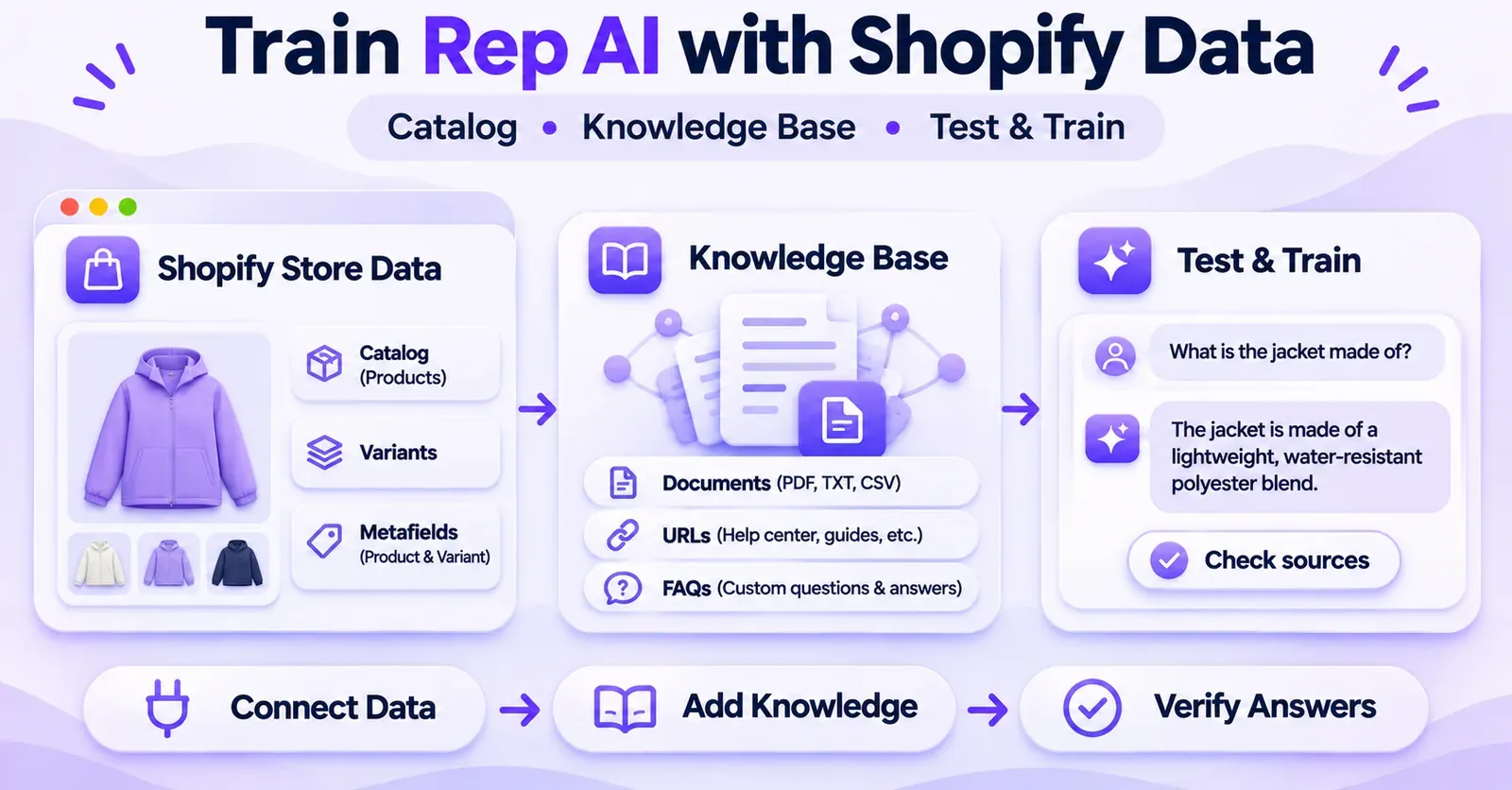
Sometimes the product appears in Rep AI and can be recommended, but the assistant cannot answer a question about a custom property—such as a product material, fit note, care instruction, or a merchant-defined technical specification.
That is not necessarily a product-sync failure. Rep AI handles product and variant metafields through a specific setup flow rather than automatically exposing every merchant-defined field in all circumstances.
The documented location is AI Sales > Catalog > Product Metafields. Merchants select and enable the definitions they want the assistant to use. Rep AI's help material specifies limits of 10 product metafields and 5 variant metafields for this feature.
The same documentation identifies variant metafield types that do not provide usable values in this context, including rich text, money, JSON, file, and reference types. These are compatibility constraints; enabling an unsupported field type should not be presented as a guaranteed fix.
A structured metafield diagnosis
Start by confirming that the intended value actually exists in Shopify for the correct product or variant. Then check whether its definition appears in the Rep AI metafield configuration and whether it has been enabled. If the definition was only just created, the Help Center documents using Sync Now to refresh the available definitions.
Next, check whether the type of data is compatible with the documented feature and whether the configured number of enabled fields stays within the stated limits. Finally, test a question that specifically requires that property.
For example, if a store uses a custom field to record whether an item is machine washable, test a product known to have that value. If the field is absent from Rep AI's available definitions, that is a different problem from the product itself being absent from the Products view.
Metafields are not an unrestricted product filter
Rep AI describes these metafields as additional knowledge the assistant can use when answering questions about products. That should not be broadened into a promise that every metafield can control all search, filtering, recommendation, or merchandising behavior. The fact that an assistant can answer from an enabled field is distinct from guaranteeing that the field drives every product-discovery decision.
If the customer-facing answer remains wrong after the source data, configuration, type, and synchronization have been checked, document the exact field and behavior for support. Avoid inventing workarounds involving private APIs or hidden catalog schemas.
11. Build a repeatable troubleshooting workflow
If several merchants or team members are investigating the same store, consistency matters more than a collection of speculative fixes. Use the following ordered process before making major configuration changes.
Step A: Identify the symptom precisely
Write down what is missing: the product itself, the product's recommendation, a specific collection, the add-to-cart action, inventory status, a regional price, or one custom field. These outcomes involve different Rep AI settings.
Step B: Compare Shopify and the Rep AI catalog
Check the Shopify source product and look it up under AI Sales > Catalog > Products. If it is absent, investigate connection, import, and refresh timing. If it is present, focus on the relevant behavior and eligibility settings.
Step C: Check only the applicable controls
For a missing recommendation, inspect Available, Shopify visibility, and Markets. For missing group browsing, inspect Browsable. For an unavailable cart action, inspect Add-to-cart on both the product and relevant group. For custom product information, inspect Product Metafields. Do not toggle unrelated settings in the hope that something changes.
Step D: Account for timing
If the product or definition was recently created, check the appropriate refresh option and the time since the change. For newly added products that remain absent, Rep AI provides a 24-hour troubleshooting threshold before contacting support. Avoid treating the threshold as a promise for every field or market update.
Step E: Capture a before-and-after test
Retest the same product under the same shopper conditions. If you are diagnosing market behavior, use the same market. If you are diagnosing an inventory answer, use the same product or variant. This makes it possible to tell whether a change actually affected the issue.
Step F: Escalate with evidence
If the problem persists after the documented checks, provide Rep AI with the most useful product-specific information. A vague report such as “Shopify does not sync” is harder to act on than a reproducible example with clear data.
 Quentin Olaya
12. What to send Rep AI support
Rep AI's help material directs merchants to contact support for persistent missing products, incomplete imports, and relevant catalog issues. The following is a suggested diagnostic handoff, not an official form required by Rep AI.
Prepare these details in one report:
| Detail | Why it helps |
|---|---|
Shopify store's myshopify.com domain | Identifies the affected store |
| Product title, handle or SKU | Gives support a specific item to locate |
| Date and approximate time of creation or change | Helps establish whether the issue concerns a recent update |
| Shopify screenshot or product details | Shows the intended source state |
| Rep AI catalog screenshot or absence | Shows the observed destination state |
| Integration status | Clarifies whether Shopify is currently reported as connected |
| Current import state or recent manual sync | Describes the synchronization checks already attempted |
| Affected Shopify Market, if relevant | Makes regional discrepancies reproducible |
| Exact customer-facing chat result | Separates catalog presence from recommendation or action behavior |
| Settings already checked | Prevents repeated generic troubleshooting |
Do not send unnecessary personal customer data just to demonstrate a missing product. A product identifier, an appropriate screenshot, and a short symptom description are often a more targeted starting point.
Suggested support message
Our Shopify store is connected to Rep AI, but product [title / handle / SKU] is [absent from AI Sales > Catalog > Products / present but not recommended / displaying incorrect data]. The product was [created / changed] on [date]. We checked [integration state, Available, relevant market, Sync Now, or other applicable checks]. The expected Shopify result is [brief description]; the observed Rep AI result is [brief description]. Could you investigate this specific discrepancy?
The wording is a practical template rather than a statement about Rep AI's official support process. Adjust it so that it reflects only checks you have actually performed.
13. Common mistakes that prolong troubleshooting
Assuming one missing chat recommendation means a failed catalog import. A product can exist in the Products view and still be ineligible for recommendations or simply not relevant to a specific question.
Treating Available and Add-to-cart as interchangeable. One setting concerns recommendation eligibility; the other concerns an action. Changing one does not necessarily solve a problem governed by the other.
Forgetting the group-level setting. Product groups can affect browsing and cart actions, so a single product setting may not explain everything that happens in chat.
Ignoring Shopify Markets. A regional exclusion may be expected behavior. Test with the correct market before declaring the catalog incomplete.
Expecting all metafields to appear automatically. Rep AI documents an enablement process, field-count limits, and restrictions on certain variant metafield types.
Mistaking a 24-hour support threshold for an exact sync schedule. The documentation supports neither “everything is instant” nor “everything always takes one day.”
Trying undocumented technical resets. This guide does not establish a supported merchant-side procedure to purge Rep AI caches, rebuild webhook subscriptions, or call a private resync API. Stick to the documented controls and support escalation.
Updating several settings at once. This makes the outcome hard to interpret. Change one relevant setting, test, and record the result before moving on.
Repeating an old dashboard navigation sequence without checking the current UI. Some integration documentation was written before 2026. The functional concepts are useful, but menu labels can evolve.
14. How to reduce repeat catalog incidents
A recurring issue does not always require more aggressive troubleshooting. Often, a consistent product-release checklist can keep expectations aligned between the Shopify team and the customer-support team.
For every significant catalog update, a useful internal checklist is:
- Confirm that the Shopify product has the intended visibility and inventory state.
- Check that newly introduced products appear in Rep AI after the normal update process has had time to run.
- Review Available if product recommendations are part of the launch.
- Review Add-to-cart at the relevant levels when direct cart interactions are expected.
- Confirm the intended Shopify Markets and regional catalog inclusion before testing from other countries.
- If the launch relies on custom product attributes, confirm that the required metafield definitions are enabled and compatible.
- Keep a short record of any products that do not appear or behave as expected.
These are operational recommendations, not mandatory steps imposed by Rep AI. Their purpose is to prevent the team from diagnosing intentional product restrictions as unexplained synchronization failures.
For large assortment changes, consider maintaining a small set of representative test products with different visibility, group, stock, and market conditions. A controlled test set makes it easier to spot whether a change is global or limited to one configuration. It also gives support concrete examples if an unexplained discrepancy persists.
Final checklist: Diagnose the right layer before fixing it
A Rep AI product issue is not always a Shopify synchronization failure. First confirm whether the item is actually missing from the Rep AI catalog. If it is, inspect the integration, initial import, and the documented refresh process. For newly added products, follow Rep AI's guidance on the 24-hour troubleshooting window and escalate persistent absences with a specific example.
If the product is present, move to the correct layer: Available for recommendations, Browsable for group discovery, Add-to-cart for cart actions, Shopify inventory settings for stock discrepancies, Shopify Markets for regional inclusion, or Product Metafields for custom product knowledge.
That separation is the central takeaway. It turns a vague complaint—“Rep AI isn't syncing my Shopify products”—into an identifiable problem that the store team can verify, document, and resolve or escalate without changing unrelated settings.
Frequently asked questions
Does Rep AI automatically sync products from Shopify?
Yes. Rep AI's Shopify documentation describes automatic recognition and synchronization of products after connecting the store. A standard setup does not require merchants to manually import each product. An initial import can still take time, and some later changes may not appear immediately.
How long does a new Shopify product take to appear in Rep AI?
There is no universal guaranteed delay established in the documentation used here. Rep AI advises allowing up to 24 hours when troubleshooting a newly added product that has not appeared, and contacting support if the product is still missing. The advice should not be interpreted as a fixed duration for all sync operations.
Can I manually refresh the Rep AI product catalog?
Rep AI documents a Sync Now control in its catalog area, including for cases involving new metafield definitions and Shopify Markets changes. Use the current dashboard control where available. A manual sync does not guarantee that a deliberately hidden or regionally excluded product will suddenly become eligible for recommendations.
Why is a Shopify product in Rep AI but not appearing in chat?
Check its Available state, visibility in Shopify, and applicable Shopify Market. Also consider whether the customer's question is relevant to that item. Catalog presence, recommendation eligibility, and actual conversational selection are separate concepts.
Does disabling Available remove the product from the Rep AI catalog?
The documented role of Available is to control inclusion in recommendations. A product may therefore remain visible in catalog management while it is not eligible to be suggested. Do not treat that setting as synonymous with deleting or failing to synchronize the product.
Why can customers see a product but not add it to the cart?
Inspect the Add-to-cart controls for both the product and its relevant groups. Rep AI documents this action separately from product recommendation availability. A group-level restriction can prevent a product-level action, without meaning that the product is missing from the catalog.
Why is a collection missing when its products exist?
Collection and product-group propagation can take time, and Browsable affects whether a group itself can be offered for navigation. A non-browsable group does not automatically make every member product unavailable to the assistant. Check the group state and contact support if group synchronization remains incomplete.
Why does Rep AI show a product as out of stock?
Start in Shopify. Verify the available quantity, inventory tracking, and Continue selling when out of stock configuration for the relevant item. Rep AI has published specific guidance on this type of mismatch. If the source state is correct and the discrepancy persists, document an example for support.
Can Shopify Markets prevent Rep AI from recommending a product?
Yes. Rep AI's November 2026 Markets guidance states that the assistant respects regional catalog inclusion. An item excluded from a customer's market may correctly be omitted from recommendations. Check the product's market status before labeling that outcome a synchronization failure.
Why are Shopify product metafields missing from Rep AI answers?
Custom product and variant fields require the documented enablement process in AI Sales > Catalog > Product Metafields. The Help Center specifies up to 10 product and 5 variant metafields, with certain variant field types not providing usable values. Check the definition, its enabled state, its type, and whether a refresh is appropriate.
Should I disconnect and reconnect Shopify to fix one missing product?
Not automatically. First confirm whether the product is absent from the catalog or simply unavailable for a particular recommendation, group, market, or action. Reconnection is relevant when the Shopify integration itself is disconnected; it is not documented as a universal solution to every product-level issue.
When should I contact Rep AI support?
Contact support when a newly added product remains absent after the documented checks and the recommended 24-hour troubleshooting period, when the initial import appears stuck, or when a persistent catalog discrepancy cannot be explained by the available settings. Include the exact affected product, observed behavior, relevant market, and checks performed.