How to Sync Shopify Products with Rep AI: Catalog, Updates, and Checks
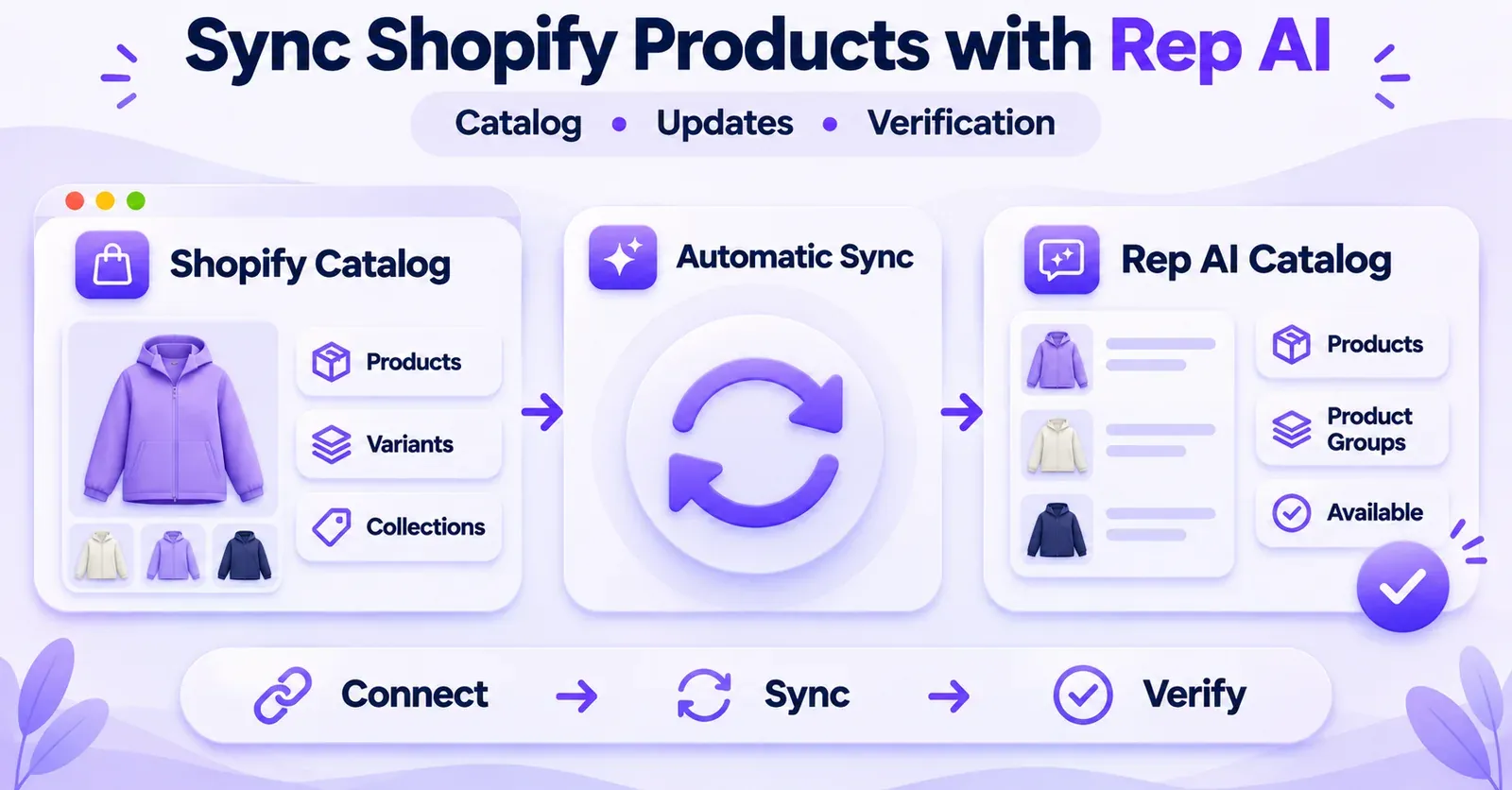
Rep AI normally synchronizes Shopify products automatically once your store is connected and authorized. You do not need to upload every product manually or prepare a CSV just to populate the native Shopify catalog. The practical work is to confirm that Rep is connected to the correct store, let the initial catalog import complete, check individual products in Rep Console, and verify that subsequent Shopify changes appear as expected.
There is one essential distinction: a product being synchronized does not mean Rep will necessarily recommend it or add it to a shopper's cart. Shopify publication and stock status, Rep's Available setting, Product Groups, cart permissions, your subscription's Sales Skills, and Shopify Markets can all affect what the shopper experiences. A product can be present in Rep's catalog without being offered in a particular conversation.
This guide explains the normal synchronization workflow, how to inspect updates and variants, when a manual sync is relevant, and how to distinguish data problems from intentional merchandising rules. It uses the product and menu terminology documented by Rep AI as of November 2026. Your console may display slightly different wording or screens as the product changes.
Quick answer: what actually syncs?
Rep AI connects to your Shopify store as a catalog integration. Once authorized, it imports products and keeps listening for routine catalog changes. Its catalog interface makes those products and their merchandising controls visible. Shopify collections and product tags also appear through Rep's Product Groups system. Additional data, such as selected Shopify metafields and market-specific prices, has its own configuration and verification requirements.
| Shopify information | What to check in Rep AI | Important distinction |
|---|---|---|
| Products and titles | AI Sales → Catalog → Products | A catalog row is not proof of a live recommendation. |
| Product images | Product thumbnail or detail view | An image missing on a messaging channel may be a presentation issue. |
| Inventory and availability | Shopify status plus Rep's product settings | Stock, publication and Available are different concepts. |
| Collections and tags | AI Sales → Catalog → Product Groups | Rep also supports its own manual and automatic groups. |
| Sizes and other variants | Product details and, where relevant, market information | Some merchant controls operate at product—not variant—level. |
| Selected metafields | Catalog → Product Metafields | Activation is required and limits apply. |
| Regional catalogs and prices | Shopify Markets view, where available | Access to regional data depends on the store and permissions. |
For most merchants, the first three checks are enough to establish whether the normal Shopify catalog connection is working. The advanced cases should only be added if your business actually uses them.
1. Verify the correct Shopify store is connected
Before checking a missing jacket or an outdated price, establish which Shopify store Rep is reading. This sounds obvious, but a merchant managing multiple storefronts, development stores or renamed domains can otherwise spend time inspecting the wrong catalog.
Where to find the connection
- Sign in to Rep Console using an account authorized to manage integrations.
- Open Settings → Integrations.
- Select the Catalog tab, then find the Shopify integration.
- Confirm that the status is Connected and that the associated store is the expected one.
- Compare the store identity with its permanent myshopify.com address in Shopify Admin.
If the integration is disconnected, Rep documents a Connect flow: enter the store's myshopify.com address, continue to Shopify, approve the requested permissions and return to Rep Console. Confirm that the final status is Connected rather than assuming that clicking Connect completed the process.
This is a connection check, not a reason to reinstall the app. A disconnected integration requires an authorization investigation. A connected integration with one missing item calls for a more focused product-level check.
What about the Shopify App Embed?
The Shopify App Embed determines how the storefront chat is displayed. It is not the same control as the catalog integration. A merchant may have successfully synchronized products while the chat widget is hidden or not launched. Conversely, a visible widget does not prove that every catalog value is current.
If your specific problem is a missing chat bubble, use the visibility and installation procedures rather than changing catalog data. This guide focuses on products and their updates, not widget deployment.
2. Understand the initial catalog synchronization
After the first Shopify connection during onboarding, Rep automatically begins recognizing and importing products. Its documentation describes a Launch in progress state and a counter showing how many products have been synchronized. Larger catalogs can require more time before the initial process completes.
You may see a counter such as an imported count out of a total. Treat it as a progress indicator, not as a documented limit on how many products Rep can support. There is no universal completion time in the available official guidance for a store with a particular number of SKUs.
A practical first-import check
Open the Catalog area after authorization and verify these points in order:
- Connection: the expected Shopify account remains Connected.
- Progress: any initial import or launch progress indicator has completed, or its current state is understood.
- Sample items: a few recognizable product names can be found in the Rep Products list.
- Variety: check more than one product type, collection or stock state.
- Accuracy: compare the titles and other visible information against the same products in Shopify.
If the process is still underway, a partial catalog by itself does not demonstrate a broken integration. Record the stage and revisit it after synchronization has had time to continue. Do not represent the absence of a particular item during an active initial import as evidence that Rep has permanently rejected it.
For a merchant with a very large catalog, a representative sample is more useful than repeatedly opening the first product on the list. Select several SKUs with distinct properties: a simple in-stock product, one with multiple variants, one in a Shopify collection, one with a recently changed title and, if applicable, one sold only in a specific market.
3. Find synchronized products in Rep Console
Rep's current catalog documentation uses AI Sales → Catalog → Products. Some older instructions call this the singular Product tab, but the newer documentation uses Products. The Product Groups view may appear by default when you first open Catalog, so select Products explicitly.
The Products table provides more than a list of names. It is the place to separate data presence from the merchandising choices that determine whether Rep may show or act on an item.
What the main columns tell you
Image gives a thumbnail preview. Its presence is a convenient visual check, but the thumbnail alone does not establish that every image will appear on every channel.
Name is the product title visible in the store. Search for a specific product by its actual title, especially when verifying a recent Shopify edit.
Product Groups shows the collections or groupings connected to the product. They can influence guided browsing and cart restrictions.
Promoted marks products that should appear earlier when those items are already part of a displayed carousel. It does not guarantee that Rep will select the product for every recommendation.
Available controls whether the AI can include a product in recommendations and conversations under the documented merchandising rules.
Add-to-cart determines whether the AI can add the product to a shopper's cart from chat. A group-level rule may force this switch off and lock it.
The interface also offers search, filters and pagination. Use those controls to locate a precise product rather than treating a missing item on the first page as a synchronization failure.
 Quentin Olaya
A useful test with two products
Choose one straightforward product that should be recommended and one product that is deliberately excluded or requires extra customization on its product page. Confirm that both are represented appropriately in the catalog. Then inspect their Available and Add-to-cart states separately.
This simple comparison often uncovers the real issue: the store data arrived, but a rule correctly limits what Rep does with it. That is a configuration or merchandising decision, not necessarily a failed product import.
4. How ongoing Shopify product updates work
Rep's product and group guides describe routine synchronization after onboarding. Rep continues to pick up changes to products and collections in Shopify without requiring a manual upload after each edit.
Typical updates worth checking include newly created products, corrected names and descriptions, image changes, stock changes, and assortment updates. If the store uses collections and tags, the related Product Groups should also reflect applicable Shopify changes after propagation.
Adding a new product
Create and publish the item in Shopify using your normal store workflow. Confirm its relevant sales-channel publication and inventory status. Then look for the item under Rep's Products tab. Allow time for the automated process to recognize it; an immediate absence should not be treated as conclusive.
Rep's product-page guidance advises allowing up to 24 hours for a newly added product before contacting support if it is still missing. This is a troubleshooting threshold, not a declaration that Rep only synchronizes once daily or that every product takes 24 hours to appear.
For launch-critical products, check the exact item before relying on it in customer-facing instructions. If it has not appeared and the documented waiting period has elapsed, preserve the product details and escalate the issue.
Editing an existing product
For a change to a title, description or image, first verify that the Shopify product was saved successfully. Then inspect that exact entry in Rep after the next expected synchronization. Use the real field value as the comparison point; do not conclude that the sync worked simply because the product still appears in the list.
For important changes—such as an updated compatibility description or a safety-related specification—also test the assistant's response in an appropriate non-customer-facing environment. The catalog value and the model's eventual answer are different stages of validation.
Updating prices and inventory
Shopify is the source of product pricing and inventory information for the native integration. Rep uses that information in recommendations, but the guides also acknowledge potential propagation delays. Therefore, avoid claiming that all edits are reflected everywhere with literally zero latency.
When checking an inventory discrepancy, compare the correct product and variant. Shopify's tracking and Continue selling when out of stock settings can affect availability. Do not turn on continued selling merely to make an AI recommendation appear: that changes the merchant's sales policy, not just the chat experience.
For multi-market stores, verify the price in the same customer market rather than comparing a regional chat price with an unrelated base price in Shopify Admin.
Removing or unpublishing products
Rep's documentation indicates that discontinued and hidden items should no longer be promoted as ordinary available recommendations. This is not a promise that every historical reference or administrative record disappears immediately. Confirm the Shopify publication change, allow synchronization, and check the relevant recommendation behavior.
If an item is intentionally discontinued, the practical goal is to prevent an inappropriate new recommendation to a shopper. Deletion or retention of historic catalog records is a separate issue.
5. When should you use Sync Now?
Rep documents a Sync Now action at the top of the Catalog page in specific workflows. Its metafields guide uses it when a new Shopify metafield definition has not yet appeared. Its Shopify Markets guide also describes manually triggering a catalog refresh after changes to regional assortments or prices.
That establishes a real on-demand sync control, but does not establish that the button rebuilds every internal index instantly, repairs broken permissions, or has identical behavior in every account and screen version.
A safe manual refresh procedure
- Make sure the relevant change has actually been saved in Shopify.
- Verify that the Shopify connection is still active in Rep.
- Open AI Sales → Catalog and look for Sync Now in the documented context.
- Run the action if it is available and appropriate to the change you made.
- Allow the process to update, then inspect the exact item, field or regional value again.
- If the expected result does not appear, document the discrepancy rather than repeatedly pressing the button without a diagnosis.
Do not make this a required ritual after every ordinary edit. Routine catalog changes are meant to propagate automatically. Also, if you cannot see Sync Now in your account, avoid guessing a hidden menu path. Use the automatic flow or Rep support rather than following instructions that may apply to a different interface release.
How long should a sync take?
There is no single reliable universal number in the official guidance. Initial imports depend partly on catalog size. Ongoing changes may take time to propagate. A newly enabled metafield has a documented background sync that usuallytakes a few minutes, but this cannot be generalized to every product, price and market update. The 24-hour advice for a missing new product is an escalation benchmark, not a synchronization schedule.
Keep those timings separate when setting expectations with your merchandising or support team.
 Quentin Olaya
6. Shopify collections and tags become Product Groups
Rep imports Shopify collections and tags into its Product Groups system. Those groups help organize products for guided shopping and conversational discovery. Rep also offers its own Manual Tags and Auto-Tags, which should not be mistaken for collections that are necessarily created back in Shopify.
To inspect them, open AI Sales → Catalog → Product Groups. Check the group name, its origin, the number of products associated with it and the merchandising controls provided in the table.
What Browsable means
Browsable affects whether Rep suggests the group itself during guided exploration. The group can be made less prominent or not offered as a browsing category. That does not necessarily prohibit all of its individual products from appearing in a specific search or answer.
If the goal is to exclude one product from Rep recommendations, inspect that product's Available setting. Treat the product-level rule and the group-level browsing rule as separate decisions.
For example, a merchant may stop presenting a seasonal collection as a browsing route while keeping an evergreen item from that collection available when a customer asks for it specifically. That outcome is consistent with the distinction between group browsing and individual-product recommendation.
Group-level Add-to-cart restrictions
Product Groups can also turn off Add-to-cart for all their members. This is useful for made-to-order items, auction products, quote-only products, or products requiring third-party customization on the Shopify product page.
The documented rule is restrictive: if a product belongs to a group with Add-to-cart turned off, its individual Add-to-cart control can be shown as off and locked. Even if its own setting would otherwise be on, the group restriction wins. Newly added members inherit that restriction after the next catalog sync.
Such products can still be discussed and linked to their storefront pages. The restriction applies to what the AI chat may do, not the native Shopify product page's purchase button.
Checking a newly created collection
Verify that the collection exists in Shopify, then check for the corresponding Product Group in Rep after synchronization. If it appears but is not offered during guided shopping, inspect Browsable before concluding that the collection never synced. If items cannot be added to cart, inspect the group restrictions as well as the individual product setting.
A collection synchronizing correctly, appearing in guided browsing and allowing in-chat cart additions are three different tests.
7. Synced, recommendable and cart-enabled are three different states
This distinction is the most important operational concept in the guide.
| State | What it demonstrates | What it does not demonstrate |
|---|---|---|
| Synced | Rep has received or displays the product data. | That every shopper or market can see it. |
| Available for recommendation | Rep's relevant product, stock and publication conditions allow recommendation. | That a shopper will receive it in every response. |
| Add-to-cart enabled | Rep may add the product through chat under applicable rules. | That all options, custom fields or regional variants are supported. |
A product may be in the catalog but hidden from recommendations because it is unpublished in Shopify or because Available is off in Rep. A different product may be visible and recommendable but cannot be added directly to the cart because it requires custom options on the product page.
Available is not a Shopify publication switch
Turning off Available in Rep is a Rep-side recommendation decision. It does not, by itself, unpublish the Shopify product, disable its checkout or remove the product from the Shopify Admin. Merchants should use Shopify to manage actual storefront publication and Rep to control AI recommendation eligibility.
Add-to-cart is not the same as Available
When Add-to-cart is off, Rep may still discuss and recommend the product, then direct the shopper to the product page for final choices. That is particularly relevant when a customer must enter engraving text, select custom measurements or use a third-party configurator.
Do not attempt to repair this intentional behavior by reconnecting Shopify or changing inventory settings. First establish whether the cart restriction was selected deliberately.
Promoted affects presentation, not guaranteed selection
The Promoted star can move already-selected products earlier in certain carousels. It is not proof of a different synchronization pipeline or a guaranteed recommendation for each customer. A shopper's question, available products, Sales Skills and other rules still matter.
Product Finder may depend on the plan
Rep's Product Finder is a Sales Skill available under its documented Sales Assistant and Concierge offers. A merchant on a support-focused plan should not mistake an inaccessible Product Finder feature for a failed Shopify product import.
This matters when performing an end-to-end recommendation test. Confirm that the feature is actually included and enabled before using its behavior to evaluate the catalog connection.
8. Check variants and option data carefully
Many Shopify products are not single-SKU items. A jacket may have sizes, a paint product may have finishes, and a tile may have several packaging quantities. Rep can use variant information in its product context, but not every catalog management action is configurable per variant.
The documented Available and Add-to-cart product switches operate at the product level. Do not assume there is a separate equivalent control for every size or color merely because variants appear in the catalog.
A practical variant check
Select a representative product with several variants. In Shopify, record the option names, relevant availability and the exact customer-facing variant. Then inspect the product in Rep. Use a test question about a specific size or option, rather than asking generically whether the product exists.
For a product with a regional restriction, repeat the comparison for the same market. One variant being available in one country does not prove that every version is available in every country.
 Quentin Olaya
Do metafields sync automatically too?
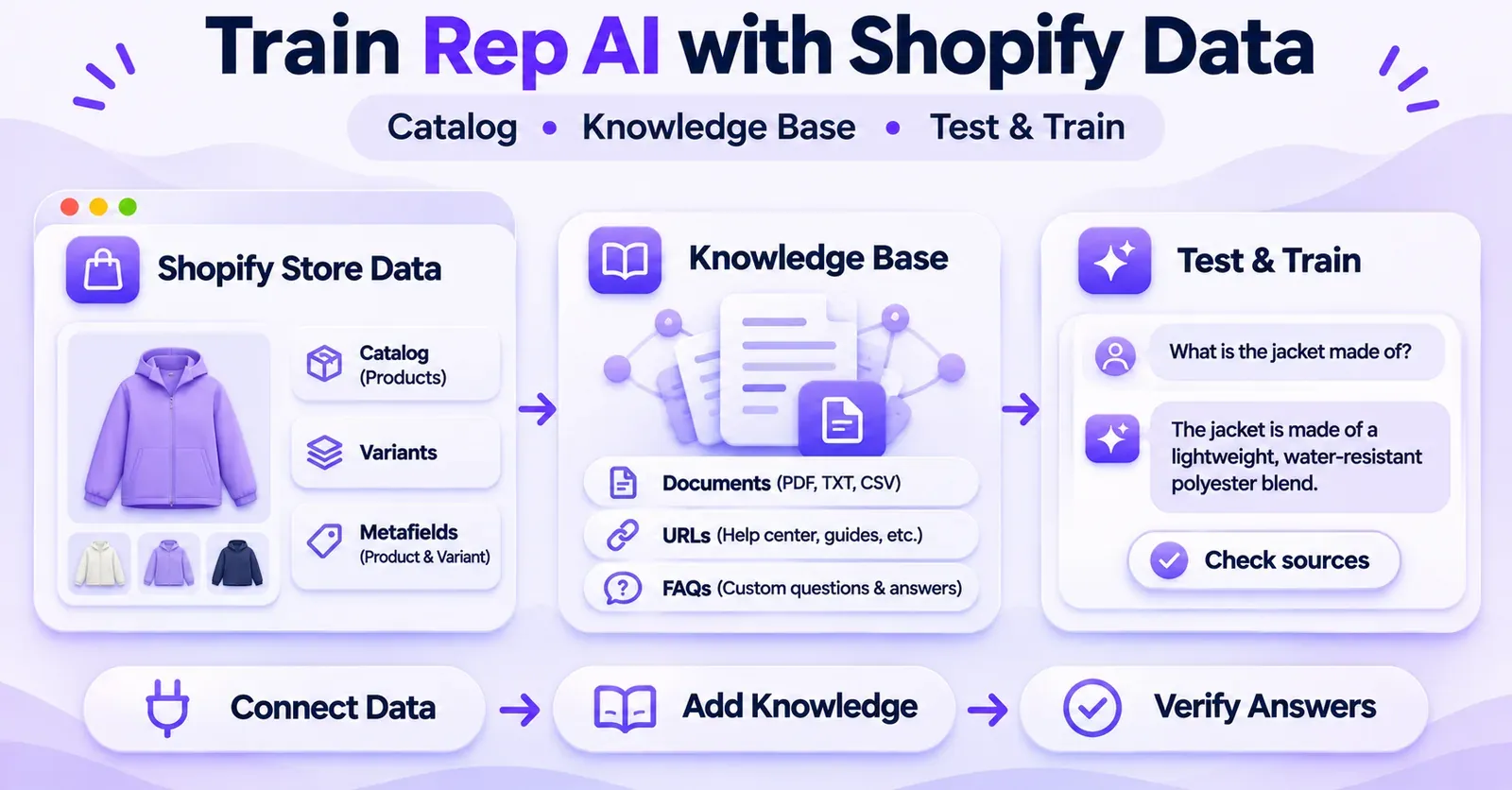
Not every Shopify metafield is imported for use in answers simply because it exists. Rep provides a dedicated Product Metafields area for selecting supported product and variant fields.
Open AI Sales → Catalog → Product Metafields, review the available Shopify definitions, enable the desired Activatedswitches, and select Save. The published limits are up to 10 product fields and 5 variant fields, counted independently.
The definitions need to exist in Shopify under its custom-data settings. A field value without an appropriate Shopify definition may not appear in Rep's selectable list. New definitions may require another catalog sync before becoming visible.
Rep's guide says a newly activated field starts a background sync that often takes a few minutes. To verify a variant-specific value, open the product's Details area and inspect Variant metafields. Empty cells can mean that Shopify has no value for that variant.
Some variant field types are not usable through this feature even when their definitions appear. The documented unsupported value types include rich text, money, JSON, file and reference. Choose a compatible text, numeric or measurement type where appropriate for your store data.
Most importantly, metafields enrich answers; they are not general Product Finder filters. If a variant metafield records a per-unit figure, Rep can use it to explain that option, but its Product Finder does not automatically support a numeric search facet over that field. The price shown on a product card remains based on the Shopify product price, not an arbitrary custom metafield.
For a deeper knowledge-base strategy, metafield selection belongs alongside FAQs and other data sources. For P17, the required check is narrower: activate a field, allow its data to propagate, and verify the value on the appropriate product or variant.
9. Shopify Markets: keep regional catalogs and prices aligned
International stores introduce another layer. Shopify Markets can define regional prices and product catalogs. Rep documents support for those per-market rules so that a shopper is not offered a product excluded from the shopper's market.
A product's existence in the main Rep catalog does not therefore prove that a customer in every country can buy or be offered it. Similarly, the price shown for one regional market should not be treated as the universal price for that item.
How to inspect Markets information
If the store has more than one active Shopify Market, Rep documents a Shopify Markets integration card. To view the corresponding information in Rep Console, the merchant needs to approve the read-markets permission in Settings → Integrations → Shopify Markets.
Once the conditions for the feature are met, a product's Shopify Markets tab can display a matrix of variants and markets. The relevant states include a price, No per-market price, Not in this market's catalog, and Availability unverified.
These states have different meanings. A missing regional price does not give the AI permission to invent a price. A product excluded from that market's catalog is not offered there even if pricing data exists elsewhere. Availability unverified means Rep could not confirm catalog membership during the last check; it should not automatically be translated into “out of stock.”
Updating a regional price or assortment
Edit the regional catalog or price in Shopify first. Then allow the normal synchronization or use the documented catalog sync action when appropriate. Compare the exact product, variant and market in the Rep view. This is the safest way to distinguish a genuine sync delay from two intentionally different Shopify prices.
Rep states that it uses Shopify's currency and market configuration rather than performing a separate, independent currency conversion. When Shopify uses a multi-country market with a base price converted at checkout, a single displayed base price need not match every shopper's final local-currency amount.
A single-market merchant does not need to add international-market steps to complete ordinary product syncing. Absence of a Markets tab alone is not evidence that the standard catalog is broken.
10. What if images or product cards differ by channel?
Catalog synchronization and the presentation of products on a communication channel are separate layers. Rep's November 2026 documentation explains that Instagram Direct Messages and Facebook Messenger can display native product cards using images from synchronized products. If an image is unavailable, a text link may be used instead.
WhatsApp's documented presentation differs: product recommendations there may be text and links rather than identical native carousels. A missing image card in WhatsApp is therefore not enough to conclude that the Shopify product never reached Rep.
If a card is missing on a channel where it is expected, first check the product's image in Rep's Products page. Also verify that the channel's AI answering function is enabled. The deeper activation and routing rules belong to the separate channel configuration guide.
11. A controlled catalog-sync validation workflow
The following workflow is a recommended merchant QA procedure, not a record of tests performed on a live store. It is designed to provide evidence of what Rep received without risking real customers or assuming that conversational output is always deterministic.
Prepare a small, representative test set
Choose a handful of products that represent different conditions: a normal product, a variant-rich product, a product in a collection, one with a recent update, and—if your business uses international catalogs—one with a market-specific exclusion. Where possible, use a development environment or a safely controlled edit rather than altering a live bestseller just to run a test.
Record the Shopify product title, expected variant, publication state, inventory and relevant market. If using a metafield, note its definition, type and value. This becomes your source-of-truth checklist.
Verify the three layers separately
Layer 1 — Shopify source: confirm the intended edit exists in the correct Shopify store. A value that was never saved cannot be expected to synchronize.
Layer 2 — Rep catalog: confirm that the product or field appears in Products, Product Groups, Product Metafields or Markets as applicable. This establishes what Rep has ingested or displays.
Layer 3 — Rep shopper behavior: use a suitable simulation to see whether the assistant recognizes the expected product and whether recommendation and cart settings permit the requested behavior. If a result fails only at this stage, investigate feature access and merchandising controls before declaring that the catalog connection failed.
For example, imagine a test hoodie whose title has been corrected in Shopify. If the revised title appears in Rep's Products table but the assistant does not recommend the hoodie, the next check is not automatically a resync. Inspect publication, Available, stock, Product Finder and any applicable market restrictions.
 Quentin Olaya
Suggested 30-point validation checklist
These are suggested tests, not verified results from an actual Rep AI merchant account.
| ID | Check | Evidence to capture |
|---|---|---|
| 01 | Correct Shopify store connected | Store identity and Connected status |
| 02 | Permission flow completed | Connected confirmation after approval |
| 03 | Initial import state understood | Progress or completion status |
| 04 | Normal product imported | Exact product found in Products |
| 05 | Large-catalog page navigation | Correct item located using search/pagination |
| 06 | Newly published item | Entry appears after propagation |
| 07 | Unpublished item | No inappropriate standard recommendation |
| 08 | Corrected product title | Rep matches Shopify value |
| 09 | Updated description | Product data reflects the edit |
| 10 | Updated image | Rep product view checked |
| 11 | Discontinued product | Recommendation eligibility reviewed |
| 12 | Stock increase | Appropriate status reviewed |
| 13 | Stock depletion | Shopify inventory settings compared |
| 14 | Price change | Same product and market compared |
| 15 | Variant size/color | Exact option inspected |
| 16 | Shopify collection created | Relevant Product Group exists |
| 17 | Product tag changed | Relevant group or assignment reviewed |
| 18 | Browsable switched off | Group versus item behavior distinguished |
| 19 | Available switched off | Product recommendation restriction checked |
| 20 | Product Add-to-cart off | Chat action versus storefront distinguished |
| 21 | Group Add-to-cart off | Locked product control understood |
| 22 | Promoted star set | Carousel ordering distinguished from selection |
| 23 | Metafield definition created | Field appears in selectable list |
| 24 | Variant metafield activated | Value visible for intended option |
| 25 | Unsupported metafield type | No false promise of usable value |
| 26 | Regional market price changed | Correct variant-market cell checked |
| 27 | Regional exclusion | Product not offered for excluded market |
| 28 | Regional price absent | AI does not invent a market price |
| 29 | Meta product image missing | Channel presentation distinguished from sync |
| 30 | Persistent mismatch | Issue log and escalation prepared |
A successful test record should specify the date, product or variant, expected source value, observed value, relevant settings and the outcome. A screenshot alone is insufficient if it does not show which Shopify store or market was involved.
12. Three realistic merchant scenarios
Scenario A: a new collection is missing from guided browsing
A fashion store adds a “Weekend Layers” collection in Shopify and expects shoppers to browse it through Rep. The collection is saved correctly, but does not immediately appear in a simulated guided conversation.
First, allow the regular synchronization and inspect Product Groups. If the new group is not present, this may be a propagation issue. If it is present, check Browsable and Product Finder access. Also inspect whether the related products are published, in stock and individually Available.
These checks separate a true missing collection from a group that has synchronized but is not currently offered as a browsing choice. You should not promise that toggling the group will force a particular product into every shopper's results.
Scenario B: a personalized item appears but cannot be added to cart
A gift store sells engraved products that require free-text engraving instructions on the Shopify product page. Rep can describe the product and show its price, but the chat does not allow direct cart addition.
Inspect Add-to-cart on the product and its Product Groups. An intentional block may be the correct merchant experience: shoppers need to visit the Shopify page to complete the customization. The product remains synced and may remain recommendable.
Do not change inventory, force a new import or disable the Shopify customization requirement to make a chat button appear. Treat the restrictions as deliberate until the settings show otherwise.
Scenario C: a regional price looks incorrect
An international store changes a product's price for one Shopify Market. The primary-market price is correct in Rep, but the regional price is still old.
Identify the exact product and variant, inspect the relevant Shopify Market price list, then compare the same market in Rep's Markets view. Allow the next sync or use the documented manual catalog sync if appropriate. The discrepancy may reflect propagation rather than a universal pricing error.
If the tab shows No per-market price, investigate the Shopify regional configuration. If it shows Availability unverified, do not treat that as proof of an inventory outage. Capture the precise state before contacting support.
13. Quick checks before contacting Rep AI support
A persistent discrepancy deserves a targeted report. But keep a short sequence of checks before escalating:
- Confirm the correct Shopify store, current Connected status and relevant permissions.
- Confirm the item or collection exists and is saved in Shopify.
- Check whether the initial sync is still in progress or a new change needs time to propagate.
- Search the exact product in Products, rather than inferring absence from a chat response.
- Compare Shopify publication, stock and Rep's Available/Add-to-cart settings.
- For groups, check origin, Browsable and group-level cart rules.
- For variants, metafields or Markets, inspect their dedicated views and permissions.
- Run Sync Now only where documented and available, then recheck the same field.
- Capture the product identifier, affected market, time and observed mismatch.
- Escalate to Rep support if the expected change remains missing after the relevant waiting and verification steps.
Rep's product documentation advises contacting support when new products or outdated information still have not synchronized after the relevant 24-hour troubleshooting window. That is different from promising that every product becomes correct at a fixed deadline.
If the catalog is visible but the AI gives a factually wrong answer, that may require knowledge or response-quality investigation. If the whole Shopify integration appears broken, that is a broader technical troubleshooting issue. This guide keeps the scope on ordinary catalog synchronization and the checks directly needed to validate it.
Final checklist: sync data first, then validate behavior
A healthy Shopify-to-Rep workflow has three stages: Shopify is the source of catalog changes; Rep displays synchronized data; merchandising and market rules determine the shopper-facing experience. Treating those stages separately prevents unnecessary reconnections and avoids mistaking intentional product restrictions for failed imports.
Once you have confirmed the right store, allowed synchronization, reviewed a representative sample of products, and checked exceptions such as groups, variants and markets, your ongoing work should mainly be monitoring important updates—not manually rebuilding the catalog after every change.
If a particular product still behaves unexpectedly, start with the precise layer that failed: source data, catalog ingestion, or recommendation/cart eligibility. That diagnosis will lead to a safer and faster next step than assuming that the entire Shopify connection is broken.
Frequently asked questions
Does Rep AI automatically sync all Shopify products?
Rep AI documents automatic Shopify product synchronization after the store is connected. Merchants normally do not import native Shopify products one by one. However, imported data is not the same as universal recommendation eligibility: Shopify visibility, stock, market restrictions and Rep settings still apply.
Do I need to upload a CSV to sync Shopify products with Rep AI?
No CSV is required for the standard native Shopify catalog integration. Other ways of feeding product or knowledge data may exist for other platforms or advanced technical use cases, but they should not be confused with normal Shopify onboarding.
Where can I see my synced products in Rep AI?
Open AI Sales → Catalog → Products in Rep Console. Search for the product by name and inspect its image, groups, Available and Add-to-cart controls. The Products tab may be labeled slightly differently in older documentation.
How often does Rep AI update Shopify products?
Rep documents ongoing automatic synchronization but does not provide a single universal fixed interval for every field. Allow for propagation and verify time-sensitive changes. The 24-hour support guidance for missing new products is not a once-a-day sync schedule.
Why is a new Shopify product not appearing immediately?
The initial or ongoing catalog sync may still be processing, or the product may have publication or availability conditions to review. Check the correct Shopify store and the Products table. Rep recommends allowing up to 24 hours for newly created missing products before contacting support.
Can I manually force a product catalog sync?
Rep documents a Sync Now control on the Catalog page, particularly for newly defined metafields and Shopify Markets changes. Use it when it is available and relevant, then verify the specific result. It is not a guaranteed fix for invalid permissions or every possible data problem.
Are Shopify collections and product tags synchronized?
Yes. Rep documents automatic synchronization of Shopify collections and tags into Product Groups. You can inspect them under AI Sales → Catalog → Product Groups. Rep Manual Tags and Auto-Tags are separate Rep-side group sources.
Why is a product in Rep's catalog but missing from recommendations?
A synchronized product might be hidden in Shopify, out of stock, marked unavailable in Rep, excluded for a shopper's market, or not selected in a particular conversation. Product Finder access and activation can also matter for guided searches. Start with Available, publication, stock and market conditions.
Does disabling Add-to-cart stop the product from being recommended?
Not necessarily. Add-to-cart controls an action in the chat, while Available controls recommendation eligibility. A product may remain discussable or recommendable but send the customer to its Shopify page to complete customization or purchase.
Can a Shopify Product Group override an item's Add-to-cart setting?
Yes. Rep documents a stricter-rule model: if one of a product's groups has Add-to-cart disabled, the individual product's switch may appear off and locked. Newly added products can inherit the same restriction after synchronization.
Does Rep AI sync product variants and metafields?
Rep works with Shopify variants and offers optional synchronization of selected product and variant metafields. The published field-activation limits are 10 product metafields and 5 variant metafields. Some variant value types are unsupported; check the dedicated metafields page and the product's actual values.
Can metafields filter Product Finder recommendations?
Rep documents metafields as information used to answer questions about products and options, not as general Product Finder search filters. Product selection depends on other catalog information such as names, descriptions and option names. Do not assume that turning on a numeric metafield creates a new product-search filter.
How does Shopify Markets affect product synchronization?
Rep uses Shopify's market-specific assortment and price rules. For eligible multi-market stores, its Shopify Markets view can show variant-level price or exclusion states after the required read-markets permission is approved. Compare the same market and variant when validating an international price.
What should I do if products remain missing after 24 hours?
Confirm the Shopify connection, publication state, exact product and any relevant group or market restrictions. Document what Shopify shows versus what Rep shows. If the item is still absent after the documented waiting period, contact Rep support with the specific discrepancy instead of repeatedly reinstalling the app.