How to Uninstall Rep AI from Shopify: Steps, Data, and Billing Checks
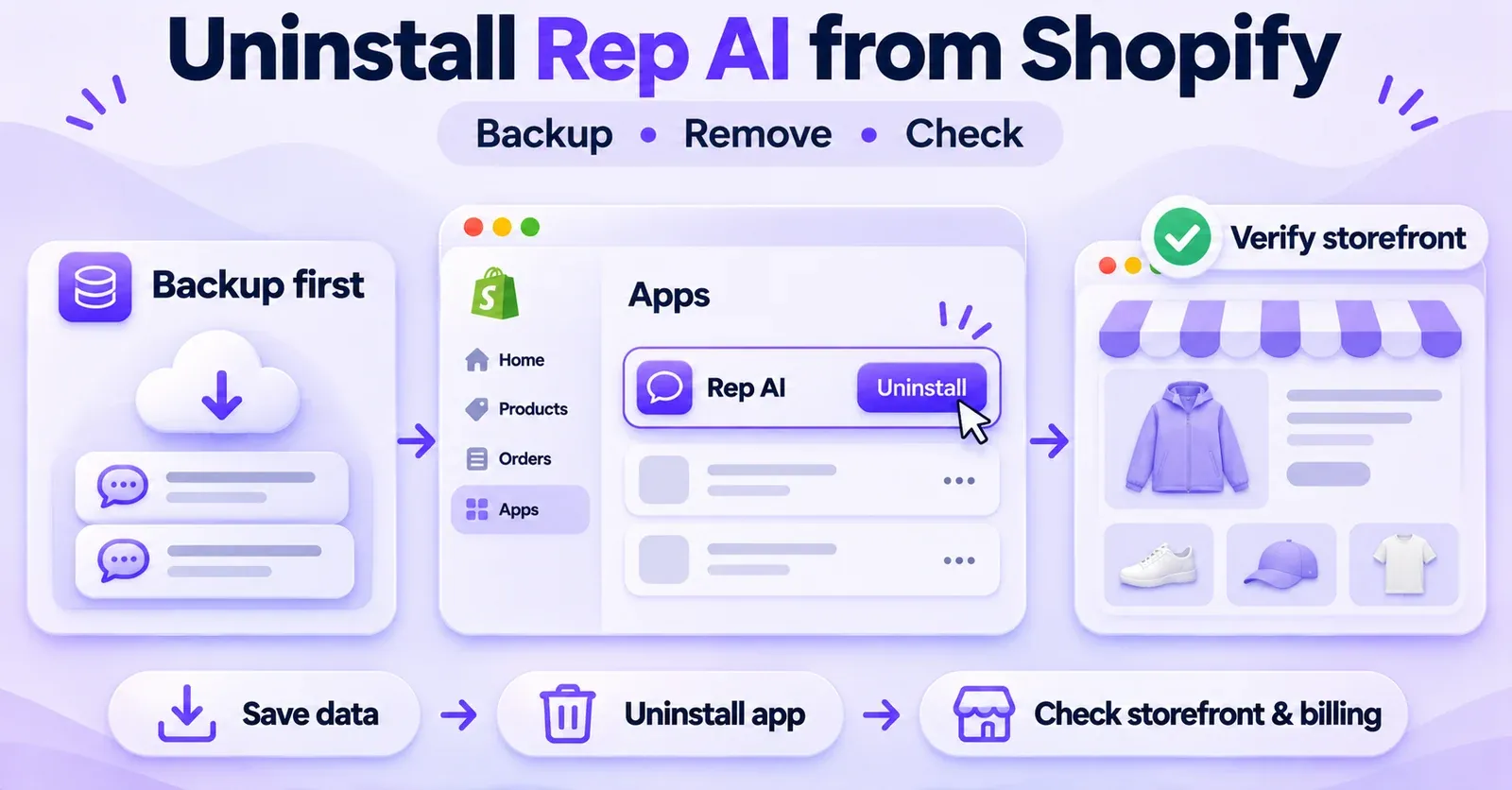
To uninstall Rep AI from Shopify, open the admin for the correct store, go to Settings → Apps, find the Rep AI app, open its three-dot menu, select Uninstall, and confirm. Shopify lets you review the removal later under Settings → Apps → Uninstalled.
Those clicks remove the app, but they are only part of a safe departure. Before uninstalling, export any Rep conversations and knowledge files you may need, identify whether your account is in a trial or on a paid plan, and check how it is billed. If you use Rep Inbox, custom scripts, Google Tag Manager, or a headless storefront, plan additional checks rather than assuming that one Shopify action cleans up every system.
This guide explains the actual uninstall procedure, the differences between trial and paid accounts, how to preserve useful data, what to inspect afterward, and where billing or privacy questions require extra attention. It is a removal guide, not an instruction to delete every application-related file or a guarantee that every account behaves identically.
Quick answer: remove Rep AI in Shopify
Here is the shortest route for a merchant who has already reviewed the consequences and saved what matters:
- Sign in to the Shopify admin for the store where Rep AI is installed.
- Open Settings → Apps.
- Find Rep AI and open the more-actions (⋯) menu next to the application.
- Choose Uninstall.
- Optionally select a reason, then click Uninstall again to confirm.
- Return to Settings → Apps → Uninstalled to check that Shopify recorded its removal.
- Open the public storefront, inspect several pages on desktop and mobile, and check for residual widgets or scripts if you previously used a custom installation.
Shopify's labels can vary slightly by administrative interface. An older Rep AI guide refers to Settings → Apps and Sales Channels → Rep → Uninstall the app. The current Shopify Apps area is the more useful starting point; both descriptions refer to removal of the installed app, not simply hiding its chat button.
Important: These are documented administrative steps, not the result of a live uninstall performed on your store. Always review the confirmation screen and any store-specific permissions or warnings before committing.
What happens when you uninstall Rep AI?
Rep AI's account guidance distinguishes merchants on a trial from those on an active paid plan. That difference matters more than the button itself: an uninstall can interrupt the assistant immediately, while account access and subscription timing follow different rules.
| Area | Free-trial account | Paid account |
|---|---|---|
| Shopify integration | Rep says the Shopify connection is removed | Removing the app ends the installed Shopify integration; check any other connections separately |
| Storefront chat | Rep says the widget disappears immediately | Rep says the widget is removed |
| Rep Console access | Rep says access remains until the original trial ends | Rep describes account closure but also mentions access for the paid period; clarify the scope before relying on it |
| Settings and conversations | Rep says they remain available during the remaining trial window | Do not assume they remain exportable after uninstall |
| Subscription timing | Trial continues counting down; no new trial is promised | Rep says cancellation is scheduled for the end of the current billing period |
| Restoration | Rep documents reinstallation during the unexpired trial as a way to recover settings and training | An equivalent full-restoration guarantee for closed paid accounts is not established |
Uninstalling the Shopify app, deactivating a widget, cancelling a subscription, and deleting an account are different operations. They may be related in Rep's account process, but they should not be used as interchangeable technical instructions.
If your Rep AI account is still in a free trial
According to Rep's account guide, removing its Shopify app during the trial disconnects the store and removes the widget, but does not immediately close the Rep Console account. You may still be able to review conversations, training, settings, and analytics until the original trial end date.
That is a limited recovery window, not permanent storage. The trial clock continues while Rep is uninstalled. If you later reinstall before the trial expires, Rep says the preserved setup and training can be recovered. Reinstallation does not reset the trial clock, and a numerical example in a help article should not be treated as a universal trial duration for every offer.
A cautious trial user should note the exact trial-expiration date before removal, secure anything worth retaining, and avoid making plans that depend on Console access after that deadline. If immediate trial-account closure is desired, Rep's guidance directs merchants to contact its support through the Console.
 Quentin Olaya
If you are paying for Rep AI
Rep's help documentation says that uninstalling the Shopify app on a paid plan closes the account, removes the storefront widget, and schedules the subscription to end with the current billing period. It also states that paid access continues through the period already purchased.
Those statements leave a real operational question: what does access mean after the account is described as closed?The documentation does not clearly promise that the Console, API keys, conversation exports, and every add-on will continue to operate normally for the entire remaining term. Your contract may also contain specific terms.
For that reason, do not postpone backups in the belief that removal can be reversed at any time. Export first. If you need continued access to particular records, ask Rep to confirm it before uninstalling. Save the uninstall date, any confirmation message, and the final subscription status for your own records.
If you only want the chat to disappear temporarily
You may not need to uninstall the application at all. Rep documents a widget visibility setting in its Console, including an AI Concierge Active and Visible control. Turning off visibility is a different choice from removing the Shopify app; it does not, by itself, prove that billing has stopped or that connected data is deleted.
Use temporary deactivation when the goal is to hide the assistant while redesigning a store, investigating its behavior, or preparing a controlled replacement. Use uninstall when you intend to remove the application and are ready for the account and integration consequences. A dedicated deactivation procedure is more appropriate for a reversible pause.
Before uninstalling: the merchant's preparation checklist
Many losses happen before a merchant realizes they were relying on a particular piece of software. A few minutes of preparation can prevent a much longer scramble to reconstruct conversations, routing rules, and account history.
Confirm the store, plan, and billing relationship
Start by matching the Shopify store, domain, and Rep account. This is especially important if a business operates multiple shops, uses a staging theme, or has more than one billing contact. Do not assume removing an app from one Shopify store automatically cancels a different account or every installation associated with the business.
In Rep Console, review the Billing area and capture the details relevant to your account: paid versus trial status, renewal date, subscription cycle, usage, add-ons, invoices, and payment provider. Rep describes accounts billed through Shopify and accounts billed directly using Stripe. Confirm which model applies to you rather than expecting every charge to appear in Shopify Billing.
Decide who is responsible for any customer conversations in progress. If the assistant hands shoppers to staff, the removal may affect the queue those staff members normally monitor. Identify any connected helpdesk, email, messaging channel, or automation whose normal workflow depends on Rep before you shut it down.
Inventory the features you actually use
Check whether your store uses only the on-site chat widget or also relies on product recommendations, human handoff, Rep Inbox, email answering, social channels, custom sales triggers, or other connected functions. An uninstall article cannot verify the state of each merchant's third-party accounts.
Write down the integrations that need a post-removal check. For each one, designate an owner, record a test scenario, and note whether customers need an alternative contact method. Your goal is not to prove that every integration disconnects automatically; it is to prevent neglected dependencies from leaving customer requests unanswered.
Decide which data must be retained
Think in categories rather than treating “backup” as one button:
- Conversation history: transcripts useful for support continuity, reporting, or an authorized migration.
- Knowledge documents: policies, reference tables, and files uploaded to the Knowledge Base.
- Configuration records: custom FAQs, response instructions, skills, escalations, operational rules, and screenshots of relevant settings.
- Business records: invoices, usage statements, contract versions, account notices, and the date of removal.
- Integration records: app/embed configuration, external automation details, and any technical notes maintained by your developer.
Rep documents specific export or download methods for some categories. That does not establish a universal export package containing all training, settings, automations, and reporting. Keep a manifest of what you have actually retrieved and what still needs manual documentation.
How to export Rep AI conversations before uninstalling
Rep provides an authenticated API for retrieving conversation history. The published documentation describes both an individual-shopper lookup and a bulk export by date range. It states that the export can look back up to one year; requesting an older starting date may cause the beginning of the interval to be moved forward.
This is useful for a developer or data team, but it is not a one-click promise that every conversation ever recorded will be returned. API access requires the appropriate account credentials. If the team does not use APIs, check with Rep support about what options are available for your account before uninstalling.
Obtain keys securely
Rep's export instructions identify an Account Key and an API Key, available through account/API settings in the Console. The latter is a secret and should be handled like a password. Do not paste a real API key into a shared article, a public repository, a storefront script, or a customer-support conversation unless using an approved secure channel.
For the bulk endpoint, the documentation specifies a date range in UTC, an account key, an authenticated request, and a cursor when retrieving subsequent pages. The technical route is GET /external/v1/conversations/export on Rep's API server. This section summarizes the behavior; implementation should follow the latest documentation and your company's security procedures.
Verify the whole export, not just the first response
The bulk endpoint returns a page of results and an indication of whether more data remains. A complete extraction must follow hasMore and nextCursor until pagination finishes. The documented maximum page size for that route is 200, and the same filters must be preserved across the cursor sequence.
Check the UTC date interval actually returned. Rep documents a clamped indication when a requested start falls outside the historical lookback; that means data older than the supported horizon was not included. A successful API response does not automatically mean that the archive contains the business's entire lifetime of conversations.
If the service responds with HTTP 429, respect the retry information rather than hammering the endpoint. After collection, check that files are readable, dates are in the intended range, and any expected pages or segments are present. Record who performed the export and where the final archive is stored.
 Quentin Olaya
Handle shopper data responsibly
Conversation exports may contain names, emails, order details, page visits, and other personal information. Place them in restricted storage, apply appropriate retention and access rules, and avoid distributing them casually between vendors. If the backup is intended for another system, confirm that the intended import pathway exists and that the transfer is authorized.
Exporting data out of Rep does not mean another platform can automatically ingest it. It also does not remove the underlying data from Rep's systems. That is a separate retention and privacy question addressed later in this guide.
How to save Rep AI knowledge files and settings
Rep documents a way to view and download uploaded File Sources in its Knowledge Base. These can include PDF, TXT, and CSV material used to inform the assistant. If your team uploaded private store policies, technical product information, or approved support references, download the files you still need before uninstalling.
A documented navigation path is AI Training → Knowledge Base → File Sources. Review the uploaded items individually and use the download control where available. Check that the downloaded documents match the versions your business still approves. Some source documents may have been updated outside Rep, and a file retrieved from an old setup is not automatically your latest policy.
Other settings may require a manual inventory. Capture only what is useful: custom FAQ questions and answers, the identity of URL sources, skill names, triggering conditions, handoff destinations, enabled channels, brand-voice instructions, and any important storefront widget customizations. Screenshots can help, but make sure they do not expose customer details or secret tokens.
If your team plans to switch to another assistant, this inventory becomes a reconfiguration checklist, not evidence that the old configuration can be imported intact. Set aside dedicated time to test all features on the replacement platform rather than assuming semantic equivalence across providers.
Step-by-step: uninstall Rep AI from your Shopify admin
Once the backup and continuity checks are complete, removal itself is straightforward. Work deliberately: you are not just changing how a widget looks. The action may also alter the Rep account's billing and availability, depending on the account type.
Step 1: open the correct Shopify store
Sign into Shopify using an account with the permissions required to manage installed apps. Confirm the store name and domain before proceeding. If your organization manages several Shopify stores, avoid choosing an app with a familiar name in the wrong admin.
If Rep is not visible under the usual Apps section, check whether you are in the intended store and have the necessary access. Shopify notes that some integrations appear as sales channels, but this general Shopify distinction does not prove that every Rep deployment will be listed there. When in doubt, ask the store administrator or the vendor to identify the exact installation.
Step 2: go to Settings and open Apps
In the Shopify admin sidebar, open Settings, then Apps. This screen is Shopify's central place to review current applications and their details. You can check an app's billing and permissions before removing it, which is useful if the person carrying out the task was not the person who installed it.
Identify Rep AI in the installed app list. Depending on when you installed the product and which interface is displayed, you may see slightly different names or layout conventions. Do not substitute an unrelated integration just because its name also includes “Rep” or “AI.”
Step 3: choose Uninstall
Open the app's ⋯ menu and select Uninstall. Shopify may present a reason-for-removal dropdown or related confirmation details. Read the confirmation rather than clicking through automatically, particularly when the app was used to process customer conversations or automate support requests.
This menu action is not the same as deactivating the chat in Rep Console, disconnecting only one specific Shopify integration inside another tool, or selecting a separate Delete Account setting. Those alternatives have distinct implications and should be treated as separate workflows.
Step 4: confirm the uninstall action
Choose Uninstall to finish. Keep a brief record of the action, including the store, date, and any confirmation shown. If the operation appears to fail, avoid repeatedly attempting destructive changes without checking the current app status. First reload the app management view and see whether Rep still appears in the installed list.
Rep's account guide says that the storefront chat is removed when the app is uninstalled. That is the expected product behavior. However, if your theme or site uses historical custom code, a separate technical check may still be needed.
Step 5: verify Shopify's record
Go to Settings → Apps → Uninstalled. Shopify provides a list of removed applications and, where available, their history. Find Rep AI and review its uninstall event. This helps distinguish an actual removal from an assistant that was simply hidden or unavailable.
An app appearing in the Uninstalled section does not, by itself, demonstrate that every external payment arrangement, copied conversation, GTM tag, or headless script was removed. It is evidence about the Shopify app's administrative status, not a universal cleanup certificate.
After uninstalling: check your live storefront
A merchant should verify the customer experience on the published store, not only inside the admin. Test the public home page, a collection, at least one product detail page, and the cart. Repeat on a mobile browser because floating buttons and custom elements may appear differently from desktop layouts.
Your checklist should focus on observable conditions:
- The former Rep launcher should no longer be available as an active support entry point.
- Pages that used embedded questions or chat prompts should not present broken or misleading controls.
- Product details and cart interaction should still work independently of the removed assistant.
- Customer-support information should remain accessible through the intended alternative channel.
- Any browser-console or storefront errors should be captured and investigated before assuming their cause.
If a visual element still resembles Rep, it may be cached, part of old theme code, or delivered by an independent tag configuration. Its presence alone does not establish that Rep is still serving conversations, charging for usage, or collecting customer data. Identify the element and test its behavior before making such a claim.
Check the Shopify App Embed only when relevant
Rep's newer Shopify setup uses an App Embed in the published theme. The vendor's guidance describes navigating to Online Store → Themes → Edit theme → App embeds and enabling the Rep AI Chat Widget, followed by Save. That is the activation pathway; after an uninstall, the relevant question is whether any active embed or residual interface remains.
Do not expect an uninstalled application's toggle to be present in every version of the editor. If Rep no longer appears in App embeds, that may be consistent with its removal. If a theme component or legacy extension still appears, record what you see and determine whether it can be safely removed.
A November 2026 Rep notice asks merchants still using the older script-tag implementation to enable the App Embed by March 1, 2027 if they want to keep Rep running. This is not a deadline for uninstalling Rep. Mentioning the distinction matters because stores built at different times may have different technical footprints.
Check old script tags without deleting random code
Rep's older integration material described injecting a script into a Shopify theme. Shopify separately warns that some applications can leave theme code that is not automatically removed during uninstall. Taken together, these points justify an inspection when an older script-based setup was actually used.
Have the theme owner or developer search for code known to belong to the retired Rep installation. Review the published theme and any custom Liquid section, but do not apply a universal search-and-delete rule based on a short string such as rep. That string might occur in unrelated code or ordinary site content. Save a theme backup and verify ownership of every snippet before removal.
The goal is to remove an identified, unused integration, not to damage a live store while trying to make it “clean.” If you cannot establish whether a fragment belongs to Rep, ask the developer or vendor rather than guessing.
 Quentin Olaya
Check Google Tag Manager separately
Rep documented a Google Tag Manager approach for selectively displaying the widget on specific pages. In that setup, a merchant can disable the ordinary App Embed and load a Rep script through a Custom HTML tag with page-based triggers.
Uninstalling a Shopify app does not constitute publishing a new GTM container version. If your team used this approach, review the container, locate the dedicated Rep tag, confirm its triggers, and disable or remove it using your organization's change procedure. Publish the container update and test the actual storefront afterward.
Avoid deleting other tags that happen to load on the same pages. A checkout analytics tag, consent integration, or independent marketing pixel should not be removed merely because it appears near the historical Rep configuration.
What if your Shopify storefront is headless?
A headless storefront is typically delivered by a separate frontend application rather than the standard Shopify theme alone. Rep has documented JavaScript-based use outside the default theme. Therefore, Shopify-side uninstall does not prove the external frontend's code has been updated.
Ask the frontend team to review the component, tag manager, environment configuration, or deployment that originally loaded Rep. Have them remove the now-unneeded integration through the normal development and release process. Test the published frontend after deployment. This additional check is relevant to custom architectures; it is not a required coding exercise for every merchant using an ordinary Shopify theme.
What happens to Rep Inbox and connected channels?
Rep Inbox is a related paid add-on for managing conversations with staff. Rep's billing documentation states that cancelling Rep AI also cancels Rep Inbox. If Inbox is where your agents read customer messages or receive handoffs, its loss may be more operationally significant than removing a chat bubble from a product page.
Before uninstalling, identify which conversations remain open, which team members own them, and where customers should contact you afterward. Arrange another working support route before the change. Save records you are entitled to retain and communicate the transition to the relevant staff.
The same principle applies to other connected channels, but avoid overgeneralizing. A connected email tool, social account, helpdesk, or messaging provider may have its own authentication and billing arrangement. The documents considered here do not establish that each one immediately disconnects in precisely the same way when Rep is removed from Shopify.
After removal, inspect each relevant third-party system. Check the automation status, routing rules, connected account credentials, and any residual subscription. If a platform continues to display a connection, confirm whether it is active and authorized rather than assuming either that it works normally or that it has been fully disabled.
Does uninstalling Rep AI cancel billing?
Uninstalling and billing are related, but the outcome depends on where you pay and what you have already used.Rep's paid-account guide says uninstall schedules cancellation at the end of the current billing period. Shopify's general policy says uninstalling an app stops future recurring app charges processed through Shopify, while the current cycle may still be billed.
Rep's revised SaaS terms additionally describe usage-based fees already incurred as remaining payable. Those terms were revised on October 28, 2026, and state different effective dates: new customers when they accept, and customers who accepted an earlier version on December 2, 2026. That later date matters when reading this guide in November 2026. A signed order form may also govern your specific account.
If Shopify handles your Rep payments
Review the app's billing and usage information before uninstalling. Afterward, check Shopify Settings → Billing for the latest invoice and any pending or already incurred charges. Do not equate successful uninstall with an unconditional zero final bill.
Shopify states that some charges may remain for the billing period already underway. If a charge looks incorrect, gather the invoice, relevant usage window, uninstall record, and agreement before contacting the appropriate party. A refund or credit should not be assumed without a documented entitlement.
If Rep or Stripe bills you directly
Rep's own billing documentation distinguishes direct billing from Shopify billing. Shopify explicitly warns that removing an application from its admin does not cancel charges collected outside Shopify.
Therefore, check the Rep Console, billing notices, or external payment arrangement, as appropriate. Confirm whether your subscription and any add-ons show a cancellation date. If no status is available after removal, contact Rep with the account details through an appropriate secure channel and request clarification. Do not send payment credentials in a public support request.
What about usage fees or annual commitments?
A current-period fee, an already incurred usage overage, and a future recurring subscription are different items. For example, a business may stop future renewals without automatically reversing the cost of services already used. Annual terms or negotiated contracts can introduce additional conditions not visible in a general help article.
This is why a removal guide should not advertise a universal refund, a guaranteed pro-rata adjustment, or a universal cancellation date. The deeper analysis of account cancellation, contracts, payment cycles, and refund requests belongs in a dedicated subscription-cancellation guide. Here, the practical action is to verify the actual billing state before and after uninstall.
What happens to your Rep AI data after removal?
Removing an app from Shopify and deleting the data held by its vendor are not the same event. Rep's Platform Privacy Policy, effective November 9, 2026, says that after a merchant closes the account, shopper conversations, the assistant's memory, and synced store data are deleted within 90 days.
That does not mean every copy vanishes immediately or on the same timetable. The policy describes separate expiration schedules for analytics copies, system logs, AI-quality traces, backups, and certain uploaded media. It also permits some administrative, invoice, and account records to be retained for reactivation or legal and tax purposes.
The timetable should not be confused with the maximum conversation export window. One year of available API export history and a 90-day deletion commitment after account closure describe different processes. Neither figure is a blanket guarantee that all information everywhere is erased on a fixed date.
Privacy and contract differences matter
Rep's revised Data Processing Agreement also addresses post-closure deletion, but its effective date for some existing customers is later than the privacy policy's. Check which DPA and contract apply to your account. A store subject to particular privacy obligations may need to document its requests, retention rationale, and deletion confirmation rather than relying on a generic app-removal screen.
Uninstall does not delete Shopify's own historical orders, remove information previously shared with other authorized service providers, or erase merchant-held exports. Those systems follow their own controls and retention duties.
If you require a formal deletion or privacy response, contact Rep through its published privacy channel and maintain a record of the request. Do not assume that the Shopify uninstall confirmation is proof of a completed erasure across all data stores and backups.
Can you reinstall Rep AI later?
Shopify maintains an Uninstalled apps section. From there, a previously removed application may be available to reinstall if it remains compatible with the store. Shopify cautions that prior app data and settings might not be restored.
Rep provides a more specific restoration statement for active trial accounts: if you reinstall before the original trial ends, the saved conversation history, knowledge base, and setup can still be available. The trial itself keeps counting down, so this is not a method for obtaining another fresh trial.
For a formerly paid account described as closed, the material reviewed here does not guarantee a complete return of historic data, pricing, configuration, or subscription rights. Contact Rep before relying on an exact restoration outcome. If reinstallation is approved, review the permissions again, reconnect the relevant integrations, activate the widget using the current documented method, and test customer-facing behavior before considering the setup operational.
 Quentin Olaya
Common problems after removing Rep AI
Rep AI still appears on a page
Check that you are viewing the published storefront, not a preview of an old theme. Try a fresh browser session to rule out a cached visual. If the element persists, inspect the theme and any GTM or headless code that may still load Rep independently of the Shopify app. Record the affected page and the element's behavior. Do not remove unidentified code or infer active data collection from a leftover icon alone.
The app is gone, but a bill still appears
Review whether the amount relates to the billing period that was already open, usage incurred before cancellation, or a charge processed by a provider outside Shopify. Compare invoice dates with the uninstall event. Ask Rep and the payment provider to clarify the charge if necessary. Uninstalling is not an automatic reversal of every previously incurred fee.
You can no longer export conversations
This is why exporting before uninstalling is strongly recommended. Rep's paid-account documentation does not unambiguously describe every form of access after closure. If a key, Console page, or export endpoint is no longer available, contact Rep support promptly with the account and relevant timeframe. Do not assume a fresh installation will necessarily restore all historic records.
Your team loses a support workflow
Review Rep Inbox, handoff destinations, and third-party connections. Assign unanswered conversations to a working alternative process. Inform staff of the new contact channel. If a helpdesk integration or routing rule still references Rep, change it within that system following its own administrator controls.
Final Rep AI uninstall checklist
Use this list as a practical merchant checklist, not a vendor-issued compliance certification.
Before uninstalling
- Confirm the correct Shopify store and Rep AI account.
- Record whether the account is on trial or paid, plus its next billing date.
- Check whether charges come from Shopify, Stripe, or another contract.
- Export needed conversations and verify pagination and the one-year historical limit.
- Download important File Sources and document non-exportable settings.
- Assign ownership of open customer requests and any Rep Inbox work.
- Identify App Embed, old scripts, GTM, or headless delivery if used.
- Decide how to handle privacy and record-retention obligations.
During removal
- In Shopify, open Settings → Apps → Rep AI → ⋯ → Uninstall.
- Confirm the action and keep its date or confirmation record.
- Check Settings → Apps → Uninstalled.
After removal
- Check the published storefront on desktop and mobile.
- Inspect residual embeds, custom scripts, and GTM tags only where relevant.
- Verify independent customer-support channels and integrations.
- Check the account's cancellation status and final invoices.
- Keep your exported data secure and retain it only as appropriate.
- Ask Rep to clarify unresolved account-access, billing, or deletion questions.
Bottom line
Uninstalling Rep AI from Shopify is a short administrative procedure with consequences that extend beyond the chat launcher. The safest order is back up what matters, verify the account and billing setup, remove the app, inspect the storefront and dependent systems, and then confirm subscription and privacy outcomes.
For trial accounts, Rep documents a limited window for returning to the previous setup. For paid accounts, removal and cancellation are linked, but continued access to every piece of account data is not guaranteed by the guidance reviewed here. Treat documentation as the basis for an informed checklist, then confirm any account-specific contract or data question directly before taking an irreversible step.
Frequently asked questions
1. How do I completely remove Rep AI from Shopify?
Start with Settings → Apps, choose Rep AI's Uninstall action, and confirm. Then check the Uninstalled list and verify the published storefront. If you previously installed Rep through GTM, a custom script, or a headless frontend, inspect that separate deployment too. “Complete” removal should be assessed against your actual integrations, not presumed from one click.
2. Does uninstalling Rep AI remove its chat widget?
Rep's own account guidance says the storefront chat widget is removed when you uninstall the application. However, Shopify warns that app-related theme code can sometimes remain. If a chat-like element is still visible, examine the specific page and method of installation before deciding whether it is a leftover script or another issue.
3. Will uninstalling Rep AI automatically cancel my subscription?
Rep's paid-account guide says the subscription is scheduled to end at the close of the current billing period. Shopify separately warns that externally billed charges are not cancelled by the Shopify uninstall action. Confirm your actual plan and payment provider, then verify the resulting subscription status and any final bill.
4. Do I get a refund for unused time?
Do not assume so. Refunds depend on the applicable contract, billing provider, and circumstances. Rep's revised terms describe fees as generally non-refundable unless an exception applies. Check your agreement and contact the provider if you believe a credit or refund is warranted.
5. Can I recover my Rep AI conversations after uninstalling?
Possibly, depending on account state and available access, but you should not rely on it. Export conversations while the account is available. Rep documents a conversation API with a one-year historical horizon and pagination. The paid-account documentation leaves some post-uninstall access questions unresolved.
6. Does Rep AI delete all customer data immediately?
No such universal immediate-deletion guarantee is documented. Rep's Platform Privacy Policy, effective November 9, 2026, describes deletion of certain shopper and synced store data within 90 days after merchant account closure, alongside separate retention timelines for other copies and records. A privacy request may require additional action.
7. If I reinstall Rep AI, will my old settings return?
Rep explicitly describes preservation during an unexpired free trial and restoration when a merchant reinstalls before that trial ends. That does not restart the trial. Shopify warns more generally that an app's old data may not be restored, and Rep's documents do not establish an equivalent unconditional restoration guarantee for closed paid accounts.
8. Is hiding the Rep AI button the same as uninstalling?
No. A visibility setting changes whether shoppers see the assistant; uninstall removes the Shopify app and can affect the underlying Rep account. Hiding the button does not establish that you cancelled a paid subscription or deleted any stored data.
9. Will Shopify remove a Rep AI script placed through Google Tag Manager?
Not automatically by virtue of changing the Shopify app list. GTM is managed separately. If your store used a Rep Custom HTML tag, review and disable that specific tag in its container, publish the GTM changes, and test the storefront. Do not touch unrelated tags.
10. What happens to Rep Inbox if I uninstall Rep AI?
Rep describes Inbox as an add-on tied to its base subscription and says that cancelling Rep AI also cancels Rep Inbox. Prepare an alternative queue or helpdesk workflow for ongoing customer messages. The exact status of each connected third-party system should be checked separately.
11. Can I remove Rep AI without changing my Shopify orders?
The app uninstall is not a request to delete order history. Rep previously documented Assisted by Rep notes and Rep Session IDtracking as distinct mechanisms, and switching off future marking does not erase historic notes. Do not purge old order metadata without an independent, authorized reason.
12. What should I do if the app no longer appears under Installed?
Open Settings → Apps → Uninstalled and review the app history where available. Confirm you are working in the right store and have suitable administrator permissions. If status remains unclear, check with the store owner or Rep support before attempting a new installation or another account-level action.